
You may have learned that DDS is a type of image file format. Do you want to know more information? How to open DDS files on Windows? This post will give you a brief introduction to the DDS file format and several DDS file viewers. Want to make a video from images? Try MiniTool MovieMaker.
What Is a DDS File?
A file with the .dds file extension is a Direct Draw Surface file, developed by Microsoft for storing raster images. This container file format allows you to store both compressed and uncompressed graphical textures and cubic environment maps.
How to Open DDS Files on Windows?
The DDS file format might not be as popular as the common image format like JPG, PNG, but it’s necessary to learn some programs to open DDS files. How to open DDS files on Windows? The following part offers 4 DDS file viewers and shows how they work.
1. GIMP
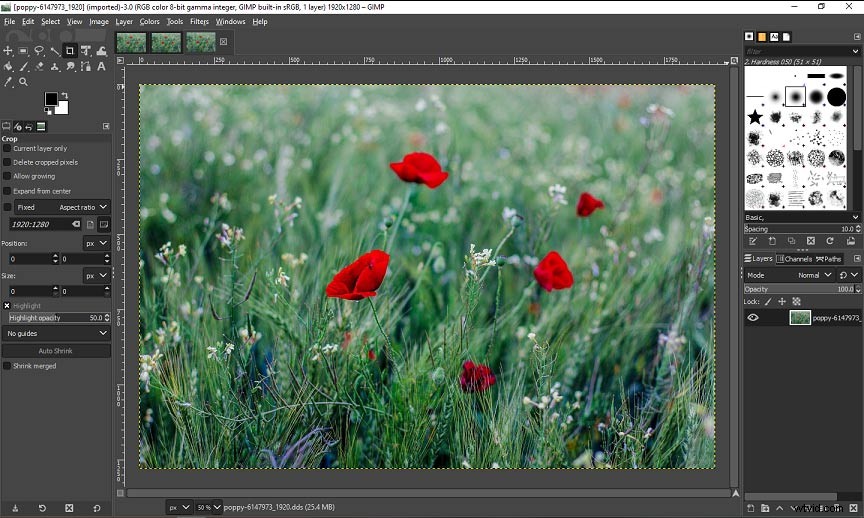
GIMP is a free, open-source, and cross-platform raster graphics editor. In 2019, the released GIMP 2.10.10 version offers the support of DDS. The third-party DDS plugin that was developed by Shawn Kirst and Arne Reuter, has become a part of GIMP plugins. Since that, users can use GIMP to open and export DDS files.
How to open DDS files in GIMP?
- Download GIMP from the official website and then install this program.
- Click the File > Open to browse for the DDS image and click the Open.
- Alternatively, you can directly right-click the DDS file, then click the Open with, and choose the GIMP from the dropdown list.
What’s more, GIMP is also a DDS editor. It allows you to rotate, flip, resize, crop images, apply filters and effects, draw on the image, convert DDS to other formats, and more.
Need to crop an image in GIMP? You may like this post - How to Crop in GIMP Quickly and Easily?
2. DDS Viewer
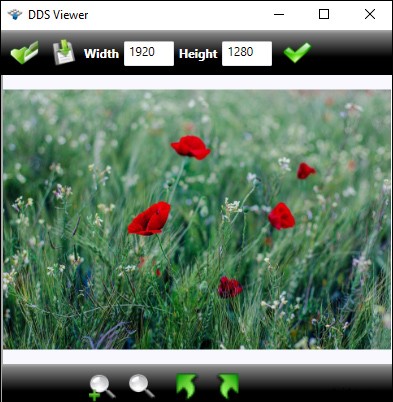
It’s a free DDS viewer program to open DDS files. And this software also lets you zoom in/out of the image, rotate the image left or right, resize the image by changing its width and height, and save it as JPG, BMP, TIFF, PNG, and GIF. Besides, DDS Viewer supports other file extensions, such as PLT, HPGL, HGL, PCX, TGA, PSD, AI, and EPS.
Here’s the how.
- Download the DDS Viewer from the official website, and install it on your computer.
- Launch this program, then the Open popup window appears, then select the DDS file, and tap on Open.
3. Photoshop
Photoshop is a great tool that allows users to create and enhancer images and designs. As a professional image editing program, it offers a set of tools and supports a wide range of image formats. But Photoshop cannot open DDS files directly, you need to install the NVIDIA Texture Tools plug first.
Here’s how to open DDS files in Photoshop with the NVIDIA Texture Tools plug.
- Go to the developer website of NVIDIA Texture Tools, then create an account and log in.
- Choose the NVIDIA Texture Tools Exporter 2021.1 – Adobe Photoshop Plugin to download the installer, and install this plugin.
- After the installation is done, open Photoshop, select the Edit > Preference > Plug-Ins, and then enable the plugin.
- Then you can select the File > Open to upload and open the DDS file.
4. Convert DDS to PNG/JPG
If you want to install the above DDS file viewer, you can convert DDS to the most common image formats, PNG or JPG. Many online file converters can handle DDS to PNG or JPG, like Convertio, Aconvert, AnyConv, FileZigZag, FreeConvert, and more. After the conversion, you can directly open the PNG or JPG with the Windows’s Photos app.
Conclusion
That’s all about how to open DDS files on Windows. If you want a program that can open and edit DDS files, GIM is recommended here, and you don’t need to install other plugins.