
Instagram is a popular social platform, but sometimes it is not working. Lots of users have complained about the Instagram not working problem. Why is Instagram not working? Don’t worry, this post offers you 8 ways to fix it.
Is Instagram down? Instagram not loading? Can’t login to Instagram? Why is my Instagram not working? The Instagram not working issue is probably caused by a bug, poor internet connection, or your phone’s settings. Here are 8 solutions for you! (Try MiniTool MovieMaker to create an Instagram video!)
8 Ways to Fix the Instagram Not Working Problem
- Check the Internet Connection
- Clear the Cache
- Update the Instagram App
- Turn off VPN
- Enable App Permissions
- Restart Your Phone
- Reinstall the Instagram App
- Report a Problem on Instagram
1. Check the Internet Connection
If you find Instagram feed not loading or can’t post photos or videos on Instagram, you’ll need to check your internet connection. If you are using Wi-Fi, turn it off and turn on mobile data.
Related article: Solved – How to Fix Instagram Couldn't Refresh Feed
2. Clear the Cache
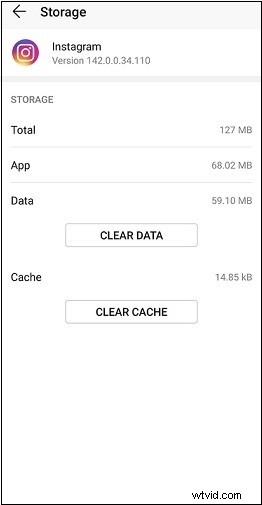
If the problem has nothing to with the internet connection, you can delete the Instagram app’s cache and data.
Go to Settings > Apps > Instagram > Storage. Click on CLEAR CACHE and CLEAR DATA.
3. Update the Instagram App
Updating the Instagram app to the latest version is another method to fix Instagram not working. Here’s how:
Android:
- Open Google Play Store and tap on the Menu button in the upper left corner.
- Choose My apps & games and check if there’s an update for Instagram. If available, click on Update.
iOS:
- Open the App Store and search for “Instagram” by clicking the Search button.
- Then tap on Update to update the Instagram app.
4. Turn off VPN
A VPN lets you browse blocked content on Instagram in your country, but it also could be the reason for Instagram not loading. Just turn off the VPN and reopen the Instagram app.
5. Enable App Permissions
To solve the Instagram not working issue, you can check if all app permissions for Instagram are enabled.
Android: Head to Settings > Apps > Instagram > Permissions. Then allow Instagram to use your camera, microphone, storage, and others.
iOS: Head to Settings > Instagram and enable the necessary app permissions.
6. Restart Your Phone
If the Instagram app is still not working, restart your phone and check if Instagram works.
7. Reinstall the Instagram App
To fix Instagram keeps crashing, try reinstalling the Instagram app.
Android: Go to Settings > Apps > Instagram and click on Uninstall. Open Google Play Store and download & install Instagram.
iOS: Go to Settings > General > Storage > Instagram and tap on Delete App. Open App Store and reinstall Instagram.
8. Report a Problem on Instagram
If the above-mentioned methods can fix Instagram not working, you can report the issue on Instagram.
- Open Instagram and click your profile picture.
- Tap on the menu button and choose Settings.
- Click on Help > Report a Problem. Select the Report a Problem from the popup menu.
- Describe the problem and upload the related screenshots. Then tap on Submit.
Conclusion
This post lists 8 ways to fix Instagram not working. Hope this post is helpful to you!