
Instagram Music Sticker allows users to browse through thousands of songs and add a song to the Instagram Story. Unfortunately, some users find the Instagram music not working or not available. How to fix this issue? Here’re 7 solutions.
On June 28, 2018, Instagram introduced the Music Sticker in Instagram Stories. This feature enables users to add music to a video/photo in Instagram Stories, and it’s a great way for them to express how they’re feeling.
However, some users have encountered problems like Instagram music not working, Instagram music not showing all songs, Instagram music no results found. How to fix these issues? Don’t worry, this post offers 7 methods.
Note:
If you want to add music to a video before uploading it to Instagram.com on your desktop, you can try MiniTool MovieMaker – a free video editor without watermarks on Windows.
7 Quick Tips to Fix Instagram Music Not Working
This part will describe 7 solutions to fix the Instagram music search not working issue.
#Solution 1. Update Your Instagram App
The first method to fix Instagram music not working is to update your Instagram app. Just go to the Google Play Store or App Store and update it to the latest version. Make sure your phone is connected to Wi-Fi.
#Solution 2. Sign out and Sign in to Instagram
If solution 1 can’t solve the problem of Instagram story music not working, just try method 2. Go to your profile section, click the three horizontal lines, then click the Settings and tap the Lg out button. After that, sign in to your Instagram account and check if the Music Sticker works.
#Solution 3. Reinstall the Instagram App
If Instagram music is still not working, try method 3. Press and hold the Instagram app on the home screen, then click the x button, and click the Delete to uninstall the Instagram app on iOS devices. On Android, go to Google Play, find the Instagram app, and click Uninstall. Then download and install it again.
#Solution 4. Switch to a Personal Account or Creator Account
What’s the reason for Instagram music search not working for business accounts? Instagram prohibits business accounts from adding music to the Stories because of copyright issues. Using a business account is one of the reasons for Instagram story music not working issue.
In this situation, go to the Instagram Settings, click the Account, then tap the Switch to Personal Account.
Alternatively, you can choose the Switch to Creator Account and then check if the Instagram music works.
#Solution 5. Use a VPN
Currently, Instagram Music Sticker is only available in several countries like the US, UK, Australia, New Zealand, Sweden, France, Germany, etc. If Instagram music not working in your region, you can try a VPN to bypass the restriction.
#Solution 6. Convert the Music to an MP4 File
Why is Instagram music not available? Other reasons include the inaccessibility of the song in your country and removal from the Instagram app. For the former, you can use a VPN. For the latter, you can download this song and convert it to an MP4 file, and then share it on Instagram.
Related article: Top 10 Instagram Video Makers & How to Make an Instagram Video
#Solution 7. Connect Instagram Support Team
If the above methods still can’t fix the Instagram music not working issue, you can try to connect Instagram Support Team. Navigate to the Profile, click Settings > Help, tap the Report a Problem > Report a Problem, and type your words based on the on-screen instructions. And then keep patient and wait for a reply.
How to Add Music to an Instagram Video on Windows
MiniTool MovieMaker is a free video editor and it enables users to add music to the video, put text on the video, split, trim, rotate, flip videos, adjust video speed, apply video filters and transitions, and more. Here’s a simple guide on how to add music to a video and upload it to Instagram on the desktop.
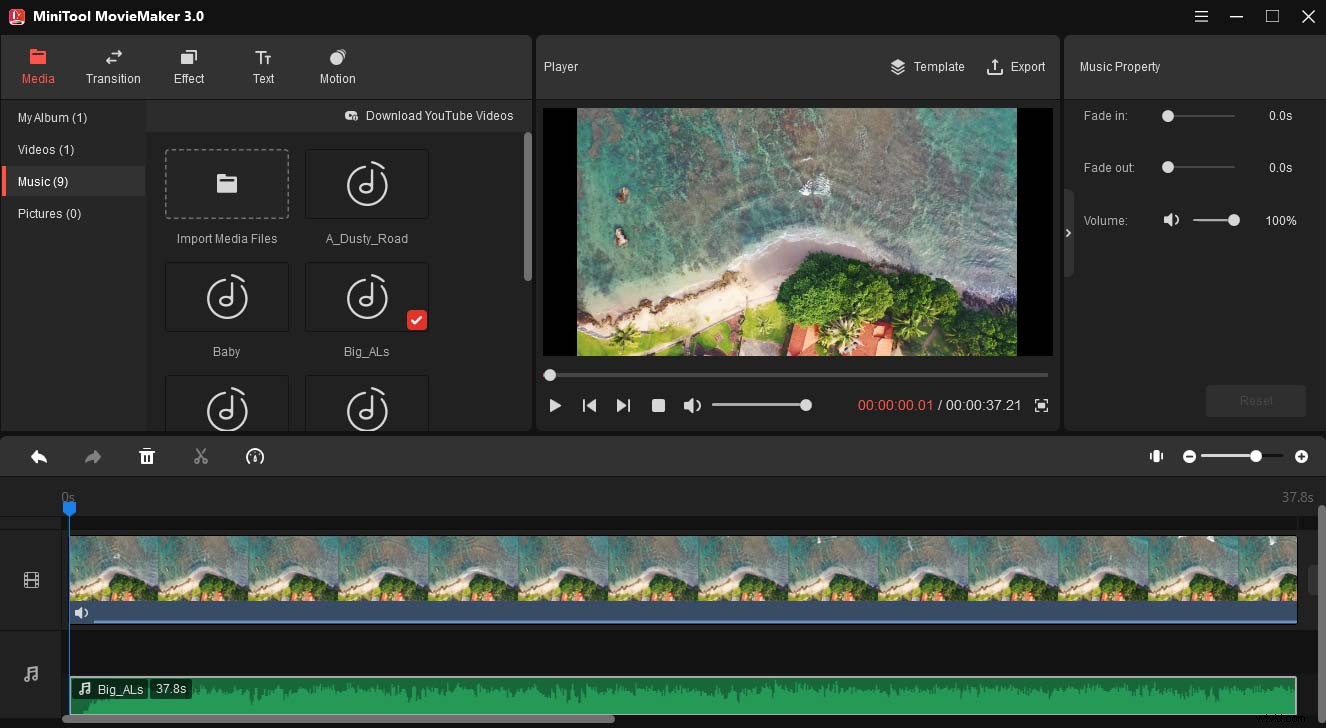
- Launch MiniTool MovieMaker after installation, and close the pop-up window.
- Tap the Import Media Files and add your video and music.
- Drag the video to the timeline and then edit this video as you like.
- Then drag the music to the timeline and edit it, and click Export to export your video.
- Go to the Instagram website and log in with your account.
- Click the + button and tap the Select from computer to choose your video.
- Then you can crop the video, then click the Next, and you can trim the video or convert it to a photo.
- Click the Next and Share to post the video on Instagram.
Conclusion
When your Instagram music not working, you can try the above methods. I hope this post can help you solve the Instagram music search not working problem.