
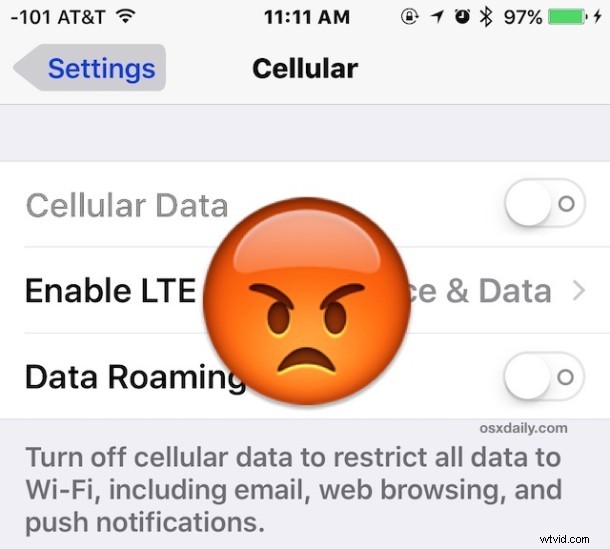
A number of iPhone and iPad users have discovered cellular data usage is failing to work after updating to iOS 9. The cellular data problem is typically manifested in a few ways; either an outright failure to transmit any data or access the internet whatsoever when the iPhone or iPad is connected to a cellular network (though wi-fi continues to work), a failure of certain apps to connect to mobile data or access cellular data, or, in some situations the Cellular Data button is disabled but grayed out and unable to be toggled on.
If you are experiencing cellular data transmission or mobile connection issues in iOS 9 or any of the iOS 9 point releases, you may be able to resolve the issue with some troubleshooting tips we’ll outline below.
0: Update iOS to the Latest Version
The first thing you should do is update to to the latest version of iOS. In fact, iOS 9.0.2 is specifically aimed at fixing this problem with cellular data. If you haven’t done that, do that first.
Go to Settings > General > Software Update and when you see iOS 9.0.2 (or later) available, install that first.
When the iPhone reboots to the latest version, the cellular data should work just fine. If not, continue on with the troubleshooting steps below.
1: Confirm that Cellular Data is Enabled
I know this sounds obnoxious, but double-check your general Cellular Data settings in iOS before anything else.
- Open the Settings app and tap on “Cellular”
- Toggle the switch next to “Cellular Data” so that it’s in the ON position
- Scroll down in the same Cellular settings screen and be sure apps you wish to use with cellular data are turned ON as well
- Exit out of Settings
For some users, they may discover cellular data was turned off, or that cellular data was turned off for specific apps. If you’re only able to connect to the internet with wi-fi and unable to access mobile data, this can often be the reason why.
Obviously if the Cellular Data button is grayed out you’re not going to be able to do this, and if that’s the case, or if you tried this and mobile data is still failing in iOS 9, then continue on.
2: Reset the Device Network Settings & Reboot the Device
The next troubleshooting step is to reset iOS network settings, and then turn the iPhone or iPad off and back on again. This can often resolve cellular data failures and it’s pretty simple:
- Open the Settings app and go to ‘General’ followed by ‘Reset’
- Tap on “Reset Network Settings” and enter the passcode to confirm you wish to reset and clear out all network settings on the device – this will ditch wi-fi networks so be prepared to enter wireless network passwords again
- Exit out of Settings and go back to the Home Screen
- Now hold down the Power button and turn the iPhone or iPad off
- Wait about 10 seconds and hold the Power button again to turn the device back on
When the device boots back up, try to use an app with cellular data again. It should be working at this point, but if not, read on.
3: Check for a Cellular Carrier Update
Cellular carrier providers will sometimes offer updates to the iPhone to increase compatibility with their network. You can check to see if a cellular carrier settings update is available by going to Settings > General > About, if you see a pop-up message offering to install a cellular carrier update, install it.
4: Update iOS to the Newest Version
Sometimes simply updating the system software will resolve the cellular data issue as caches and some basic iOS maintenance is performed behind the scenes during a software update. Be sure to update iOS 9 to the latest version available. If you’re on iOS 9, that means updating to iOS 9.0.1.
4b: Consider the Beta Releases
A bit more risky, but you can also sign up to participate in the public beta program and jump to beta versions of iOS. Be warned though, beta software releases are notoriously buggy and tend to be less reliable. This is really only appropriate for more advanced users, but making a jump to iOS 9.1 beta may resolve the issue, assuming you can tolerate the beta experience.
5: Backup, Perform a Factory Reset, & Restore
This can be a long process depending on the size of your iPhone or iPad and how much stuff is on there, so don’t start this if you don’t have potentially several hours to complete it. Annoying, I know. Nonetheless, resetting a device to factory default settings and then restoring it with a backup can often remedy peculiar situations. Absolutely backup first or you will lose data doing this. You can speed it up a bit by backing up and restoring from iTunes with a computer, which tends to be quicker than using iCloud backups, but use iCloud if that’s what you have available.
- Connect the iPhone to a computer with iTunes, select to encrypt the backups (encrypting backups saves passwords set on the device, and allows you to restore your health data), and choose to backup the device
- When the backup has completed to iTunes, perform a factory reset on the iOS device by going to Settings > General > Reset > Reset All Content & Settings – this erases everything on the device so absolutely do not do this if you have not completed a backup first
- When the device has been reset and is booting up again as if brand new, go through the normal setup process and choose to restore the device from the backup you just made
Once the iPhone or iPad boots back up again, try to use cellular data. It really should be working at this point. In fact, the reset and restore process is often what Apple will instruct you to do if you call their tech support line with this issue, because it’s usually effective.
If your cellular data is still not working after a complete restore, your options are becoming a bit more limited, and you may to try setting the device up as new (without restoring), or you may want to downgrade to a prior release while it’s still possible.
6: Still No Mobile Data? Consider a Downgrade
An iPhone is obviously less useful without the ability to use the internet and transmit data over a cellular network, so if you find yourself unable to find a resolution with the above troubleshooting steps, you may want to consider downgrading iOS 9 back to iOS 8.4.1 as described here. It’s a somewhat technical process, but it is effective if you had no issues with the prior system software. Keep in mind that you will only be able to restore an iOS 8 backup to iOS 8.4.1, so you may lose personal data if you choose to go this route. On the plus side, leaving iOS 9 remedies any slow performance issues with iOS 9 if you have been experiencing those. Be sure to make a backup of your device before attempting to downgrade.
Do you have a solution for failing cellular data access or the inability to use mobile data in iOS 9? Share it with us in the comments!