

Opening Keynote presentation files on a Windows PC can be done easily with the help of iCloud, and no document conversion or extra apps are needed. If you own or work with multiple devices and platforms and often find yourself switching between them, you may come into the scenario where you’re on a Windows PC and you need to access and open a Keynote document on that PC arriving from or created on a Mac, iPhone, or iPad. This is a pretty routine scenario for many workplaces and schools, so if you find yourself needing to open, edit, and access Keynote files in Windows then you’re in the right place.
Keynote is Apple’s equivalent of the popular Microsoft PowerPoint software that’s used to create presentations by countless people across the globe today. It’s a part of the iWork productivity suite and since this software suite isn’t available for Windows devices, you may find file compatibility becomes an issue as you switch between various operating systems. However, there’s another way to open, edit and manage a Keynote presentation right on your Windows machine without even having to install any additional software and all you will need is a web browser.
If you were scrounging the internet for a proper solution, then look no further. In this article, we’ll be discussing exactly how you can open Keynote files on Windows PC using iCloud.
How to Open Keynote Files on Windows PC with iCloud
The simplest and most straightforward way to open files created using the iWork productivity suite on your Windows PC would be by using Apple’s iCloud web client. You don’t even have to install the iCloud desktop app for Windows, as we’ll be making use of your web browser instead. So, without further ado, let’s take a look at the procedure.
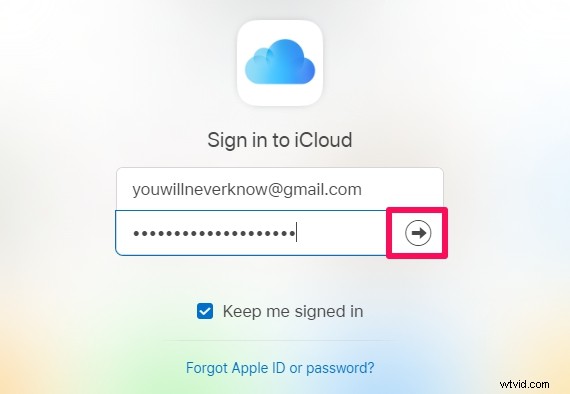
- Open any web browser that’s installed on your PC and head over to iCloud.com. Type in your Apple ID details and click on the arrow to log into your iCloud account.
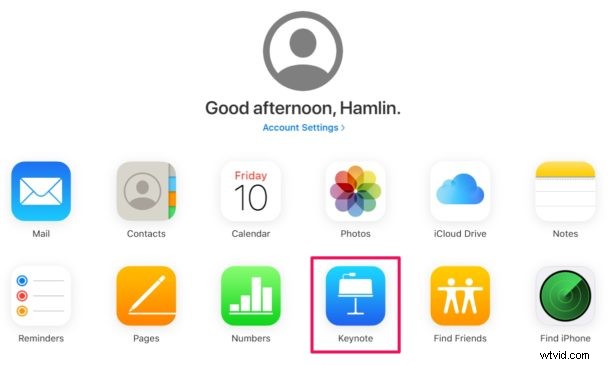
- You’ll be taken to the iCloud homepage. Click on the “Keynote” app that’s located right below the Photos icon.
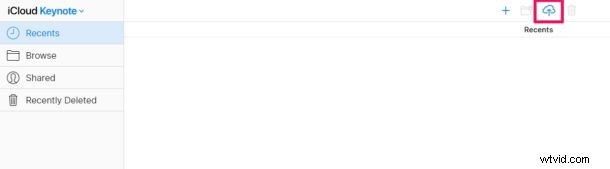
- Now, click on the “Upload” icon located at the top of the page, as shown in the screenshot below.
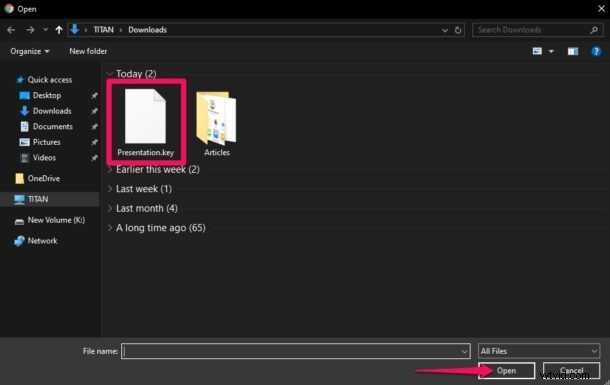
- This action will open a window for you to browse through folders. Select the .key file that you want to access and click “Open”.
- Wait for the file to upload, as it will take a few seconds, depending on your internet connection. “”Double-click” the uploaded file to open it on iCloud.
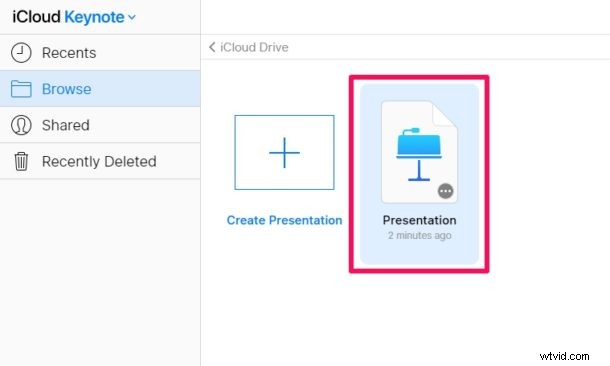
- Wait for a few seconds for it to load up. Once it’s done, you’ll be able to view and make edits to the Keynote file and store it right on the cloud or download it back to your Windows computer in a supported format like PowerPoint Presentation File (PPT) or PDF, if that’s what you prefer.

Those are the steps necessary for opening Keynote files on your Windows laptops and desktops.
This cloud-based solution for presentations, spreadsheets, and word processing works in a similar fashion to Google Slides and the Google web-based cloud services.
From now on, you don’t have to worry about iWork compatibility issues when you’re switching between multiple devices, as iCloud.com is not only capable of opening the files, but is also capable of converting documents to widely supported formats. Additionally, iCloud can also be used to view and edit Microsoft PowerPoint presentations, if you find Keynote’s simplistic layout more appealing.
Another option is to take action before you transfer iWork files to your Windows machine, by making sure you have a copy of the document in a Windows supported file format to avoid a similar situation. For example, you can export your Keynote presentation as a .pptx file right on your MacBook or iPad, before you even save the document.
There are many situations where you may find yourself needing to open a Keynote file from a PC, whether at work, school, home, or perhaps you have a MacBook that you use while you’re on the move but also have a Windows desktop at your home. If you’ve used Keynote to create presentations at somewhere with your macOS machine, you might run into compatibility issue if you try to open its file on a Windows PC. This is primarily due to the fact that Microsoft PowerPoint is not capable of opening .key files.
It’s unclear why Microsoft hasn’t added native support for .key files to PowerPoint yet, especially considering how PowerPoint presentations can be opened in Keynote just like any other file without any fiddling. Perhaps in the future that capability will be added natively to the Microsoft Office suite.
We hope you managed to successfully open and view your Keynote presentation on a Windows PC using iCloud. What do you think of this cloud-based solution to access iWork documents? Do you see yourself taking advantage of this functionality in the long run as you switch between multiple devices, platforms, and operating systems? Do let us know your thoughts and opinions in the comments section down below.