
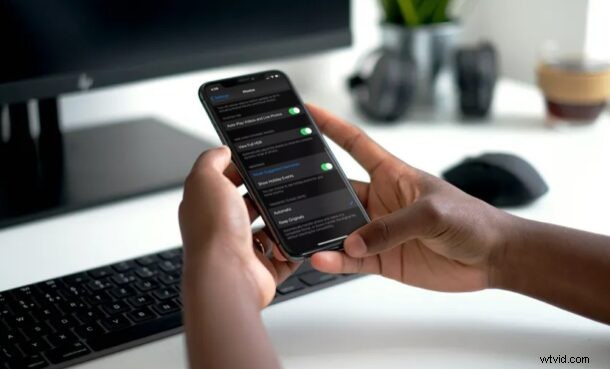
Are you unable to transfer photos from your iPhone to your Windows PC? Are you specifically getting the “Device is Unreachable” error on Windows? Fortunately, this Windows-specific issue can be resolved in a matter of minutes.
There could be multiple reasons why you’re getting this error on your Windows machine. It could be due to certain photo transfer settings on your iPhone or it could simply be the result of a faulty USB port on your computer. Regardless of what the issue in your scenario is, it’s pretty easy to diagnose and fix this issue in most cases, so there’s nothing to worry about.
If you’re one of those many Windows users who’re unable to copy photos and videos from your iPhone, read through various troubleshooting steps to fix the “Device is Unreachable” error that may occur while transferring media from iPhone or iPad to a Windows PC.
How to Fix “Device is Unreachable” Error with iPhone & Windows
It doesn’t really matter which iPhone model you’re currently using, as the steps to fix this error are going to be identical across all iPhones.
1. Try a Different USB Port
The first basic thing you need to do is to unplug your iPhone from the current USB port and connect it to a different port on your computer. This is because one of your ports may be loose or faulty and this could easily prevent you from transferring media to your Windows PC. By performing this step, you’re essentially making sure that there’s nothing wrong with the ports and you’re probably getting this error due to issues with iPhone settings.
2. Change Transfer Settings on iPhone
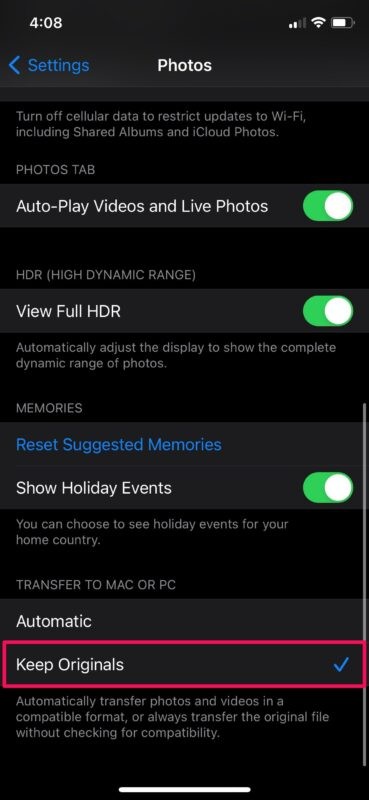
Transfer settings for media while connected to a PC or Mac can sometimes affect your iPhone’s ability to copy photos to your Windows machine. By default, your iPhone is set to automatically transfer photos in a compatible format. To change this setting, head over to Settings -> Photos, scroll down to the very bottom, and tap on “Keep Originals” as indicated below. Now, disconnect and reconnect your iPhone to the computer and check if the issue persists.
3. Turn on iCloud Photos
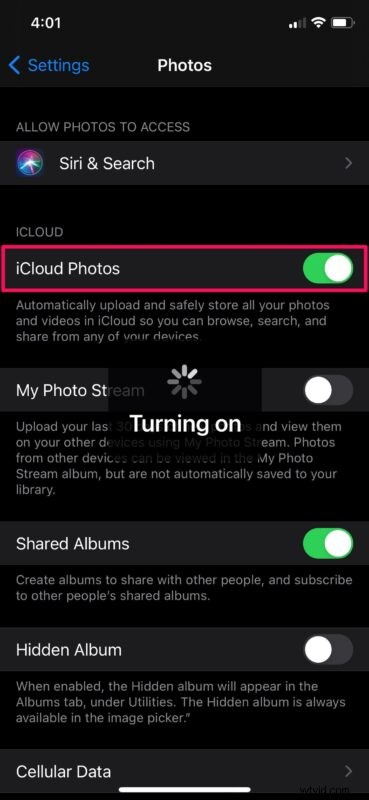
Keeping iCloud Photos disabled can sometimes cause issues with photo transfer for reasons we aren’t exactly aware of. However, a few users had reported that they were able to transfer photos successfully after enabling this feature. To do this, go to Settings -> Photos and simply use the toggle to turn on iCloud Photos. Once again, make sure you unplug and reconnect your iPhone to the computer after enabling iCloud Photos.
4. Download and Keep Originals
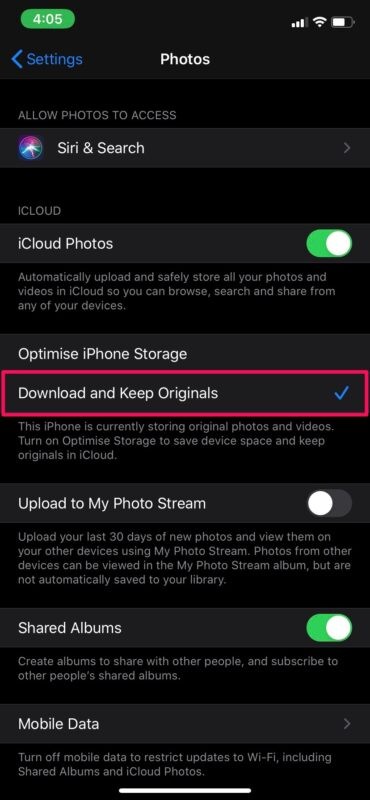
If turning on iCloud Photos didn’t resolve the issue, you’ll need to make sure that you’ve set your iPhone to download and keep originals of all photos stored on iCloud. By default, your iPhone downloads and keeps low-quality versions of your photos from iCloud to save storage space, which could sometimes hamper photo transfer between your iPhone and PC. You can change this by heading over to Settings -> Photos. Right below the iCloud Photos toggle, you’ll find the “Download and Keep Originals”. Just select it and then reconnect your iPhone to the computer.
At this point, you shouldn’t be getting the error while transferring photos to your computer. Hopefully, this wasn’t too complicated for you.
If none of the above steps worked in your instance, you can try restarting or force restarting your iPhone and see if that fixes the issue. There’s a good chance that it’s a temporary bug or issue that can be resolved by simply turning off and turning on your iPhone.
Forced rebooting iPhone may fix the issue too
A force reboot is different from a regular restart, however, and requires a combination of key presses. For iPhones with home buttons, you can force restart by simply hold the power button and home button simultaneously until you see the Apple logo on the screen. For iPhones with Face ID, you can press the volume up button first, followed by the volume down button, and then hold the side/power button until you see the Apple logo.
We hope you were able to get rid of the Windows-specific “device is unreachable” error by changing the settings on your iPhone. Which of the steps that we discussed here worked for you? Have you figured out other ways to stop this issue from happening? Share your insight, feedback, and experiences.