

Some iPhone and iPad users have discovered a curious “This app is no longer shared with you” error message when trying to use some apps own their devices. For some users the error is apparently random, but for others it is showing up after updating apps, or after updating their system software to iOS 13.5, iPadOS 13.5 and iOS 12.4.7.
The error message appears as a pop-up dialog when attempting to use the app, and then trying to use the App Store to correct the problem fails, resulting in an endless loop and an unusable application.
If you’re experiencing the “This app is no longer shared with you. To use it, you must buy it from the App Store” error message, you can easily resolve it with the instructions below.
How to Fix “This app is no longer shared with you” iPhone / iPad Error
The solution is rather simple albeit slightly annoying; offload the app and then reinstall it, or removing the app and reinstalling it. Offloading apps is preferable for most users since it allows app data and logins to be preserved, so that’s what we’ll focus on here.
- Open the “Settings” app
- Choose “General” in settings
- Select “iPhone Storage” (or “iPad Storage”)
- Locate the app showing the error message in the list and tap on it
- Choose “Offload App” and confirm you wish to offload the app from the iPhone or iPad
- Wait a few moments for the app to offload and be removed from the device, then at the same screen choose “Reinstall App”
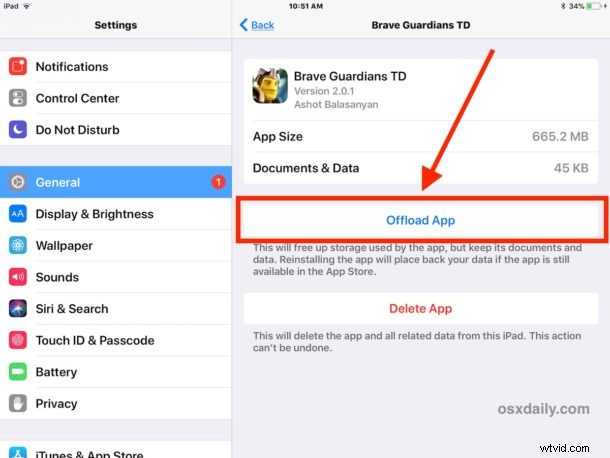
Repeat this process with any other apps displaying the “This app is no longer shared with you. To use it, you must buy it from the App Store” error dialog popup.
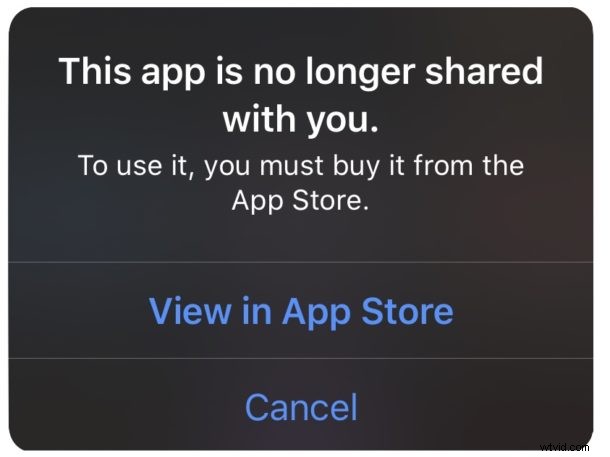
And no, you do not have to buy the app again, assuming you already owned it in the first place anyway.
This process essentially removes the app from the iPhone or iPad, then reinstalls the app again. Because we’re focusing on using the “Offload” method rather than deletion, the apps data remains intact. You can certainly use the standard app deletion process instead if you’d prefer to, but any app data within the app itself will be lost in that process, which means things like logins, passwords, saved games, etc would be lost.
Note that you can also experience this error message when using family sharing, but for the vast majority of users with the problem at the moment that is not the case, suggesting it’s a bug or some other hiccup in service. Occasionally issues like this happen with no particular fault or reason, and sometimes they happen after software updates, changes to App Store settings or payment info like the Verification Required error, or even completely at random.
Did you experience the “This app is no longer shared with you” error message when using some apps on iPhone and iPad after updating system software? Did the above trick work to resolve the issue for you? Did you find another solution? Share your experiences with us in the comments below.