
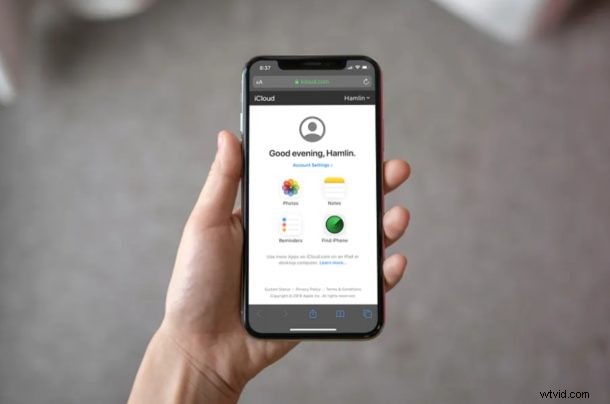
Have you deleted or lost Safari bookmarks from iPhone, iPad, or Mac somehow? If so you can use a procedure we’ll outline here to restore and recover lost Safari bookmarks back to your device.
Most iPhone and iPad owners make use of Safari to browse the web, and creating bookmarks of favorite sites (like osxdaily.com of course) is a common procedure. Since it’s the web browser that comes pre-installed on iOS and iPadOS, Safari works seamlessly with other devices in the Apple ecosystem, and iCloud can help sync your bookmarks too.
Bookmarks, History, and other data are synced automatically across your devices as long as iCloud is enabled, so regardless of whether you’re browsing on your iPhone, iPad, or a MacBook, all your Safari data is readily available. However, it’s always possible to to accidentally delete a bookmark, or have some other action occur where you lose your Safari bookmarks.
Did you lose your bookmarks in Safari for whatever reason? Perhaps after an accident, a corrupted iOS update, some other error on the device? If so, look no further. Thanks to Apple’s iCloud service, it’s fairly easy to restore your lost Safari bookmarks data. In this article, we’ll be discussing how you can recover all your lost Safari bookmarks using iCloud using a process similar to restoring lost contacts with iCloud, restoring lost Calendars and Reminders with iCloud, and recovering lost iCloud Drive documents and files.
How to Recover Lost Safari Bookmarks with iCloud
By default, iCloud backup is enabled on all Apple devices, so restoring your bookmarks shouldn’t be a tedious process. However, if you ever manually disabled backups at some point for whatever reason, this procedure will not help you recover your lost Safari bookmarks data.
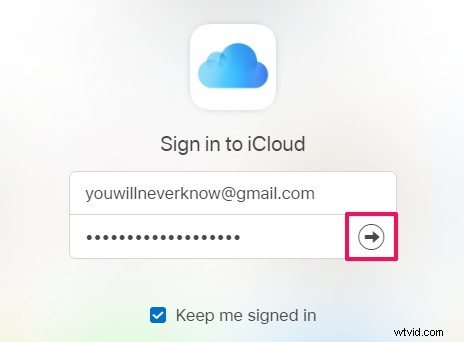
- Open any web browser like Chrome, Safari, Firefox, etc. from your PC, Mac, or iPad and head over to iCloud.com. Sign in to iCloud by clicking on the “arrow icon” once you’ve typed in your Apple ID and password.
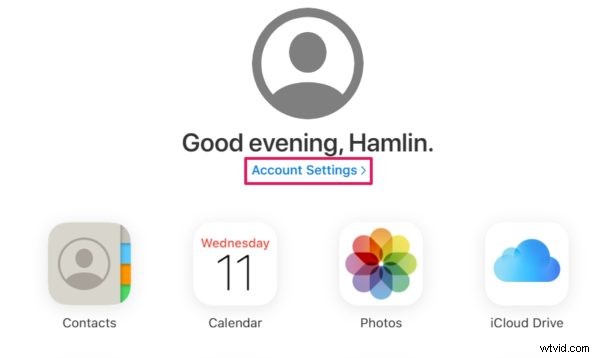
- Click on “Account Settings” once you’re in the iCloud homepage.
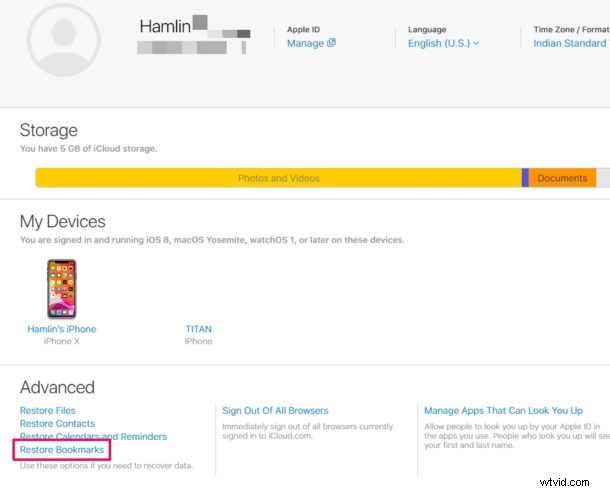
- Here, just click on “Restore Bookmarks” under the Advanced section located at the bottom of the page, as shown in the screenshot below.
- You’ll get a new pop-up window where iCloud will start searching for the Safari bookmarks that are stored on the cloud. Wait for a few seconds. Once the search is complete, you’ll get a list of all the bookmarks that can be restored. Simply select the bookmarks which you want to recover by checking the boxes and click on “Restore” as shown in the screenshot below.
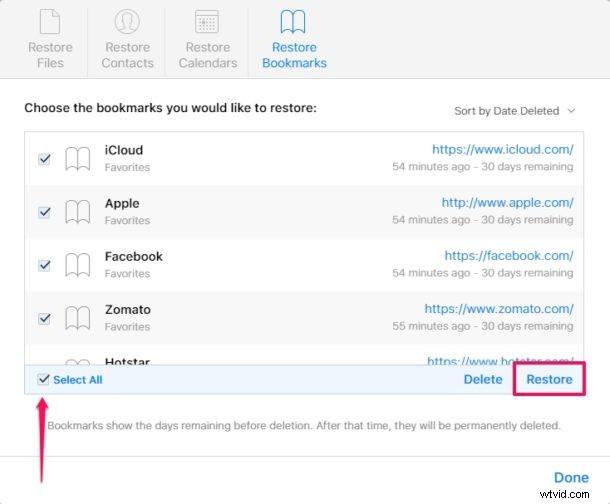
- The restoration process will take a few seconds to finish. Once it’s done, the window will display how many bookmarks were restored in the process. Click “Done” to close this window and end the procedure.
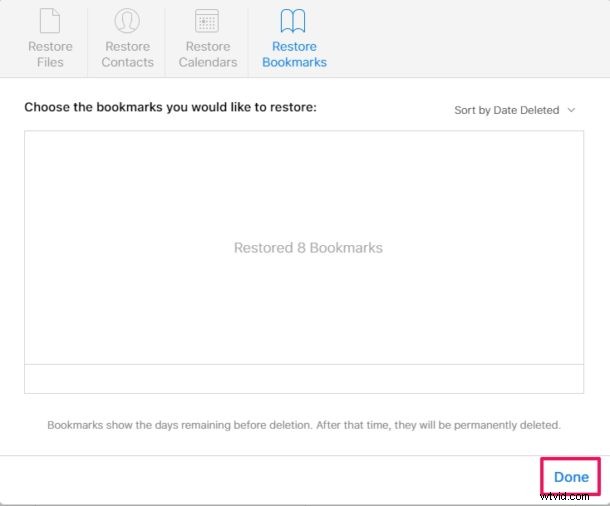
Those are the steps required to recover and restore your lost Safari bookmarks.
This recovered data will be accessible immediately across all your supported Apple devices, as long as they’re logged into the same iCloud account, which is one of the many reasons you must use the same Apple ID on all of your own personal devices.
To use the data recovery features available on iCloud.com, you need to use the iCloud.com desktop site, meaning you can use an iPad or computer that features a desktop-class web browser. You can also use this trick to access and login to iCloud.com from iPhone with full access by requesting the desktop site. If you’re trying to perform this restoration process on your iPhone’s mobile browser without requesting the desktop site, you’re out of luck. It’d be reasonable to expect Apple to add this functionality to mobile devices at some point down the line however, so that limitation may change in the future..
By default, Apple provides 5 GB of free cloud storage with every iCloud account. As long as you’re not backing up tons of files and photos, this should be adequate to store most of basic stuff like bookmarks, documents, files, contacts, calendars, and other data on Apple’s cloud servers. If you do need to update to a larger iCloud storage capacity, they’re available at monthly costs of $0.99, $2.99 and $9.99 for 50 GB, 200 GB and 2 TB storage space respectively.
For the majority of users, you’ll want to have iCloud backups enabled, so unless you have serious privacy concerns or some other compelling reason it may be a good idea to shell out for an iCloud paid plan if needed to backup your devices.
The convenience that iCloud brings to the table and how it works seamlessly across iOS and macOS devices is simply unmatched. Users don’t have to heavily rely on physical storage anymore, as valuable information like contacts, photos, files, etc. are automatically backed up to the cloud when their devices are turned on and connected to power. You can always manage your iCloud backups too from the devices, if you need to delete an iCloud backup from iPhone or iPad for example to make space for a fresh backup.
Did you manage to successfully recover all your lost Safari bookmarks? Let us know your thoughts, experiences, and opinions in the comments section down below.