
VLC is a free and open-source cross-platform media player. It’s packed with numerous editing features. Can VLC trim/cut videos? This post offers shows how to cut video in VLC and how to cut video in VLC alternative – MiniTool MovieMaker.
Although VLC is a media player for video and audio playback, you can use it to edit videos. One of the perks of VLC is that it can cut/trim videos. How to cut video in VLC? Let’s dive into this post and find the answer!
How to Cut Video in VLC on Windows
Here’s how to cut a video in VLC on Windows.
Step 1. Go to the VLC official website, download and install VLC on your Windows computer.
Step 2. Open VLC, click on Media in the top-left corner of the window, and choose Open File… Then VLC will automatically play the video. Press the Space bar to pause the video.
Step 3. In the menu bar, click View > Advanced Controls and you will see serval advanced control options above the Playback button.
Step 4. Move the slider to where you want to start recording and press the red Record button.
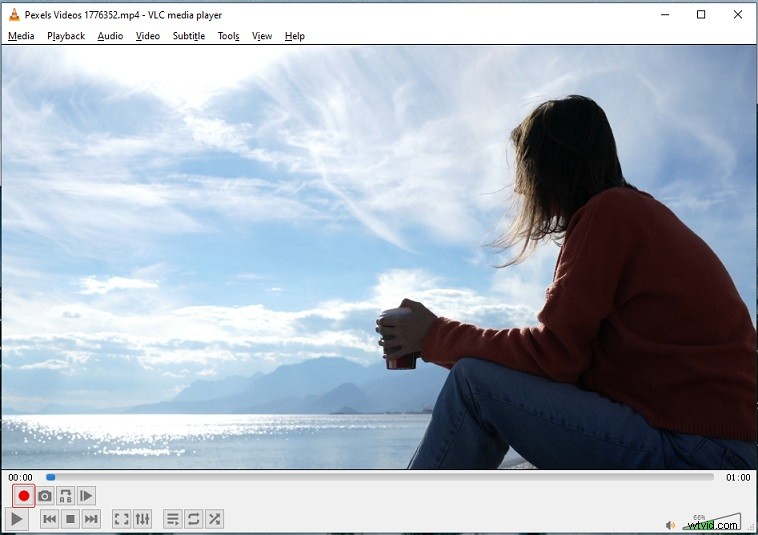
Step 5. Click the Playback button to play the video. When you want to cut the video, click the red Record button to stop the recording.
Step 6. Go to This PC > Videos to find the video clip.
How to Cut Video in VLC on Mac
Here’s how to cut a video in VLC on Mac.
Step 1. Launch VLC after installing it on your PC.
Step 2. Open the video that you wish to cut.
Step 3. Move the start point of the video to where you want to start the clip and pause the video.
Step 4. Then you can specify the default directory location before cutting the video. Go to VLC > Preferences > Input / Codecs and click Browse under Record directory or filename to select a folder to save recordings.
Step 5. Navigate to View > Advanced Controls.
Step 6. Press the Record button and play the video. When you want to stop the recording, hit the Record button.
Step 7. Open the save folder and you will find the recorded video clip.
Alternative Method – How to Cut a Video with MiniTool MovieMaker
If VLC can’t record a video clip successfully, you can use a video editor to cut your video. Here recommend the best VLC alternative - MiniTool MovieMaker. It’s a simple video editor with all the needed video editing functions, such as cut video, trim video, merge video, reverse video, speed up video, zoom in video, and many more.
Here’s how to cut a video in MiniTool MovieMaker.
Step 1. Download and install MiniTool MovieMaker. Then run the program.
Step 2. Click Import Media Files to import the video you want to cut. Drag and drop it to the timeline.
Step 3. Move the playhead to where you want to cut and click the Split icon on the playhead.
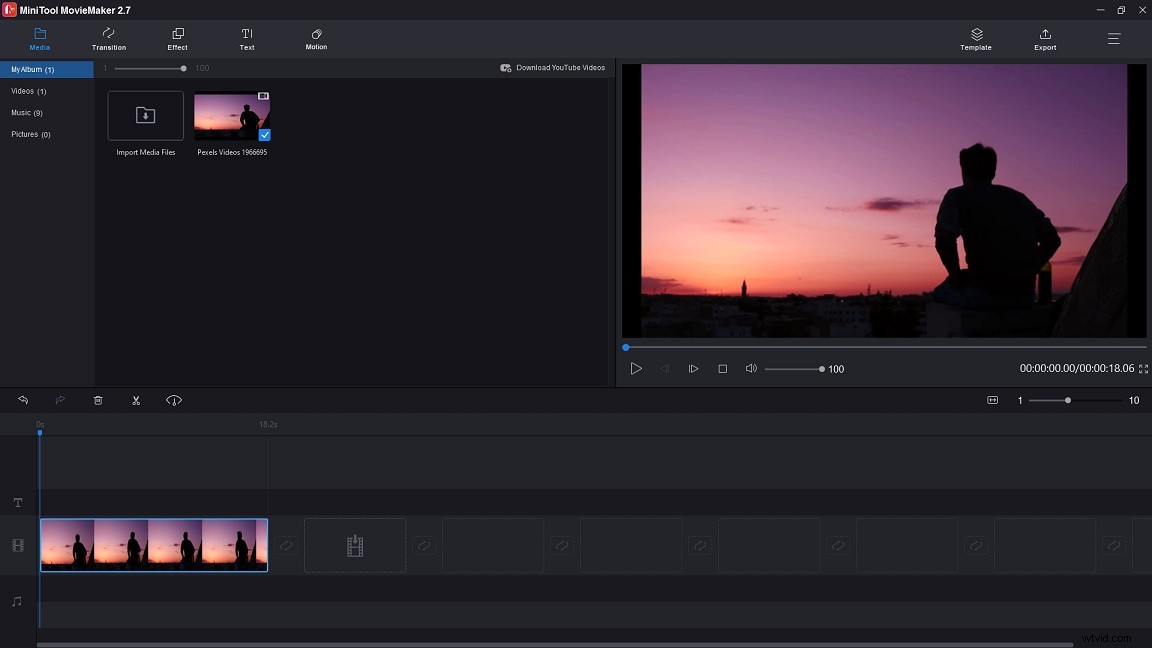
Step 4. Choose the unwanted clip and press the Delete key.
Step 5. Click Export to export the video clip.
Conclusion
That’s all about how to cut a video in VLC. If you have any questions about this post, leave a reply!