
This page introduced three simple and effective ways to rotate MP4 videos on Windows 10 and Windows 11 PC.
In the era of UGC content, the MP4 format is widely used by us all. MP4 video file format earned its popularity with its impeccable compatibility with practically all video sharing platforms and media player programs/apps. And with its small file size and acceptable video quality, thanks to the advanced H.265 coding technique, MP4 files are ideal for sharing on the internet as well.
On the other hand, rotating video is one of the most used video editing skills since it expresses ideas from a unique perspective. If you haven‘t noticed, we see that a lot in YouTube videos. In this post, we’ll talk about how to rotate MP4 videos, we have gathered the best three solutions to rotating MP4 videos on Windows 10 and Windows 11 PC. And also, we offer a way to rotate MP4 videos with iMovie for Mac users too. All methods are free and easy, now let’s delve into them.
Do Not Miss: 22 Best Video Editing Software, 22 Online Video Editors, 16 Best Video Editing Software for Mac
Table of Content
Method 1. How to Rotate MP4 Videos with FilmForth Video EditorMethod 2. How to Rotate MP4 Videos with Windows Photos
Method 3. How to Rotate MP4 Videos with iMovie on Mac
Method 4. How to Rotate MP4 Videos with VLC Media Player
Method 5. How to Rotate MP4 Videos Online with Clideo
Frequently Asked Questions about Video Rotating
Method 1. How to Rotate MP4 Videos with FilmForth Video Editor
FilmForth, a free download video editing software that offers all basic video editing features, is one of the best user-friendly software that gained a great reputation. It’s small in size but it processes videos very fast. FilmForth is compatible with Windows 10 and Windows 11, get it now.

For: Entry-level video editing software with extensive video editing features such as trimming video, splitting video, adding text/subtitles, etc.
Against: Lack of professional video editing functionalities.
If you are interested to get more detailed features about FilmForth, you are welcome to read the FilmForth official guide and get some information you’d like to know.
Here is the tutorial for rotating MP4 videos in FilmForth, follow the steps below and get your new video rotated. If you want to master this method faster, you can watch the video tutorial we provide below first.
Step 1. Create a New Project in FilmForth
Download and install FilmForth from the Microsoft store, then launch FilmForth from the Windows start menu, and hit the New Project button in the middle.
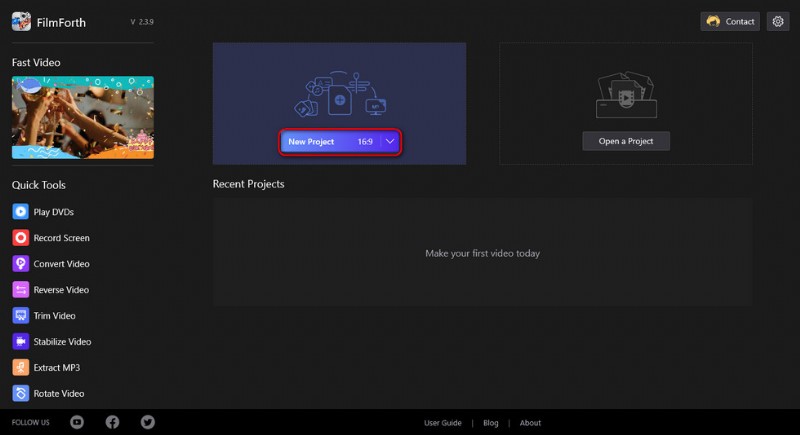
Create a New Project
Step 2. Import the MP4 Video into FilmForth Program
Drag and drop the video into the program or click ADD VIDEO/PHOTO CLIPS button to load the MP4 video you intend to rotate to into the program. Then you’ll be led to the video editing screen with your video in the timeline.
Aside from MP4, FilmForth supports a wide scope of media formats including JPG, JPEG, BMP, GIF, WebP, MP4, WMW, AVI, WebM, TS, 3GP, 3GPP, M4V, MOV, MKV, MTS, M2TS, WMV, WAV, M4A, and MP3.
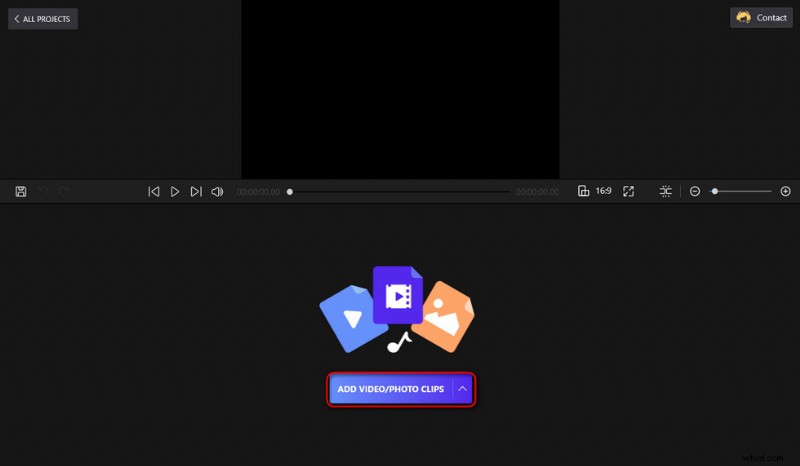
Load MP4 Video into FilmForth
Step 3. Rotate and Export MP4 Video on Windows
Click to select the added MP4 video in the timeline, and locate the Rotate button from the operation panel below, click on it to rotate your MP4 video.
For each click on the Rotate button, the video will be rotated by 90 degrees, and you can preview it from the upper window. As you can see, you can use the Flip button beside Rotate button to flip your MP4 video as well.
When ready, click the Save video button from the lower-right corner, customize video parameters, and then define a destination path and export the rotated MP4 video.
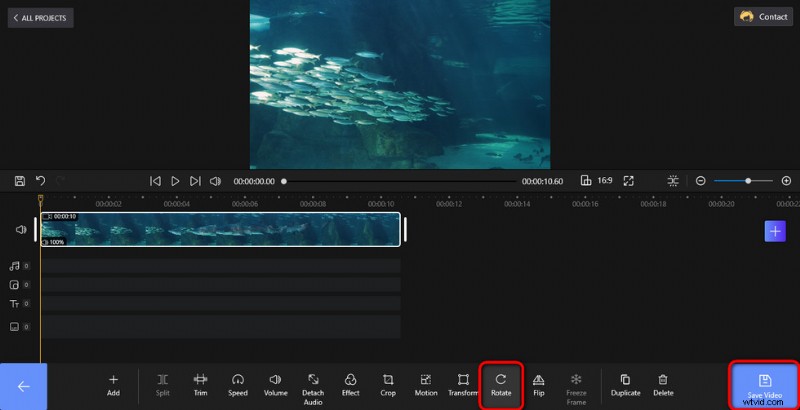
Rotate and Export MP4 Video
A Trick for Rotating MP4 Videos with FilmForth
Trick: The latest version of FilmForth now offers a shortcut for rotating videos, now you can rotate your MP4 videos with Rotate Video shortcut from the lower-left side of the FilmForth home screen. Click on the shortcut, you’ll be asked to import your MP4 video and then a small window will pop up for handy rotating operations.
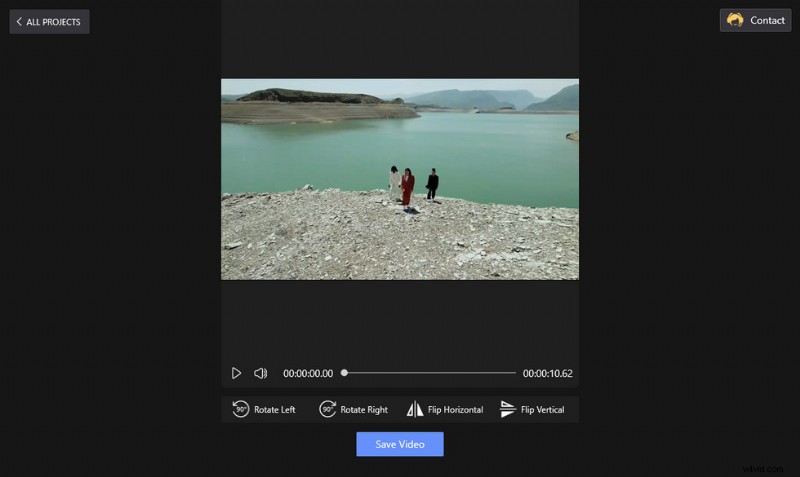
Rotate MP4 Shortcut
Method 2. How to Rotate MP4 Videos with Windows Photos
Photos is the built-in media player application on Windows 10 and Windows 11. It can also help to edit videos, like changing video playback speed.
For: Rotate MP4 video with Photos which is already installed on your Windows PC.
Against: Not as multifunctional as other programs.
Step 1. Open the Photos program from the Windows start menu, select Video Editor and create a new video project.
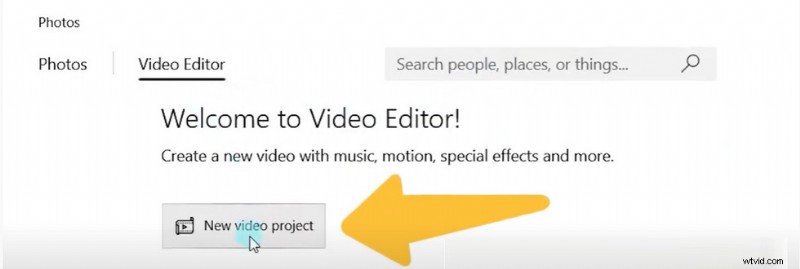
Create a New Video Project
Step 2. Click Add button to import a video from your computer, and click Place it on storyboard.
Step 3. Press Ctrl + R keys to rotate the MP4 video 90 degrees clockwise or just click the rotate button from the lower-right side to rotate the video in Photos.
Step 4. Click the Finish video button to save and export your rotated video.
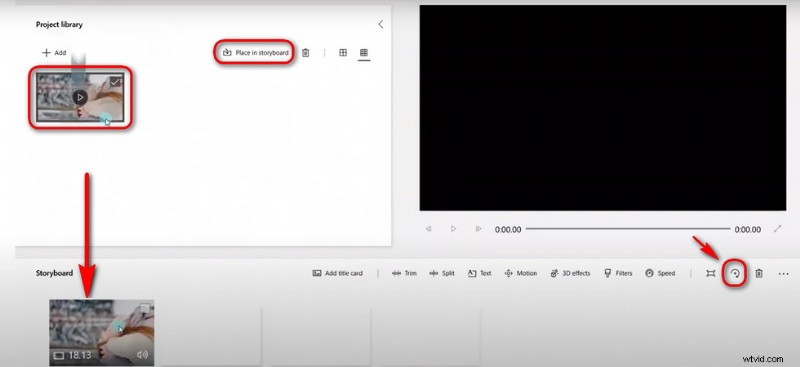
Rotate and Export an MP4 Video in Photos
After introducing two viable methods of rotating MP4 on Windows, here I’d like to show you how to rotate MP4 videos on a Mac computer.
Method 3. How to Rotate MP4 Videos with iMovie on Mac
IMovie is a completely free video editing software provided by Apple. When you buy an apple series product, it has been installed on your device for Mac users to use freely. Like many other Apple products, iMovie has quite simple operation pages and provides comprehensive basic video editing functions, including MP4 video rotation.
For: All functions are easy to learn and simple to use.
Against: Lacks some of the more sophisticated and advanced tools.
Step 1. Create a New Project
Launch iMovie and hit the button to create a new project, and choose “Movie”.
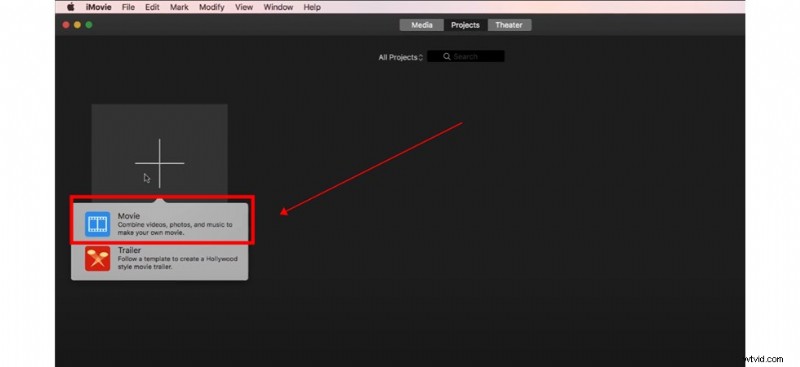
Create a Movie
Then you should import your MP4 video and drag and drop it into the timeline.
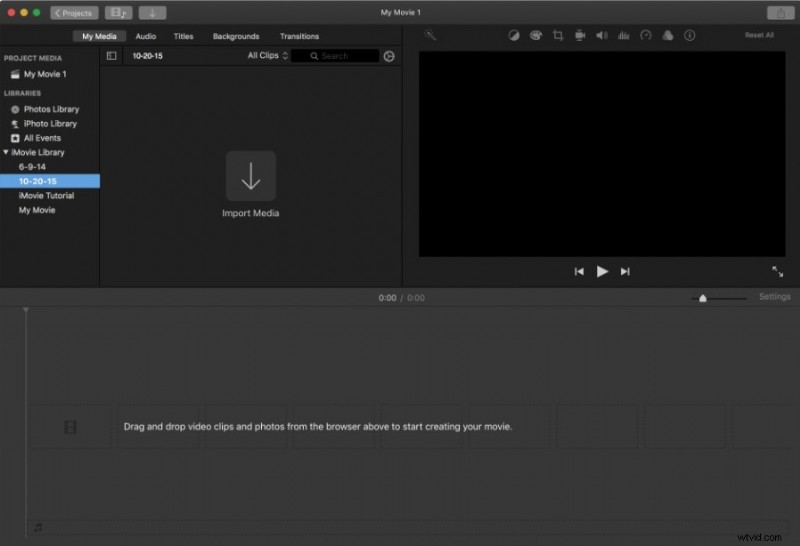
Import MP4 Video
Step 2. Rotate Now
Click on the Crop icon here and we can see the Rotate button. There are 2 buttons here to rotate in either direction. You can just click in one direction for whichever way your MP4 video needs to be rotated to save time.
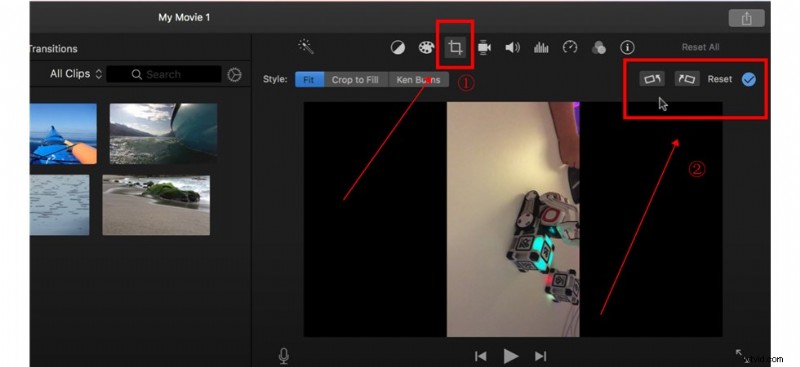
Rotate Now
Step 3. Save Your New Video
Now you can hit the Share button and click the File icon here to save your new video rotated successfully.
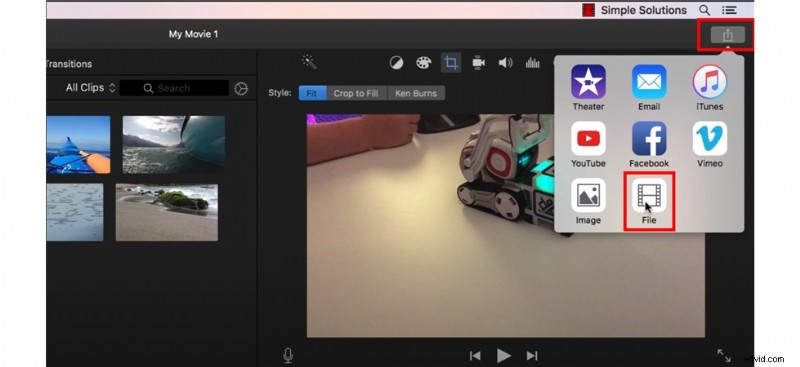
Save Your New Video
Method 4. How to Rotate MP4 Videos with VLC Media Player
Of course, there is also software that can be used freely on both Windows and MAC systems: VLC. VLC Media Player, developed by third parties, is a free and open-source video player program that supports various video formats and offers many video editing tools.
For: VLC is free, it works on multiple platforms, and it’s multifunctional.
Against: Some features can be hard for inexperienced users.
Step 1. If you haven’t had VLC already, free download and install it from VLC’s official website.
Step 2. Open VLC Media Player, go to Media > Open File to import MP4 video.
Step 3. Go to Tools > Effects and Filters, then a small new window will pop up.
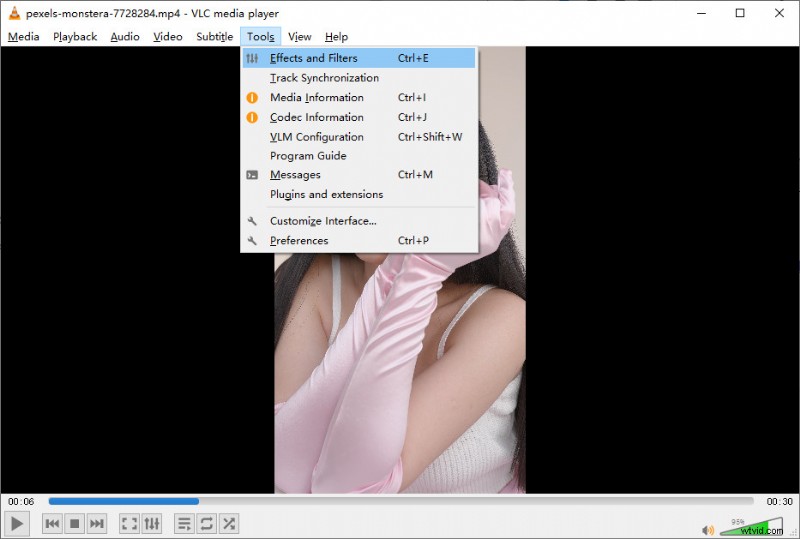
Go to Effects and Filters
Step 4. Go to the Video Effects tab, then click on the Geometry tab, and tick on Transform, and you can customize the degree you want to rotate your MP4 video.
Step 5. When ready, go to Media Convert/Save to export your rotated MP4 video.
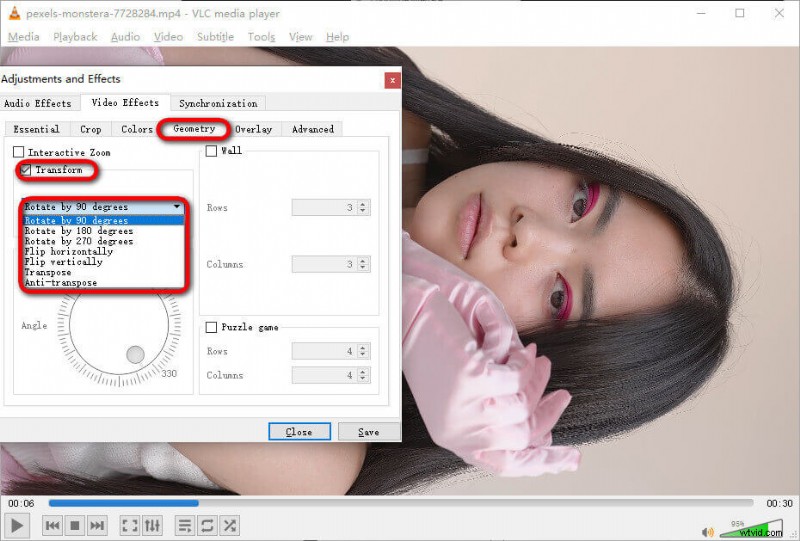
Rotate MP4 Video
Method 5. How to Rotate MP4 Videos Online Using Clideo
For those who rather rotate their small videos real quick without the trouble of software installation, online video editors can be a great option. Online video editors are web-based applications that allow you to edit video in your web browser, all you need is a stable internet connection. In the following tutorial, we’ll be using one of the best online video editors Clideo, a free and easy online video editor with a handy MP4 rotating feature. To get started, open your web browser on your PC or mobile phone.
For: Handy video editing experience requiring only a web browser.
Against: Needs stable internet connection and online video editors can be unstable when dealing with larger files.
- Navigate to the Clideo MP4 rotator tool.
- Hit Choose file button to import your footage to Clideo.
- The rotating buttons to the right help you rotate your video by 90 degrees upon each click. Click either button twice to rotate your clip upside down.
- Go to the lower-left side to change the output video format, if needed.
- Hit the export button from the lower-right side to save and export your rotated video.
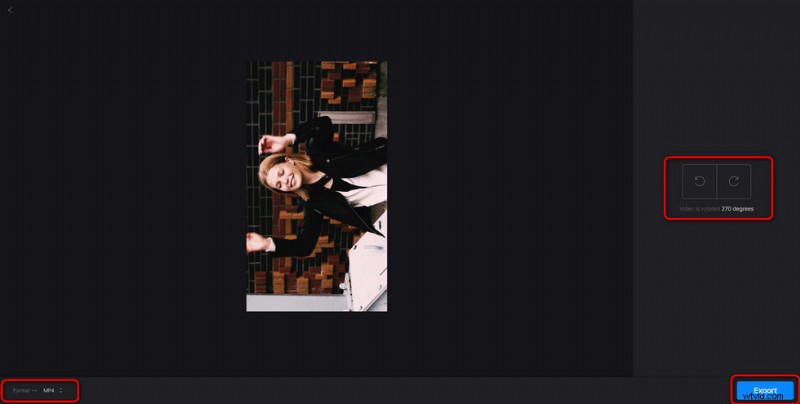
Rotate MP4 Video Using Clideo
Frequently Asked Questions about Video Rotating
How do I permanently rotate an MP4 video?
You can permanently rotate an MP4 video by using a professional video editor like iMovie, Photos, FilmForth, and so on. This post has introduced diversified methods to rotate MP4 videos permanently with different video editors, you can read the above content and choose the most suitable way for yourself.
How do I rotate an MP4 video in Windows Media Player?
Unfortunately, Windows Media Player lacks more advanced editing tools and cannot support video rotation. But you can use the Photos app that comes with windows to accomplish your goal.
Here is the easy method for you.
Step 1. Open the video editor of the Photos.
Step 2. Create a new video project, import your MP4 video, and bring it to the timeline.
Step 3. Hold the Ctrl + R key to rotate the MP4 or just hit the Rotate button.
How do I rotate an MP4 video for free?
You can rotate an MP4 video for free with the free video editor FilmForth. With the concise interface and excellent performance in video editing, FilmForth can rotate your MP4 video in just 3 steps. Now you can free download FilmForth from Microsoft Store and follow the steps below.
Step 1. Start FilmForth software and create a new project.
Step 2. Import MP4 video and find the Rotate button on the operation panel.
Step 3. Click the Rotate button to the MP4 video, and then hit the Save Video button.
To Sum Up
Since I’ve gathered three working methods to rotate MP4 videos on Windows, and they all work great for me, I really hope you have found a method that suits you, and you’ve successfully followed this guide to rotate your MP4 videos. Please share this post if so! And if you still have questions about rotating MP4 videos on Windows, don’t hesitate to drop us a line.
More Related Articles
- How to Trim Videos on Windows 10
- How to Change Background on YouTube Channel on Phone
- Top 3 Apps to Convert YouTube to MP3 for iPhone
- How to Fade out Video on Windows 10
- How to Add Text to a Video for Free on PC