
This article describes how to add text to iMovie on Macs and iPhones.
Storytellers and creators leave no stone unturned for augmenting the depth of their videos. Sometimes the intended impact and the effect fizzle out due to a variety of reasons.
Both external and internal reasons can hamper the desired message that the producer wants to convey. As a result, text plays a crucial role in binding the video and bridging the communication gap.
Add text to the videos with iMovie and leave the worrying hat outside. With iMovie, editing of any sort is a breeze, thanks to its user-friendliness and a package of trending tools.
How to Add Text to iMovie on Mac
Let’s start with the big boys. With a mouse pointer and a large monitor, editing on iMovie would be an effortless task.
Step 1. Launch iMovie and create a new project by clicking on the Create New button. Select the movie option, and you will have a blank canvas.
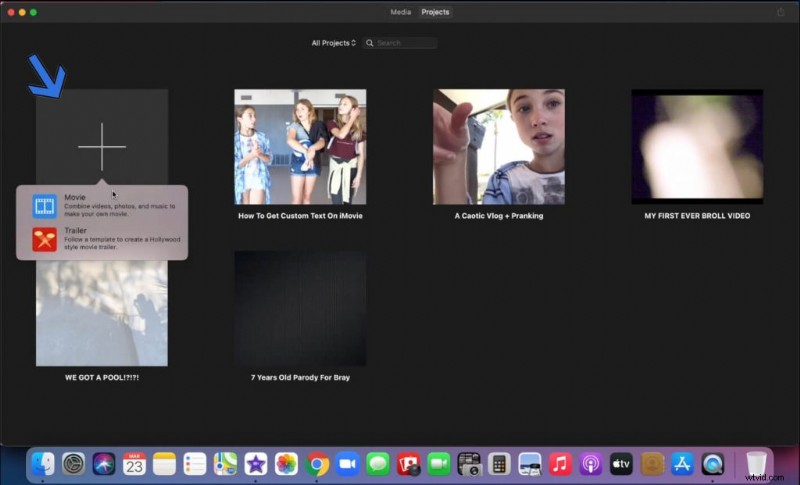
Create New Project
Step 2. Time to import the video. You can drag and drop directly in the timeline. On the other hand, we can also manually browse for the video.
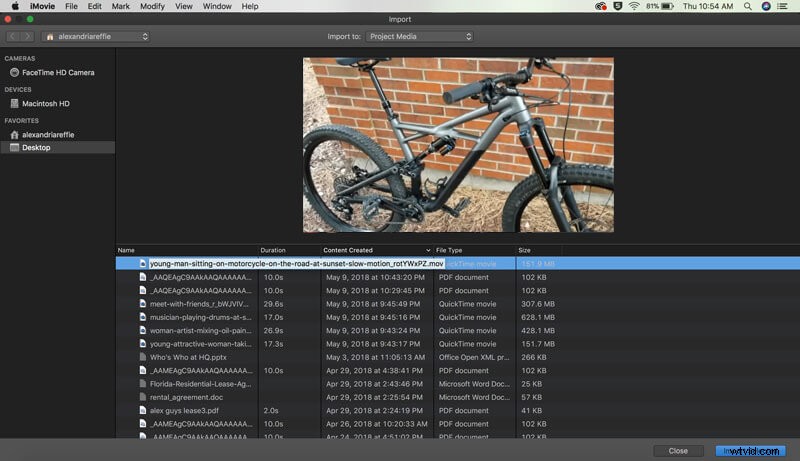
Import Video
Step 3. Drag the video to the timeline, and then we begin adding the text.
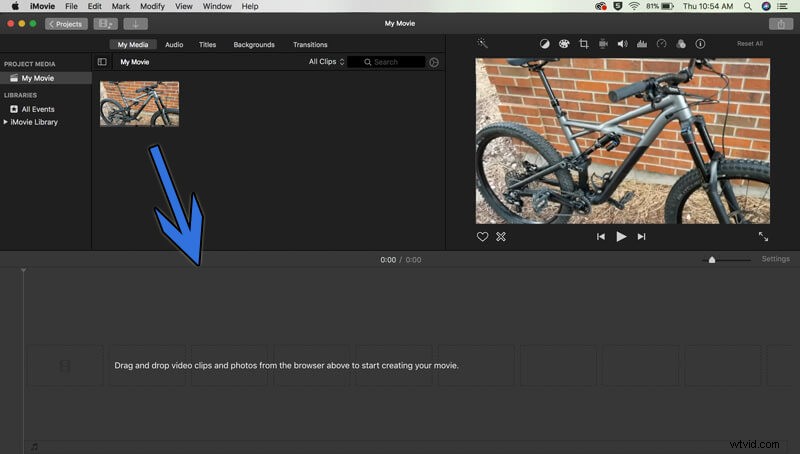
Drag the Video to the Timeline
Step 4. Head to the Titles tab and find a range of text styles suited for different events.
Drag the one you like to the specific timeline where you want the text to appear on the video. Stretch the block for increasing its duration in the video.
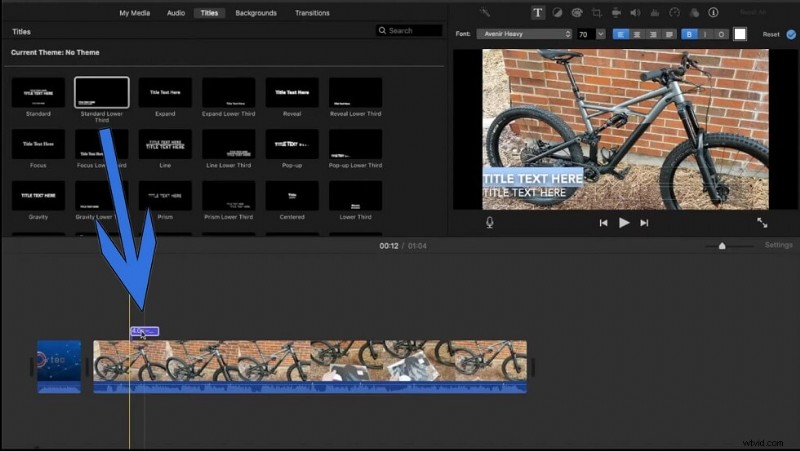
Text Menu
Step 5. Customize your text from the formatting menu. Click directly on the text box to enter the content of your choice.
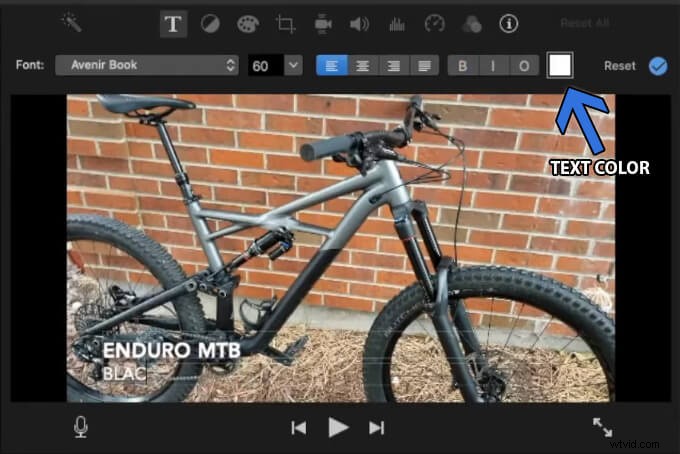
Text Formating
Step 6. Time to wrap up and export the video. Click on the export button, which is located in the top-right corner of the window.
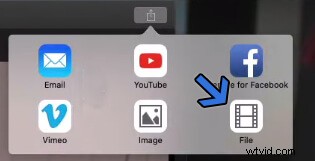
Export Video
Select the File option for saving it locally on the storage. You can also upload directly to one of the social sharing platforms.
How to Add Text to iMovie on iPhone or iPad
Adding text to iMovie on Mac is easy, as we tried it above. The iPhone version is similar in functionality and has made editing videos on mobile into a cakewalk. Just like on the Mac, you don’t need to sweat it or shell the greens for it either.
Step 1. Launch iMovie and then create a project by tapping on the plus button.
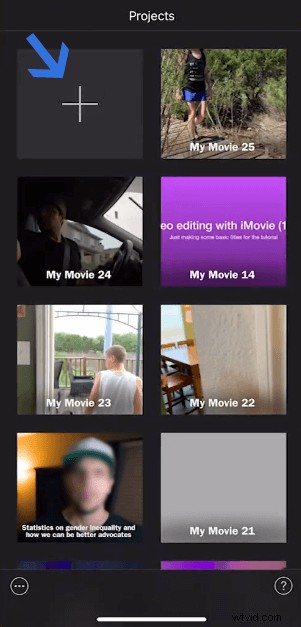
Create New Project
Select the movie option for editing a video. You can combine videos, photos, and music in this option.

Movie Option
Step 2. Tap to select the video clips for the new project. You can select multiple videos as well.
Now single tap on the Create Movie button, located at the bottom of the screen.
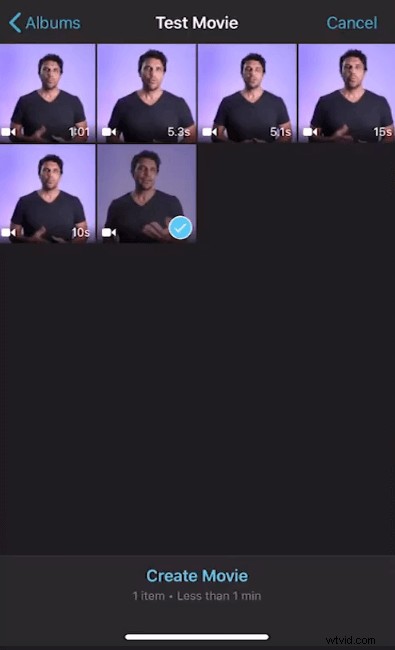
Select Video Clip
Step 3. Head to the text menu through the shortcut, denoted by a capital T, located in the dashboard at the bottom
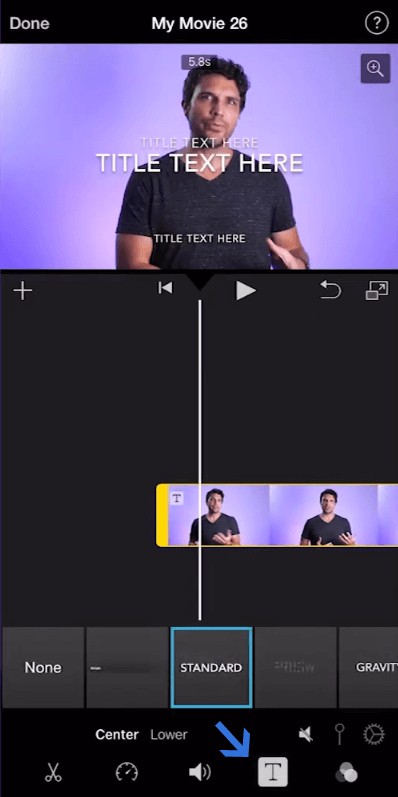
Head to Text Menu
Step 4. Here, you will see a wide range of text styles. We select the Standard and then tap on the text boxes in the preview player. Enter the text into the boxes.
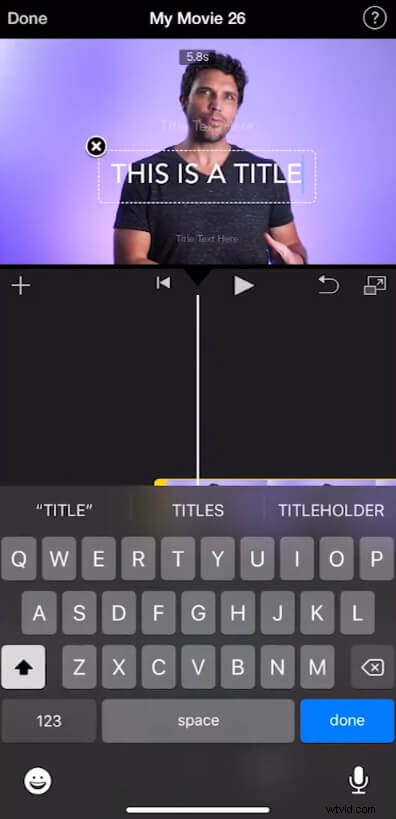
Enter the Text
If you look closely, you see the tiny text boxes. They can be removed through the black cross button, which appears after selecting them.
Conclusion
Apple certainly has an edge when it comes to providing video editing software bundled with its operating system. Going mobile certainly pushed the popularity of a previously mac only editor. You can start editing a project on your iPhone and move to Mac or vice versa. That’s the kind of versatility that makes iMovie a must-have utility tool.