
How to add a title in Premiere Pro? You can follow the steps in this post and learn how to add titles in Premiere Pro. A free video editor that also supports adding text to videos is recommended at the end.
Often while watching movies, you must have seen the grandeur text appearing on the center of the screen. It sets the tone and introduces the scene to the audience.
As a creator, you are familiar with the importance of every frame of the video and the elements present in it. Many content creators have taken inspiration from it and show title text in a swanky font that just lifts the content. Wide-angle drone shots accompanied by a title text augments the class quotient.
And in order to add titles, you will need a video editor such as Premiere Pro, which is an industry leader in the segment. A robust and versatile editor that professionals rely on for their work.
How to Add Title in Premiere Pro
Generally, the users find Premiere Pro as a mountain that cannot be climbed. But the good news is, adding title text is a fundamental function on the Premiere Pro, which can be done without investing a couple of hours.
Step 1. Launch Adobe Premiere Pro. Under the New heading, click on the project option. That will start a new blank project. Import a video by simplifying drag and dropping it into the timeline.
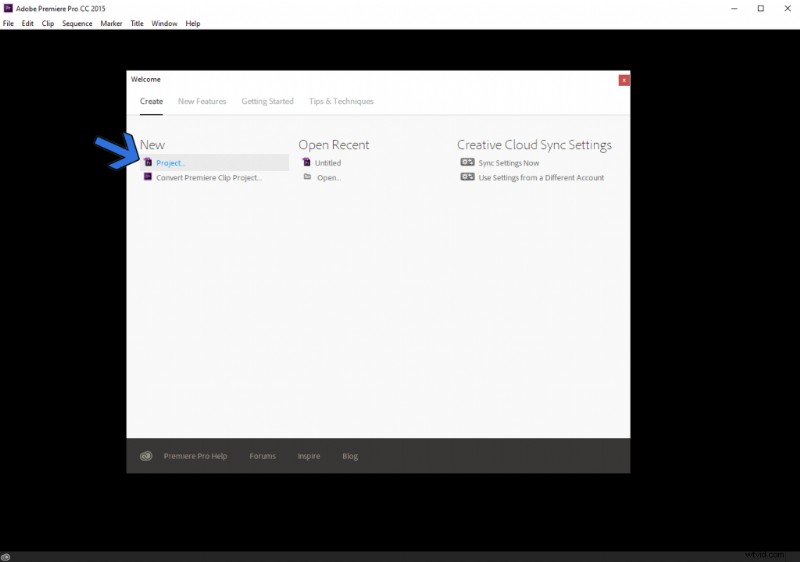
Create New Project
Step 2. Now, we will add a new text tool for the title text. Head to the top toolbar and find the Title > New Title > Default Still. The Shortcut – Press Ctrl+T on the keyboard for doing the same without going through the lengthy process.
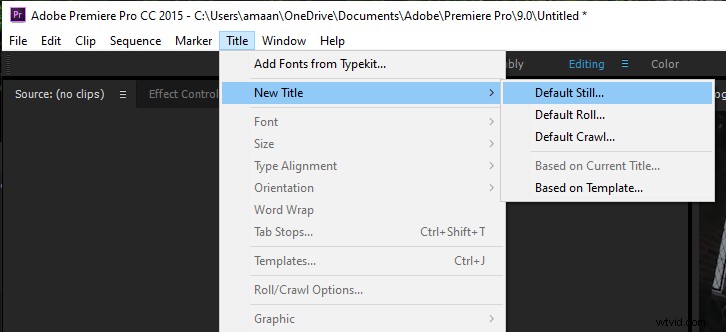
Title > New Title > Default Still
Step 3. A New Title window will pop up on the screen. You can configure the resolution, width, timebase, and aspect ratio. Leave them as it is and give the text tool a name alone to proceed.
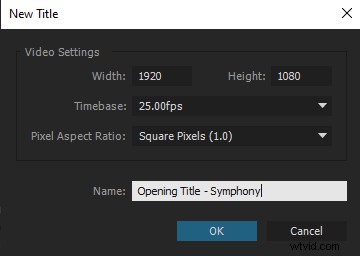
Title Settings
Step 4. Inside the text editor window, there will be a lot of options. Let’s acquaint ourselves with the ones that can get the text out of the gate.
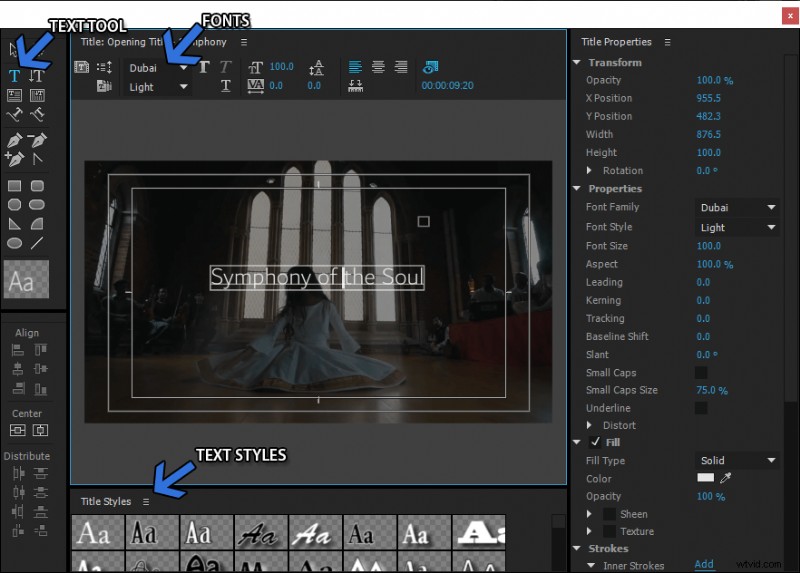
Text Menu
- Text Tool: It will bring a blank text box on the screen. Click on the box to start typing your title text.
- Fonts: Select the font of your choice for the title. You can install any font on the computer, and it will appear in the dropdown list.
- Text Styles: Preset menu of the fonts combined with various effects can be used without thinking much. Go with it if you don’t want to get your hands dirty in the settings.
Step 5. Close the window once the title text has been prepared. It will appear in the projects section. For adding it to the video, drag the newly made text from the project section to the timeline, just above the video.
The pink block depicts the title text that is appearing on the video. You can increase the duration by stretching the block after selecting it.
Easier Way to Add Titles With FilmForth
Adobe Premiere Pro is considered as the apex of video editing on Windows. That doesn’t take away the fact that it is expensive and has a long learning curve. You can do that on another incredibly easy-to-use editor and does not make your pocket lighter. FilmForth is a video editor that makes adding the title to videos as easy as boiling water.
Why use FilmForth over others?
- It’s completely free and doesn’t have any hidden charges afterward. On top of that, there are no ads in the app like other free video editors.
- The user interface is easier than what you found on the veteran Windows Movie Maker. Whether you are a novice or a professional, the video editor will come in handy.
- No watermarks are imposed by the editor, unlike the other free ones available on the Internet. Your content belongs to YOU, and an editor should not impose its watermark for any reason.
Download FilmForth from Microsoft and be careful when downloading from third-party platforms.
 The following are the easy steps in adding titles to your videos with FilmForth.
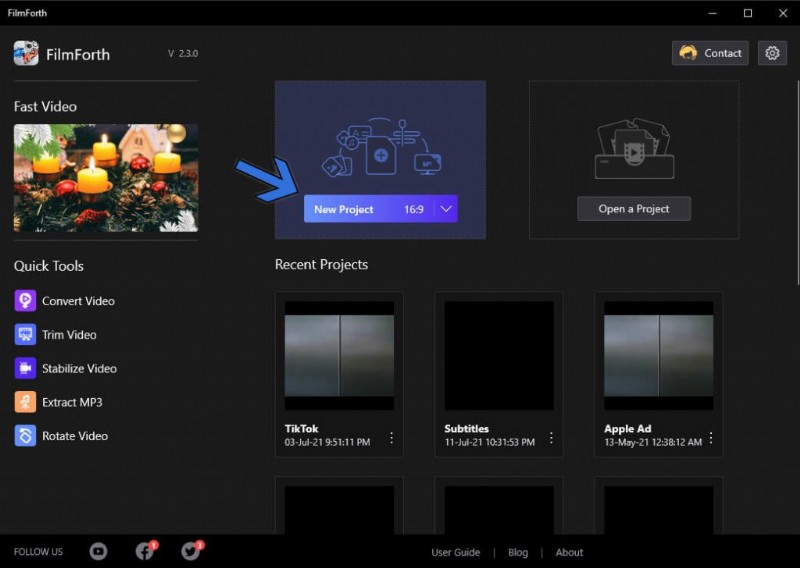
Step 1. Launch FilmForth and create a new project by clicking on the New Project button. Import a video through the drag and drop feature. Alternatively, you can use the conventional Add Video/Photo Clips button.
Create New Project
Step 2. Move the yellow seeker line to the point where you want to add the title text and then head to the text menu from the shortcut.
Text Menu Shortcut
Step 3. Click on the Add Text button, followed by the Edit Text button. It will take you to the text format menu. The Font section of the Formatting menu in brief:
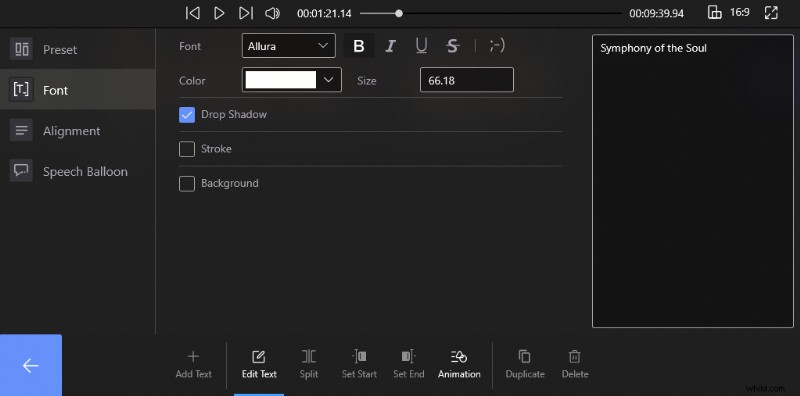
Text Formatting Menu
- The box on the right is where you will enter the title text. It will appear on the video.
- Drop Shadow adds a blurred copy behind the text, appearing as the shadow of the entered text.
- A stroke will add borders on the text, which can be of any color. The thickness can vary between 1 to 100 points.
- Selecting the Background option adds an opaque background behind the text. Helps become the text prominent in scenes of varying contrast.
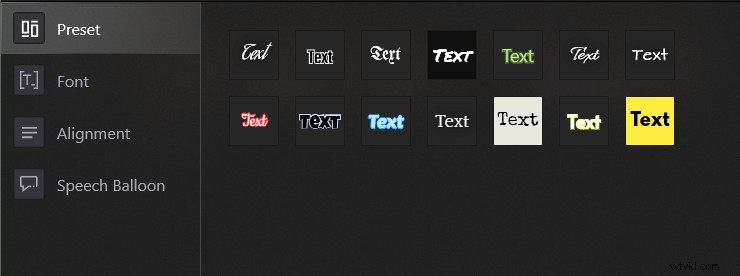
In any case, when you don’t have the time to prepare the text manually, there is the preset section. Choose the perfect text style, and it will be applied to the text.
Text Preset Section
Step 4. After you are done with fonts, we move to animation. A little flair of animation can bring out the best of your text.
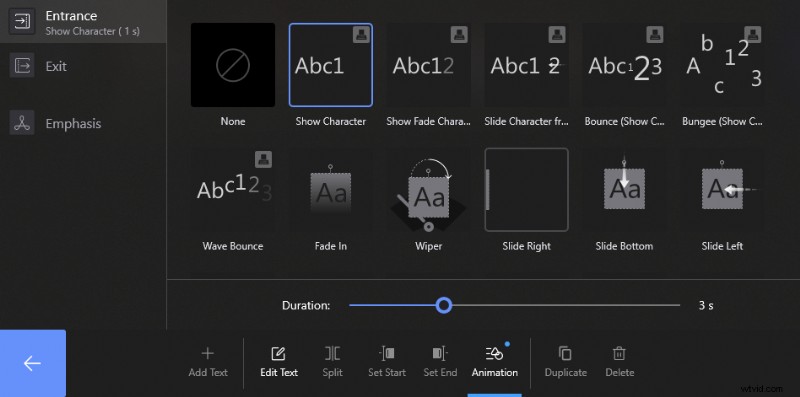
Text Animation
We get the options of entrance text on the screen, exit which disappears after a brief period. And the third is the emphasis which makes itself prominent through zoom in, shake, and other trending effects. The animation’s duration can be between 0.2 to 3 seconds so plan your text accordingly.
Conclusion
That’s all for now. FilmForth is free, while Premiere Pro is subscription-based which costs a lot of green. The learning curve on the former is pretty even, while the latter requires scouting for the best tutorials, saying the least.
The caravan doesn’t stop there. If we talk about the size, FilmForth is a tenth the size of Adobe Premiere Pro. Wrapping up, Premiere Pro requires a computer with formidable specifications to perform with its full potential. FilmForth runs on most computers with modest configuration.