
From the step-by-step tutorials, learn how to crop and resize a video clip for social media sharing. The best free Premiere Pro alternative to crop videos is also introduced.
How to Crop a Video in Premiere Pro
Video cropping is a commonly used skill in professional video editing and film productions, it allows creators to remove the unwanted borders from video clips. Video cropping is often used with video resizing, which tweaks the output cropped video to the desired aspect ratio, for sharing on social media such as Instagram, YouTube, TikTok, Facebook, etc.
Today in this post, we’ll talk about how to crop and resize videos in Adobe Premiere Pro, arguably the best professional video editing software. Two tutorials will be provided for you to crop and resize your video content.
The following tutorials are demonstrated with the latest official release of Premiere: Adobe Premiere Pro 22.5, and the methods work with previous Premiere versions.
Do Not Miss: Top 24 PC Games Download Websites, 22 Online Video Editors, 16 Best Video Editing Software for Mac
Table of Contents
1. How to Crop a Video in Premiere Pro2. How to Resize a Video in Premiere Pro
3. How to Crop a Video Using Free Premiere Pro Alternative
4. How to Crop a Video in Premiere Pro: FAQs
How to Crop a Video in Premiere Pro
We’ll start by cropping a video in Premiere Pro, you can easily follow the steps from the illustrated tutorial and get started on your own Premiere.
Step 1. Import Clip to Premiere
Launch Adobe Premiere Pro and import the video clip you intend to clip into Premiere. Drag the clip you intend to crop into the timeline, and click to select it.
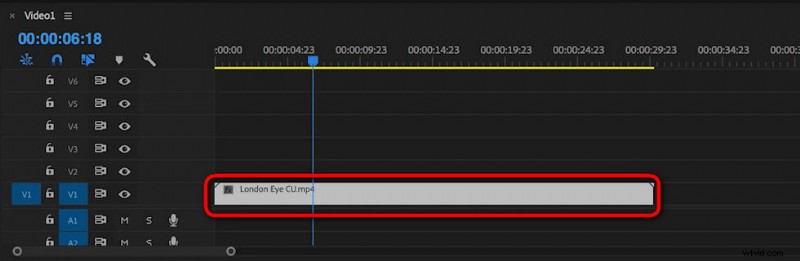
Import and Select Clip in Timeline
Step 2. Go to Effects
Go to the Effects panel from the lower-left workplace, and search for Crop. Hit the Crop effect from the search result. It should be under Video Effect > Transform folder.
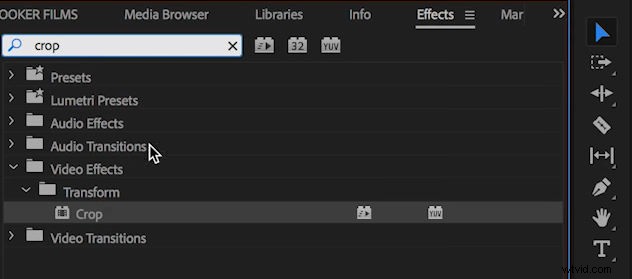
Search and Select Crop Effect in Premiere
Step 3. Crop the Video in Premiere
Drop the crop effect onto your video clip in the timeline. And you can see the crop settings from the upper-left side in Premiere.
Here you can precisely crop the video clip from the Left, Top, Right, and Bottom sides of the clip, by defining the corresponding value (by percentage) of which.
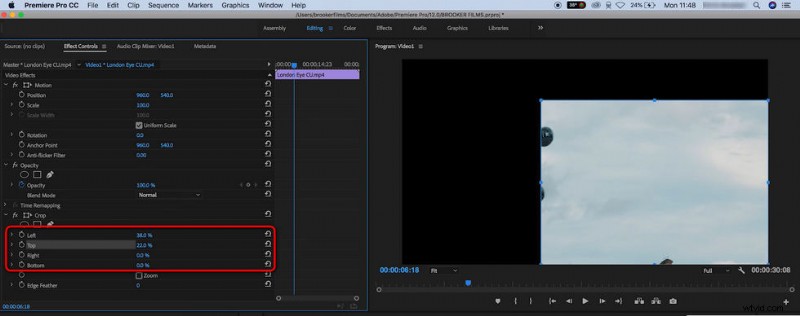
Precisely Crop the Video Clip in Premiere
Step 4. (Optional) Zoom the Cropped Video
Cropping the video inevitably changes the aspect ratio and the resolution of your video, and you can use the Premiere Zoom feature to fill the cropped video into the frame. To do so, tick on the Zoom box in Crop settings.
There you have it! Now you have successfully cropped a video in Premiere Pro. Now export the video from Premiere and check the output cropped video!
Related Post: What makes Premier Pro superb? Find out answers in our Adobe Premiere Pro review.
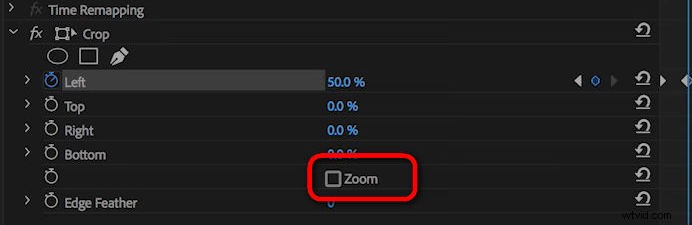
Zoom the Cropped Video to Fit Frame
How to Resize a Video in Premiere Pro
After talking about how to crop a video in Premiere Pro, here comes the second important part: how to resize a video in Premiere Pro.
In most cases, cropping a video will change its resolution and aspect ratio, making the cropped video doesn’t match up with the frame, and we need to manually resize it to fit the frame, the sequence setting.
Learn how to do so from the detailed steps below.
Step 1. Click to select the clip you intend to resize in the timeline.
Step 2. Right-click the clip and select “Set to Frame Size.” from the dropdown.
Step 3. Your clip will now match the frame size of your sequence setting.
Step 4. Repeat the above steps until all clips in the timeline are now in the same size, while they’re originally different in resolution and aspect ratio.
Step 5. Alternatively, you can manually resize the clip in Premiere by going to Effects control panel > Motion dropdown > Scale option.
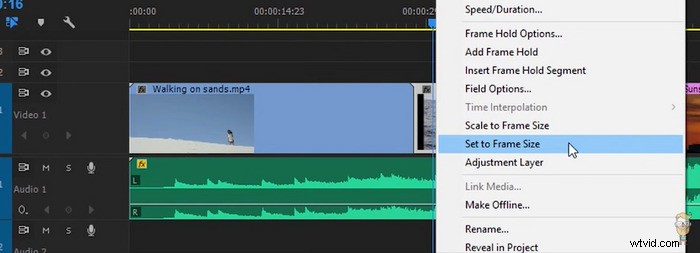
Resize Video in Premiere
How to Crop a Video Using Free Premiere Pro Alternative
For those who haven’t paid the Premiere Pro subscription yet, here’s a free method for you to crop your clips. Allow me to introduce, FilmForth, the best free alternative to Premiere Pro, and an excellent free video cropper for Windows 10 and Windows 11.
Hit the download button to get it for free from Microsoft Store.

Aside from the easy-to-use cropping feature, FilmForth offers plenty of practical video editing features such as effects, transitions, rotating video, changing video aspect ratio, chroma-keying, adding stickers, etc. It even has social media presets for you to crop your videos to.
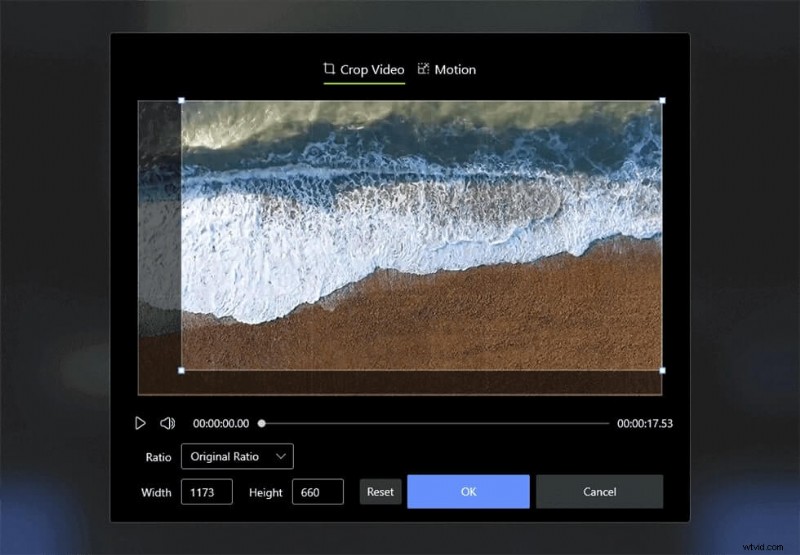
Crop Video in Free Premiere Alternative FilmForth
The tutorial below shows you how to crop videos using the free Premiere Pro alternative FilmForth. And you can find out more free Adobe Premiere Pro alternative video editing applications from our list of 22 Best Video Editing Software.
Step 1. Launch FilmForth, create a new project, and import the video.
Step 2. Select the video in the timeline and hit Crop option from the lower panel. Use the cropping rectangle to define the cropping area. When ready, hit OK.
Step 3. Hit the lower-right Save Video button to export the cropped video.
How to Crop a Video in Premiere Pro: FAQs
Can I crop a video in Premiere Pro for free?
It’s not possible to crop videos in Premiere for free since it requires a paid subscription. However, you can choose the best free Premiere Pro alternative FilmForth to crop and resize your videos.
How to crop and zoom in Premiere Pro?
When you’ve done cropping the clip to the preferred aspect ratio, you can use the Premiere Zoom feature to fill the cropped video into the frame. To crop and zoom a video in Adobe Premiere Pro, crop your clip and tick on the Zoom option from the Effect control panel to fill the cropped video into the frame.
How to crop the edges or pillar boxes of a video in Premiere Pro?
To crop the edges/pillar boxes of a video in Premiere, go to the Effects tab in the Project panel. Find the Crop effect from Video Effects > Transform folder, double-click on the Crop option to apply to your video, and define the cropping manner from the upper-left Crop settings. See from the preview window to the left to see if it reaches the satisfying result.
How to crop a frame in Premiere?
To crop on a single frame in Premiere, you should first separate the frame from the clip. Hit to select the frame, go to Video Effects > Transform folder > Crop, double click to apply the Crop effect, and define the cropping values from the upper-left Crop menu.
How to crop video to a square in Premiere?
To crop a video to a square in Premiere, go to Premiere Export Setting. From Basic Video Settings, change video Width and Height to the exact same value, and go to the upper-left Source Scale and set it as Sale To Fill.
How to crop video for Instagram in Premiere Pro?
To crop video for Instagram feed in Premiere, you need to set up the cropping settings to make the output video aspect ratio 4:5. For Instagram Story or Reel, resize your video to 1080 * 1080, with a 9:16 aspect ratio.
To Sum Up
Since Adobe Premiere Pro is such a professional tool, it even offers comprehensive configurations for simple video editing needs such as video cropping. For YouTubers, content creators, and video editing professionals, this post has the information that helps you become more professional.
And if you’re a video editing beginner looking for a simpler solution, the best free video cropper FilmForth is the ideal option for you, so don’t forget to have a try at it.
More Related Articles
- 16 Best Video Editing Software for Mac: Free and Paid
- 12 Best Face Swap Apps to Add Some Fun to Your Photos
- Top 18 Slow Motion Video Editors to Slow Down the World
- The Complete Guide on How to Make a Smooth Video Slow Motion
- 15 Best Split-Screen Video Editors for Professionals and Beginners
- Top 24 PC Games Download Websites [Updated]