
Removing noise and graininess from videos is easier than ever. Noise and graininess usually occur when a video is shot with poor lighting when the ISO of the camera was unusually high when the video was being recorded or when the camera used in recording the video does not have the right specs.
Video and multimedia content editors like Premiere Pro have proprietary algorithms and filters for fast noise reduction. And when these built-in filters are not adequate or convenient, you can use plugins or standalone noise reduction software to improve the quality and clarity of your videos.
This post shows you how to remove noise from videos using Premiere Pro, Premiere Pro Plugins, and free noise reduction software.
- Part 1: How to Reduce Noise in Premiere Pro
- Part 2: Another Ways to Reduce Noise
- Part 3: Noise reduction plugins for Premiere Pro
- Part 4: 3 Free Video Noise Reduction Software
Part 1: How to Reduce Noise in Premiere Pro
Use media effect
Premiere Pro has a noise reduction filter in the effects panel called MEDIAN. To apply this filter, follow the steps below:
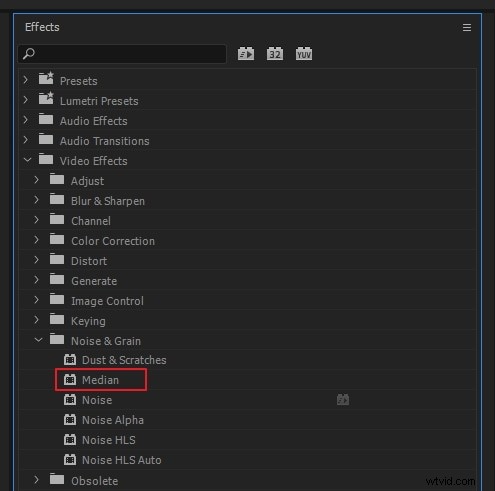
- Go to EFFECTS > VIDEO EFFECTS > NOISE & GRAIN > MEDIAN. Drag MEDIAN onto the timeline for your noisy video. Note that this will not apply noise reduction to your video immediately.
- Check the EFFECTS CONTROL window to see a dropdown menu where you can adjust the MEDIAN effect for best results. Adjust the RADIUS parameter under MEDIAN> to immediately preview the effect applied.
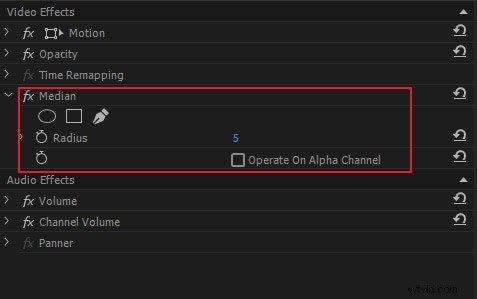
- Alternatively, you could draw masks around noisy portions of your video to only preview the denoising effect on those areas.
- Be sure to feather the edges of your masks to avoid hard edges around areas where the MEDIAN effect is applied.
Part 2: Another Ways to Reduce Noise
Noise reduction in Premiere Pro does not always yield the best results. Even when the MEDIAN effect is applied with masks, you may find that the denoising effect is applied to parts of the video where noise reduction is not needed. This is because while the masks are static, the contents of the video are not.
Way 1. Using Adobe After Effects
In this case, you could open your video in ADOBE AFTER EFFECTS using the following steps:
- Right-click, the timeline for the noisy video, is PREMIERE PRO, and click REPLACE WITH AFTER EFFECTS COMPOSITION.
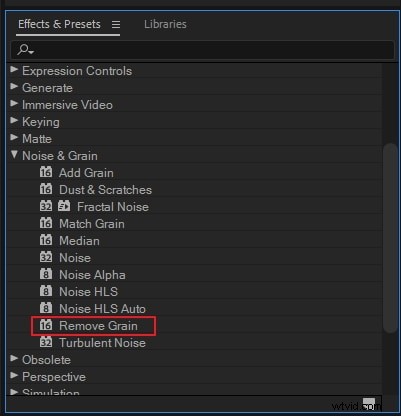
- When AFTER EFFECTS opens with your video loaded, go to EFFECTS & PRESETS>, select REMOVE GRAIN and drag it onto the timeline for your video.
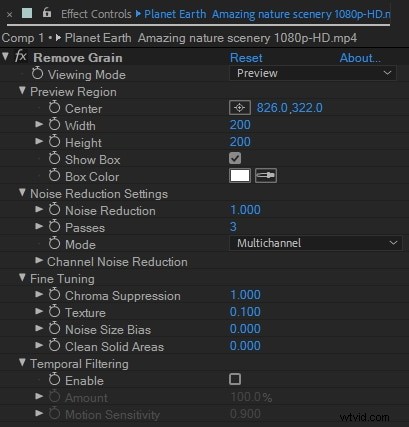
- Check the EFFECTS CONTROL panel to see settings for the REMOVE GRAIN effect. Adjust preview region, noise reduction setting, and temporal filtering for best results.
Way 2. Using Wondershare Filmora
FilmoraPro is a sleek, advanced multimedia editing software favorite among elite vloggers, social media mavens, and professional content producers. Unlike Audacity, which handles only audio content, FilmoraPro is a powerful video and audio editor on par with Adobe Premiere Pro, with tons of additional features. It provides the convenience of editing video and audio content in one place.
Noise reduction in FilmoraPro is very fast and simple. Everything happens in real time as you move through the steps listed below. All effects and changes are saved when the audio or video file is saved at the end of the editing process.
FilmoraPro needs to sample the noise to be removed from an audio or multimedia recording. This sample is called a NOISE PRINT. A recording of ROOM TONE can be used to create a NOISE PRINT. Alternatively, a suitable section of the main recording will serve. See noise reduction steps below:
- Open the main audio file to be edited and select the section which contains the target background noise by placing the playhead in the right place. Then, click on CAPTURE NOISE PRINT under the NOISE REDUCTION effect menu.
- If you're working with a video file, be sure to unlink the audio from the video. Once the audio is unlinked, Go to effects and type into "noise reduction." Then drag it onto the auido clip. Create a NOISE PRINT. After the noise reduction process, the audio and video files can be merged into a single multimedia file.
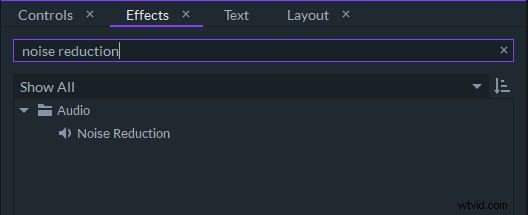
- ADD TO NOISE PRINT is an important option. It lets you identify other noises removed from your audio file and add them to your NOISE PRINT. Once FilmoraPro has captured the NOISE PRINT, more options will appear. This means that with FilmoraPro, you may only need to apply the noise reduction effect once.
- Adjust the other settings on this page, such as THRESHOLD and REDUCE BY values. The THRESHOLD setting in FilmoraPro works like the SENSITIVITY setting in Audacity. They both let you choose the strength of the noise removal effect. Valuable audio content may be lost at the higher end of these settings. However, portions of the background noise may remain or be distorted into audible artifacts at the lower end.
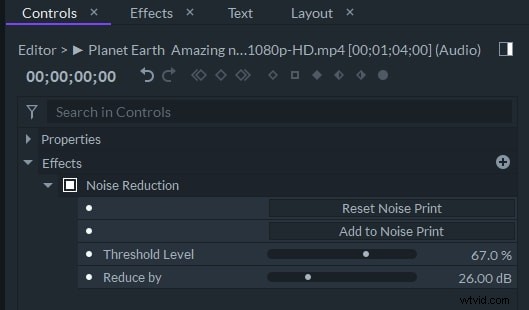
- The REDUCE BY setting in FilmoraPro works like the NOISE REDUCTION setting in Audacity. They both set the volume or decibel reduction applied to reduce or remove the noise from the recording.
- Ensure no valuable audio is lost during noise reduction by listening audio track before it is saved at the end of the editing process.
Part 3: Noise reduction plugins for Premiere Pro
1. Neat Video
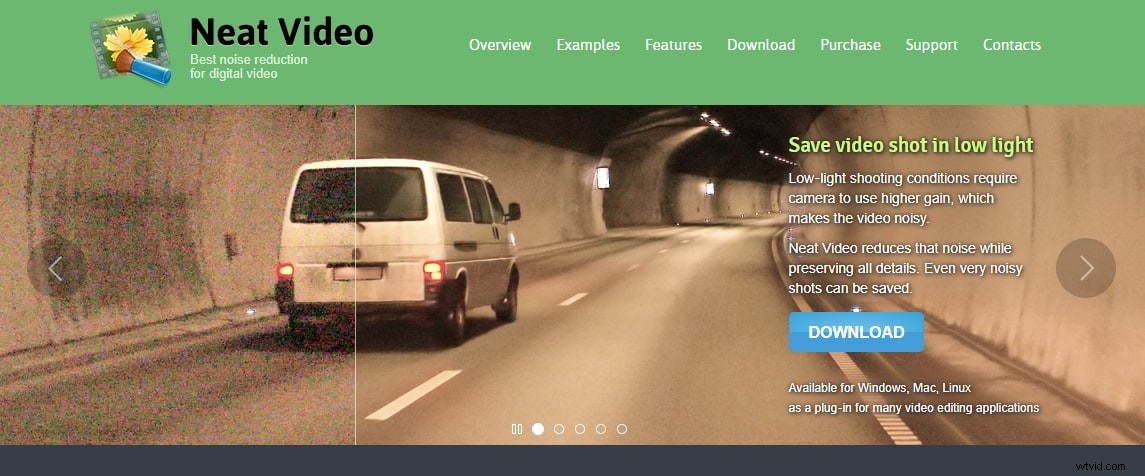
Neat Video is arguably the most popular denoising plugin for Premiere Pro. It is both powerful and fast and is used by many professionals. It works with other popular video editing software like Final Cut and Avid and has versions compatible with PCs and MacOS. Neat Video also has a free version and a premium version.
Features
Neat Video works by creating a noise profile. It also allows users to select areas of the footage from which a noise profile can be created or load their own noise profile footage.
Once installed in Premier Pro, NEAT VIDEO will be listed in the Video Effects panel, where it can be selected when needed. Its default settings are powerful and can be further customized through the setup menu visible in the EFFECTS CONTROL panel.
2. Red Giant Denoiser
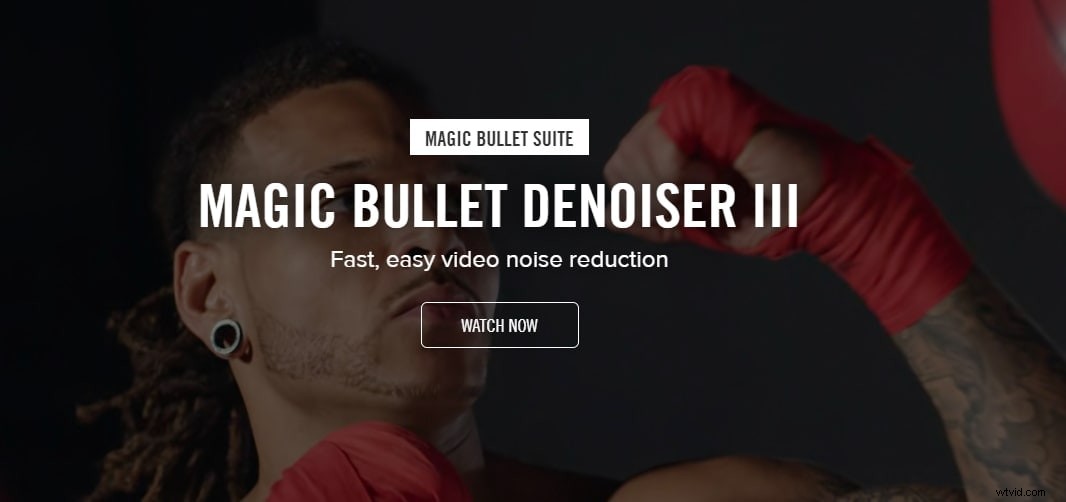
Magic Bullet Denoiser III is another powerful denoising plugin compatible with PC and MacOS. It has a fully functional trial version and a paid version. However, its paid version is nearly double the price of Neat Video. Professionals may find it more cost-effective to buy the complete suite of Magic Bullet plugins.
Features
Like Neat Video, Magic Bullet Denoiser III works by creating a noise profile. Unlike Neat Video, however, Magic Bullet Denoiser III samples every video frame to create its noise profile. Its settings are also very simple and intuitive, with sliders for reducing noise, smooth colors and preserve details.
Part 4: 3 Free Video Noise Reduction Software
1. Aiseesoft
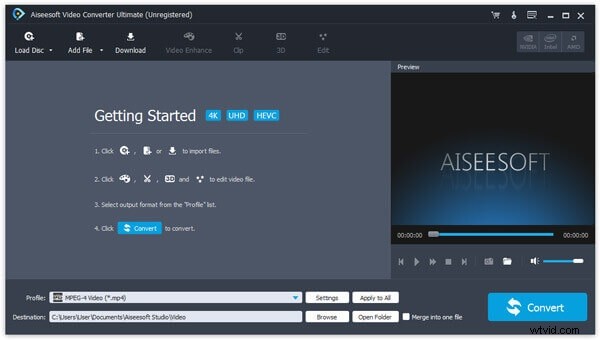
Aiseesoft Video Enhancer is a standalone application with PC and MacOS compatible versions that has good noise reduction and video conversion features. It also has a free version and an affordable paid version. It is very light, feature-specific, and very easy to use.
Features
Noise reduction is one of three (3) enhancement features available in Aiseesoft Video Enhancer. To remove noise from a video, open it in Aiseesoft, check the NOISE REDUCTION box under the ENHANCE menu and click APPLY. This application lets users export their enhanced videos in many formats and with no compression.
2. Cinemartin Denoiser
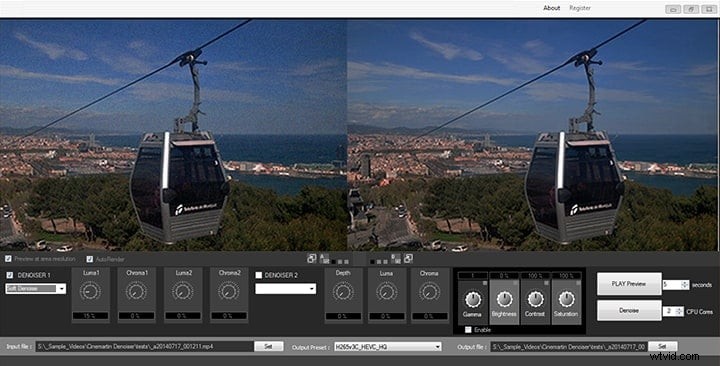
Cinemartin Denoiser is a professional video denoising application that offers powerful features for a small fee. A free version with a few locked features is available for a limited time. The full version delivers excellent noise removal options to export to multiple video formats.
Features
This application has simple noise removal settings and built-in presets for fast and easy noise removal. It works with 2 proprietary noise removal mechanisms to remove the most common noise generated by DSLR cameras.
3. Tipard
Tipard Video Enhancer looks and feels a lot like AISEESOFT VIDEO ENHANCER. Their interfaces, colors, and menus are very identical.
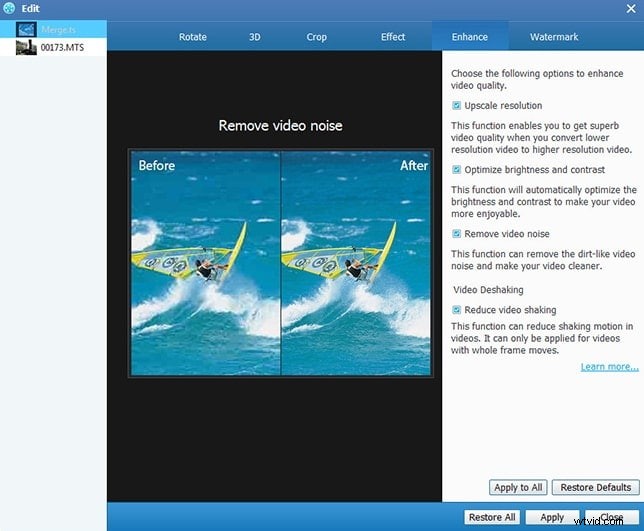
Noise removal is an enhancement feature in the Tipard Video Enhancer software and the Tipard Video Converter Ultimate. So, you can download any of these two Tipard applications to enjoy noise removal features. They both have free and affordable paid versions.
Features
The Tipard Video Enhancer enables users to enhance videos through noise reduction and increased video resolution. Unlike Aiseesoft Video Enhancer, Tipard also lets users improve their videos by reducing the perceived shaking or unsteadiness of the video footage.
Conclusion
As with audio noise removal, video noise removal is rarely perfect. Users need to ensure that desirable details of video footage are not lost in the denoising process.
You may also feel interested in:
How to Detach Audio in Premiere Pro >>
Remove Background Noise from Video Online >>