
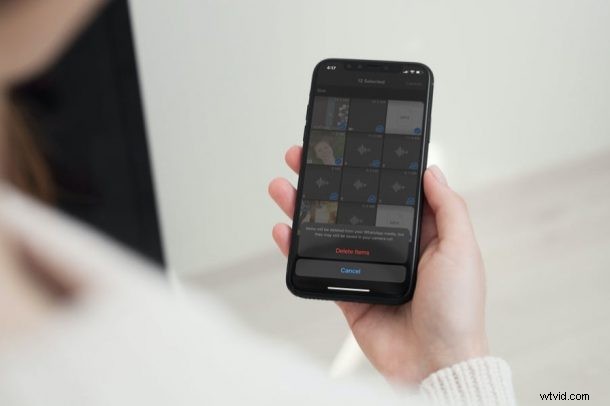
If you use WhatsApp as your primary messaging app, chances are that over time your photo library can become cluttered with images and videos from WhatsApp. This shouldn’t be a concern however, since WhatsApp makes it easy for users to manage the content shared via the app.
For a long time, one of the most common complaints of WhatsApp iOS users has been the inability to manage all the attachments. Considering the images and videos shared via the app could take up a chunk of your iPhone’s storage, it was more of a necessity rather than a luxury. Fortunately, WhatsApp recently pushed out an update to improve the way users manage the storage on the app. It now provides cleanup suggestions by bucketing both large files and media that have been forwarded multiple times.
Let’s take a look at how you can go through your WhatsApp media on iPhone, and free up some storage space.
How to Delete WhatsApp Media on iPhone to Free Up Storage
First and foremost, make sure you’ve installed the latest version of WhatsApp on your iPhone before going ahead with these steps. Once you’re done, here’s what you need to do:
- Launch WhatsApp from the home screen or App Library of your iPhone.

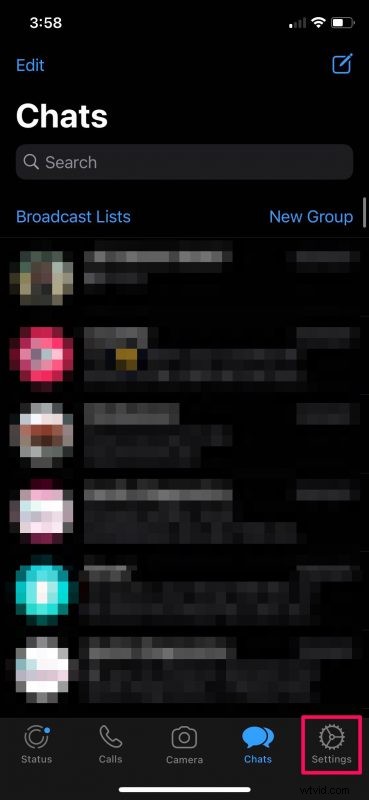
- This will take you to the Chats section of the app by default. Tap on “Settings” located at the bottom-right corner to get started.
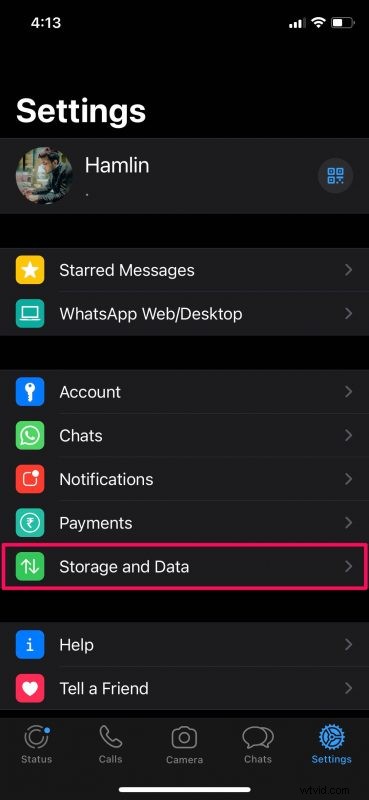
- In the settings menu, tap on “Storage and Data” located just above the Help option to continue.
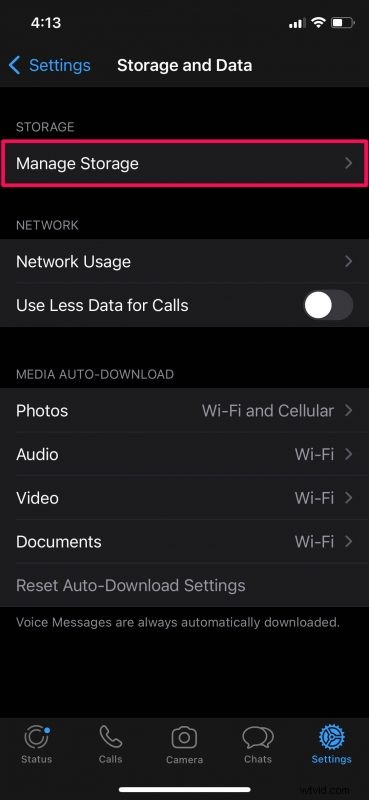
- Next, tap on the “Manage Storage” option located right at the top.
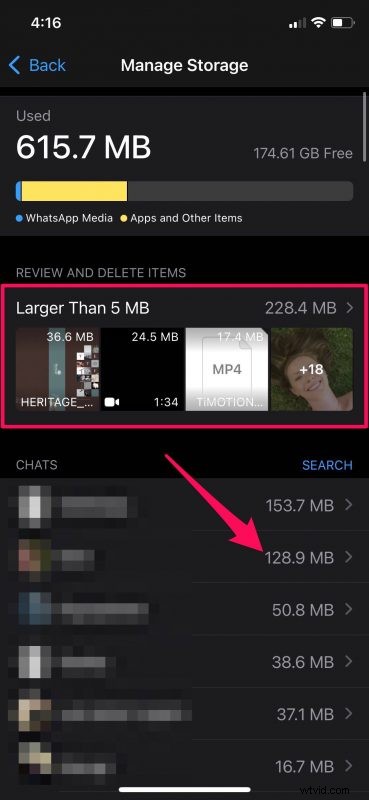
- You’ll now be able to see the total storage that’s consumed by WhatsApp at the top. Right below, there’ll be an option to review large attachments. You’ll also see the space consumed by attachments in each of your WhatsApp chats. Select any of these items to access the next menu. In this instance, we’ve selected items “larger than 5 MB”.
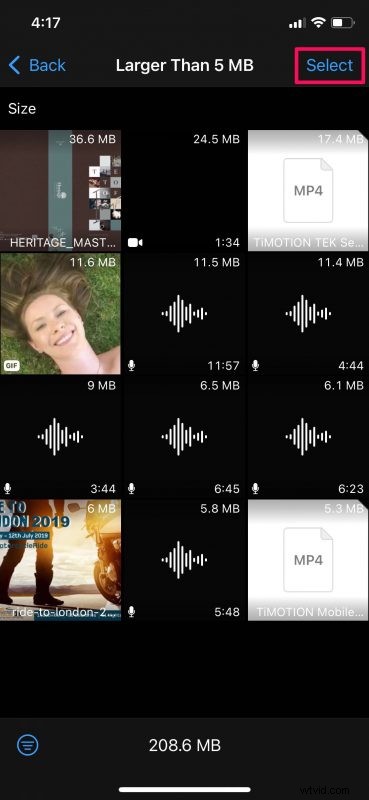
- Now, tap on “Select” located at the top-right corner of your screen.
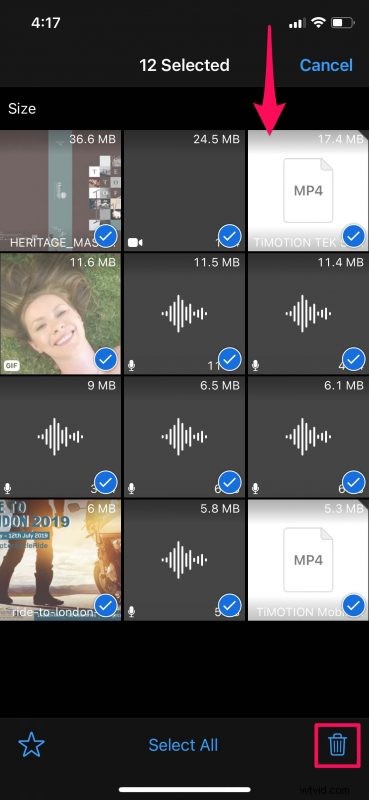
- Next, just tap on the media items to select them and once you’re done, tap on the trashcan icon at the bottom-right corner.
- When you’re prompted to confirm, just choose “Delete Items” to permanently remove the attachments from your iPhone.
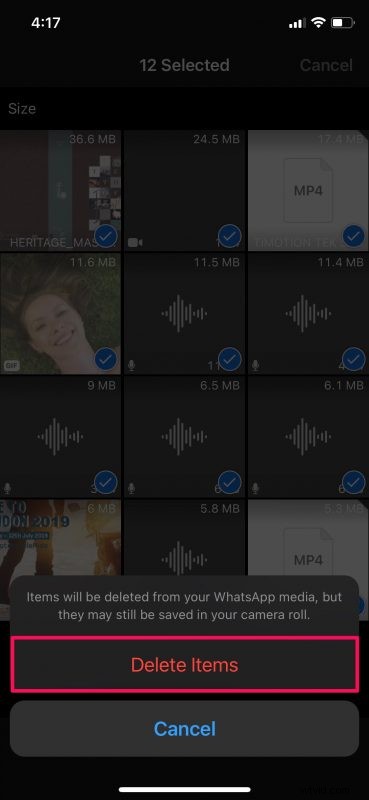
There you go. As you can see, it’s now easy to manage your WhatsApp media.
Although we were focusing primarily on the iPhone version of the app in this particular article, you can follow these exact steps on WhatsApp for Android devices as well, provided you’ve updated it.
This is a somewhat new capability, and previously WhatsApp’s storage management section simply sorted all the conversations by the amount of space they consume, listing the messages count, photos, and videos in each chat. There was no way to browse the content the user wanted to remove. The updated tool in comparison lists out the content that you may want to delete using thumbnails that can be previewed within the app.
For quickly freeing up some local storage space, you’ll just need to focus on the WhatsApp media that are larger than 5 MB or even the unwanted ones that have been forwarded too many times. Since they’re categorized neatly, you’ll have no trouble finding and removing them. This new tool makes it easy to manage your WhatsApp storage within seconds.
You can also clear WhatsApp storage use on iPhone easily if you need to free up more space.
WhatsApp is quite popular with tons of features and capabilities, check out some more WhatsApp tips if that interests you.
Did you free up a considerable amount of storage space by reviewing and deleting unwanted WhatsApp media from your iPhone? Do you have any other similar tricks? Let us know in the comments.