
How to merge videos on iPhone in three easy steps
What you’re left with is a bunch of short videos stored on your iPhone that would totally work better as one long movie clip, especially when it comes to showing people or posting it online.
Well, you’ll be pleased to know there is a workaround for this. You can easily join the videos together, combining them into one single shot. The best news is, it’s really easy to do and it can be done for free - online - without needing to buy or download any complex or expensive editing apps.
Read our three simple steps below to find out how to merge videos together on iPhone:
Upload clips from iPhone or another device
First off, head over to Clideo’s Video Merger. This can be accessed via any web browser directly from an iPhone or any other popular device platform, including Windows, Mac and Android.
You’ll be greeted by the tool’s home screen displaying a big blue ‘Choose file’ button. Click this to select the video files you would like to merge. Several files can be chosen simultaneously or you can add them one-by-one if you prefer.
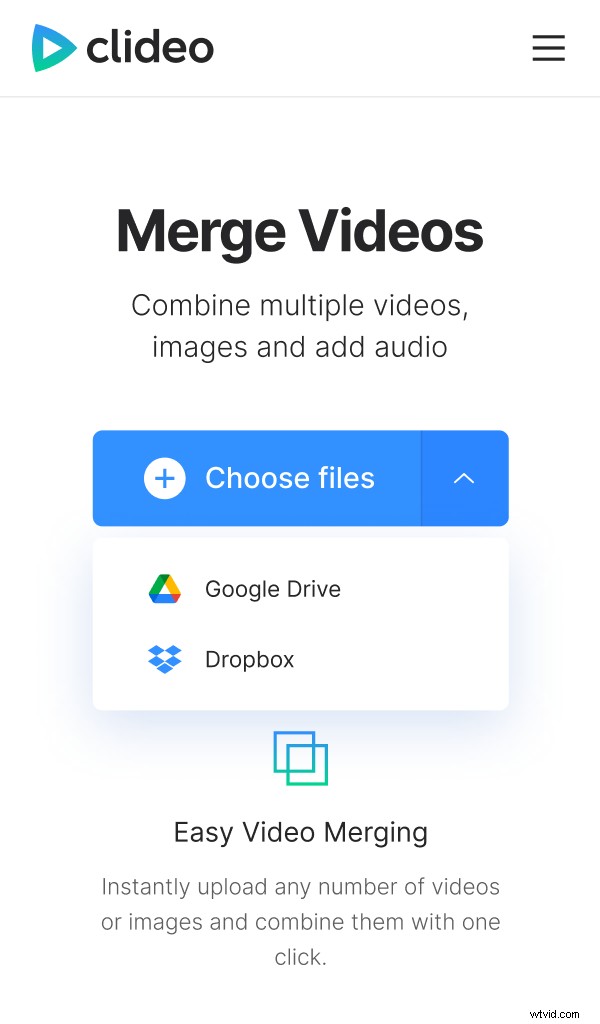
If you don't have the files you need stored on your iPhone, you can upload them via your Google Drive or Dropbox cloud storage accounts, simply tap the downward-facing arrow on the right of the icon and you’ll find the option on the drop-down menu.
Once you’ve selected the videos they’ll automatically begin processing.
Combine two or more videos on iPhone
Now that you’re in the editor, you can easily rearrange your clips using drag-and-drop in the timeline at the bottom.
Next, select your preferred crop ratio via the option on the top right-hand side; each is based on a popular social media channel.
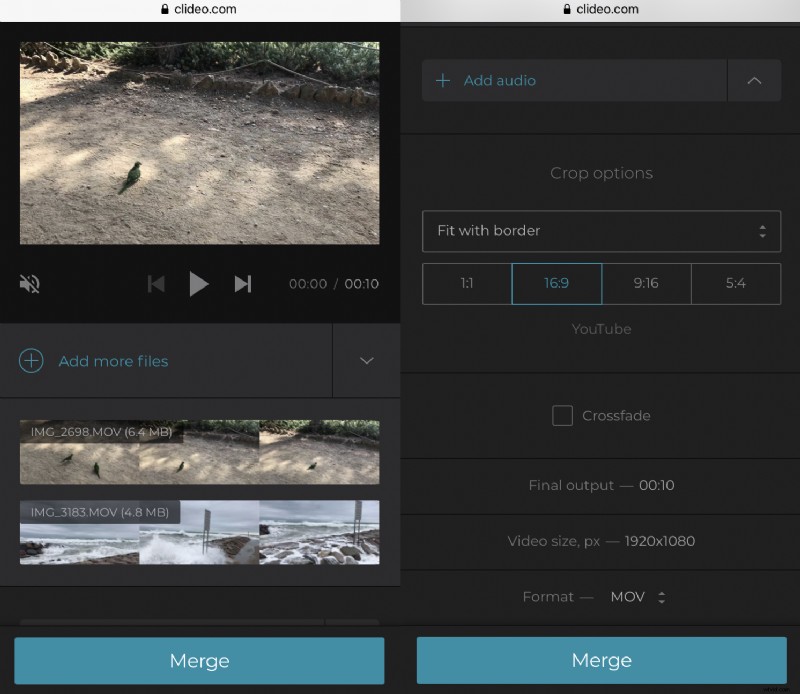
You can also add an audio file as a backing track if you wish. Just tap the ‘Add audio’ option on the lower right and you’ll be given the option to trim the track and set the volume.
Once you’re all done, hit the ‘Merge’ button on the bottom right and the tool will begin working its magic!
Save the merged video back to iPhone
Once your videos have been processed, you can save your new movie to your iPhone - just hit the ‘Download’ button.
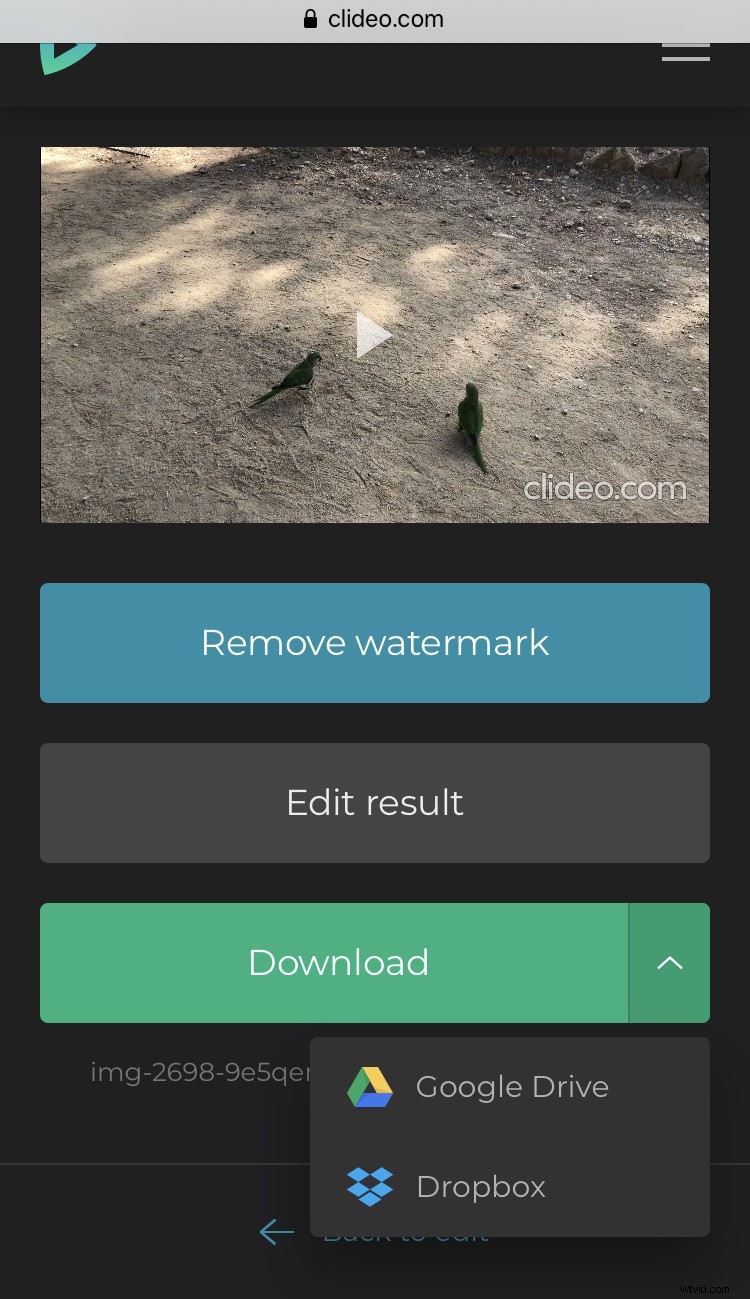
Alternatively, you can save back to your cloud storage accounts, as you could when uploading. Not quite happy with the result? Don’t worry - you can nip back into the editor to make any final tweaks by clicking the ‘Back to editor’ link.