
If you’re an avid YouTube user, chances are, you’ve wanted to loop videos. Perhaps you’ve even looped several videos or music videos on your computer at some point. Or, maybe it’s something that you do on a regular basis. Regardless, did you know that you can do also loop YouTube videos on on iPhone and iPad too?
YouTube’s loop feature can be accessed on a Mac or Windows PC by simply right-clicking on a video that’s being played and choosing ‘Loop’. However, there’s no such option within the YouTube mobile app to quickly loop a video. Don’t worry though, because there’s a workaround for this. Before you’re able to loop a video in the YouTube app for mobile devices, you’ll need to add the video to a playlist.
Interested in learning how you can do this on your iOS or ipadOS device? Read along to learn the process of looping YouTube videos on your iPhone and iPad.
How to Loop YouTube Videos on iPhone & iPad
Looping videos on the YouTube mobile app is not nearly as hard as you may think. Simply follow the steps below carefully to get started with the procedure.
- Open the “YouTube” app on your iPhone or iPad.

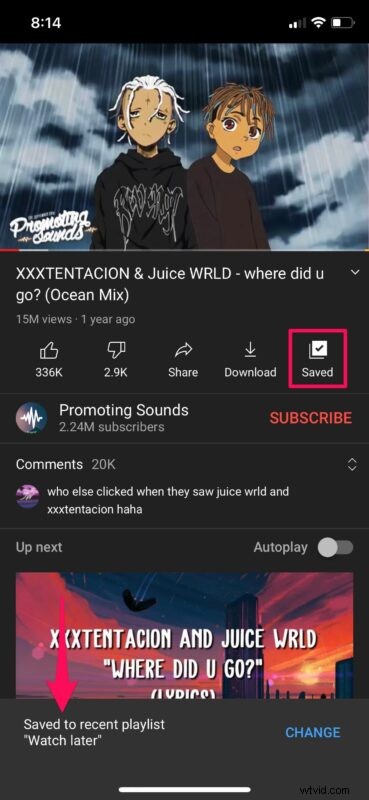
- Start watching the video you want to loop and tap on “Save” as shown in the screenshot below. The video will automatically be saved to the “Watch later” playlist.
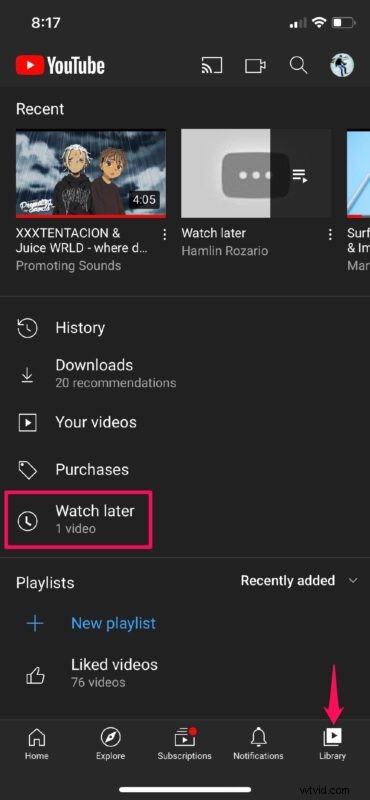
- Now, head over to the “Library” section of the YouTube app and tap on “Watch Later” located right below Purchases.
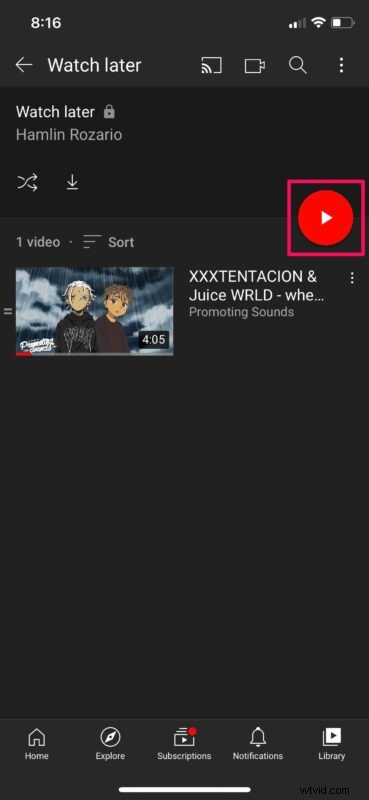
- This will show you the contents of your Watch Later playlist. Tap on the play icon to proceed.
- The video will start playing automatically. Tap on the chevron icon to expand the menu as shown here.

- Now, you’ll find the loop and shuffle icons. Simply tap on the loop icon once and you’re good to go.

As you can see, it’s pretty easy to loop YouTube videos right on your iPhone and iPad once you learn how.
Assuming you want to loop a single video, then make sure there are no other videos in your Watch Later playlist before you try to loop the video. Otherwise, YouTube will playback all the videos in the playlist and then repeat it from the beginning. You can save the video to a different playlist too. It doesn’t necessarily have to be the Watch Later playlist, but it’s easier this way.
Although we were focusing on the YouTube app for iPhone and iPad in this article, you can follow the above steps to loop YouTube videos on your Android devices as well.
This feature could come in handy when you’re listening to music on your iPhone using YouTube and don’t want to have to tap on the play again option every time the song stops playing. Of course, if you’re using a computer to listen to music videos, you can right-click to loop YouTube videos repeatedly too, regardless of what web browser you use.
We hope you were able to loop your favorite YouTube videos using the app on your iPhone and iPad. What are your overall thoughts on this neat workaround? Will be using this on a regular basis or would you rather wait for native support? Do share your valuable opinions and experiences in the comments section down below.