
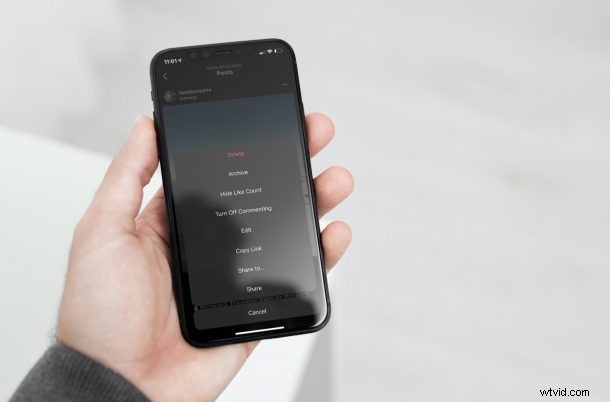
If you use Instagram as one of your primary social networking platforms but you’re getting tired of like-chasing, you may be interested in turning off likes and view counts on your posts, or even other peoples posts.
Not everyone wants validation for the photos they upload to social networking platforms in the form of likes and view counts. Some users like to keep all these details private. And, if you’re one of them, Instagram now allows you to do just that. You can not only disable like and view counts for new posts, but also for all your existing posts to this date. Plus, if you’re someone who gets jealous of the likes other people get for their posts, you can turn that off as well so you stop seeing them.
Read on to learn how you can hide likes and views on Instagram posts, for both new posts and existing old posts, as well as disabling likes on other peoples posts so that you stop seeing them too.
How to Hide Likes & Views for New Instagram Posts
Before you get started, make sure your device is running the updated version of the Instagram app since this is a new feature. Just follow these steps to turn off like count or view count for a new post.
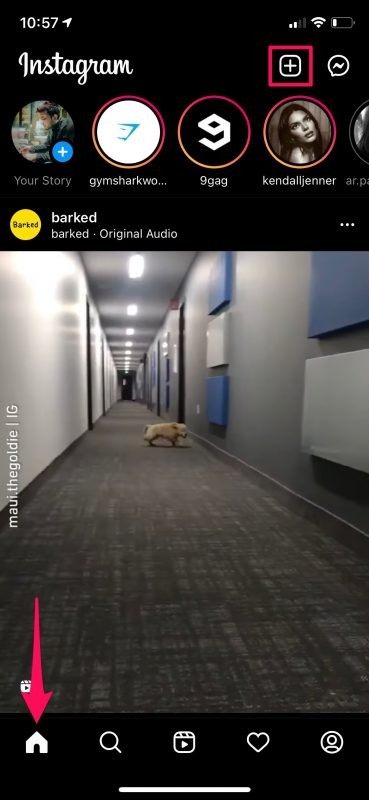
- First, you need to create a new Instagram post. Head over to the Home section of the app and tap on the “+” icon at the upper-right corner to start making a new post.
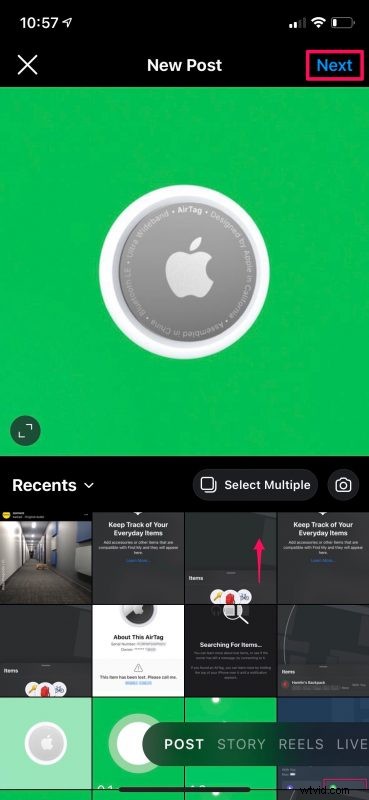
- Now, select the photo that you want to upload and tap on “Next”. Do this again once you’re done with the filter selection.
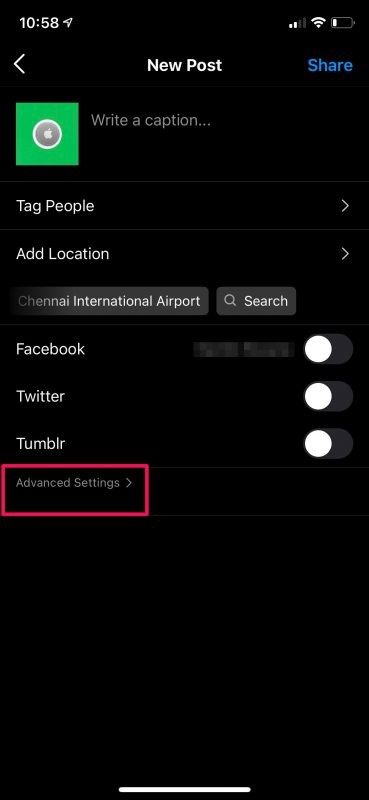
- When you’re in the final stage of creating the post as shown below, tap on “Advanced Settings” to access more options for the specific post.
- Here, you’ll find the necessary option right at the top. Set the toggle for “Hide Like and View Counts” to enabled.
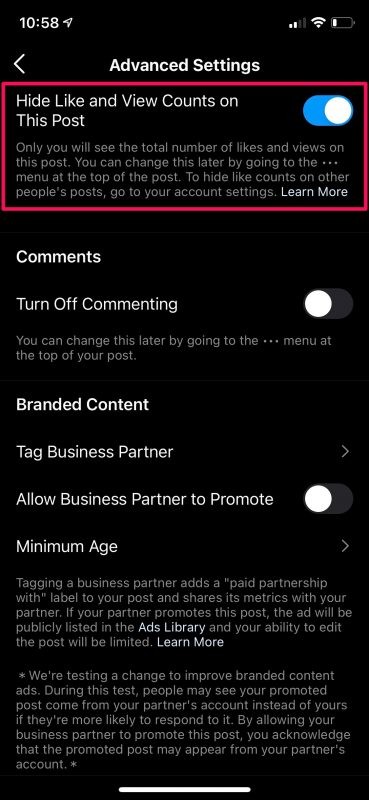
Now that you’re all set, you can post the picture or video without bothering about numbers.
How to Hide Instagram Likes & Views for Existing Posts
Hiding the like and view counts for your old posts is a lot more straightforward, but unfortunately, you can only do this one by one. Here’s what you need to do:
- Head over to your profile and tap on the post that you want to disable like and view counts for. Now, tap on the three dots icon at the upper-right corner of the post as shown below.

- Next, simply select “Hide Like Count” (or View Count if it’s a video) from the pop-up menu and you’re done.
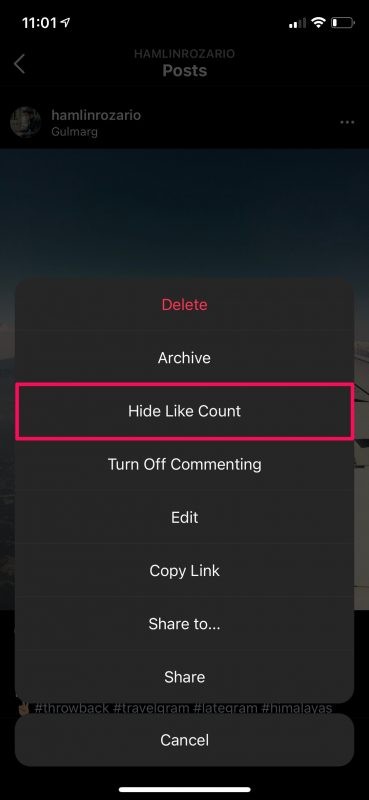
It’s that easy. Now, repeat these steps for your other posts too.
How to Hide Likes & View Counts for Other People’s Posts
Don’t want to be envious of the likes and views other people get? Just hide these overvalued numbers easily. Follow these instructions to learn how:
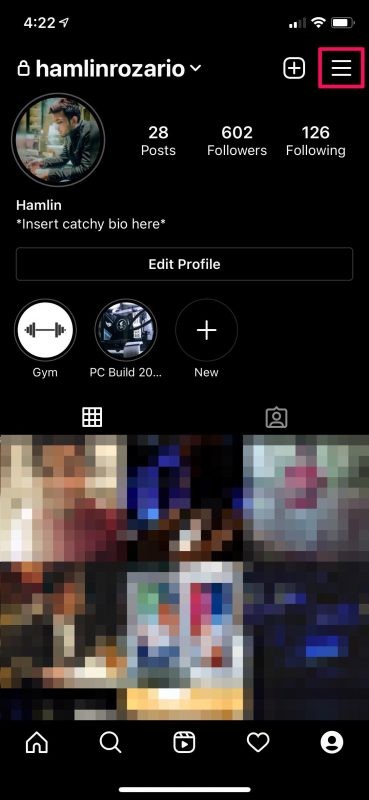
- Head over to your Instagram profile and tap on the three lines icon at the top-right corner of your screen.
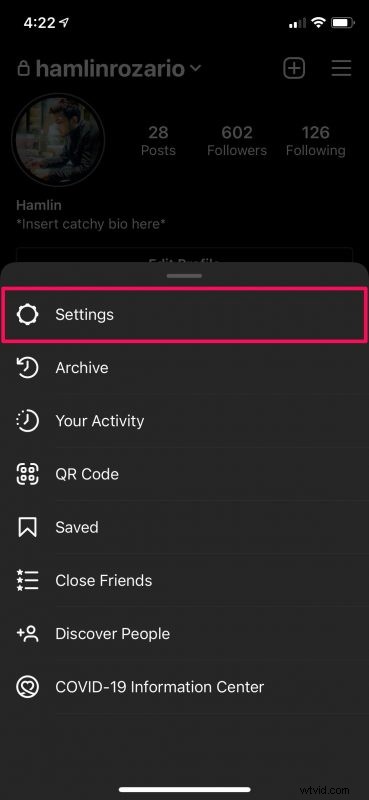
- Next, choose “Settings” from the pop-up menu as shown in the screenshot below.
- In the settings menu, select “Privacy” to proceed.
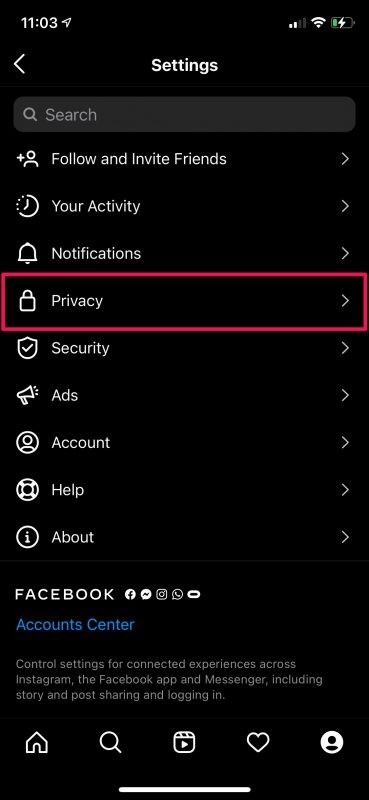
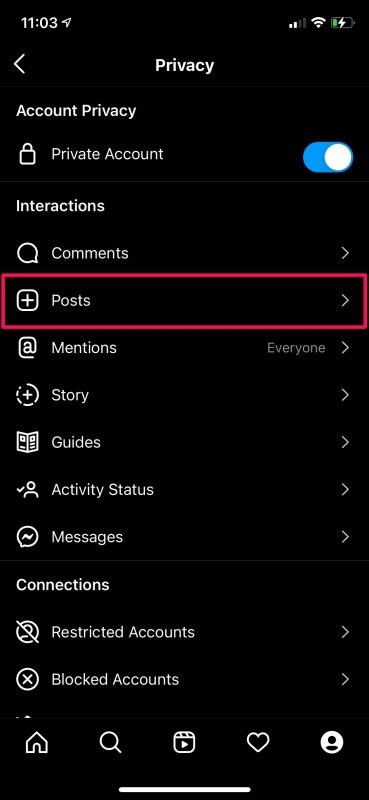
- Here, you’ll find the setting for managing your posts. Tap on “Posts”.
- Now, all you need to do is enable the “Hide Like and View Counts” toggle located right at the top of the menu.
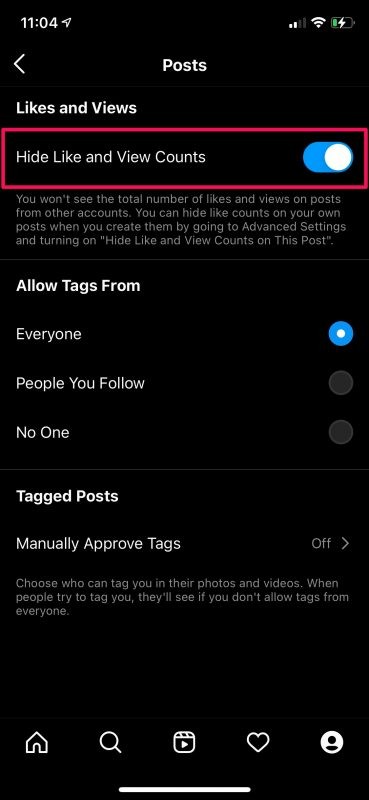
There you have it. An Instagram app without any like and view counts must be an interesting sight at first, we’d assume.
What’s disappointing is that Instagram doesn’t give you a global setting that hides the like count for all your posts at once. If you’re someone who has uploaded hundreds, if not thousands of photos to Instagram over the past decade, you’ll need to spend hours to hide them one by one. It’s possible this will change in the future however, but for now this is how it works.
According to Instagram’s parent company Facebook, the new options have been added to “depressurize people’s experience” on the platform. The feature will also make its way to Facebook in the coming weeks.
The wait is finally over for those who’ve been waiting for a “like-free” social space. However, this is something that could’ve been added years ago when Facebook was at its peak. But, it’s better late than never, right?
When it comes to Instagram stories, you have certain privacy options too. These have been available for a while, though. However, if you’re interested, feel free to check out how you can disable replies for your Instagram Stories altogether. And if you get completely sick of the service you can always deactivate your account, or even delete your account, though you’ll almost certainly want to download all of your pictures and videos from the service first, or else it’ll be lost forever.
Did you turn off the like and view counts for just your posts or other users’ posts as well? Are you planning to use this feature on Facebook too when it arrives? What’s your take on these new privacy settings? Let us know what’s on your mind and don’t forget to leave your personal feedback in the comments section down below.