
As you are scrolling and tapping the screen on Instagram, Instagram will store the likes you’ve issued and allow you to revisit them whenever you want. Sometimes you may want to find a specific post you liked. How to see your liked post on Instagram anyway? In this post, we will share the solutions with you.
As we know, Instagram is one of the most popular platforms for photo or video sharing. If you’ve liked some posts and want to find them, this post is right for you. You can also try the amazing video editor - MiniTool MovieMaker to make a short movie on your PC and share it on Instagram!
How to See Your Liked Posts on Instagram?
There are some changes when the Instagram app updates. The way how to see your liked post on Instagram may change.
On mobile phone:
Here we will show you the steps on how to see liked posts on Instagram iPhone or Android on the latest version of Instagram.
Step 1. Launch the Instagram app on your phone and sign in to your account.
Step 2. Once you’re logged in, press your profile tab at the bottom right-hand corner.
Step 3. On your Instagram profile page, head to the upper-right corner and tap the hamburger (3-horizontal-line) icon to open the menu.
Step 4. In the menu that appears, press Your Activity. On the Your Activity page, scroll down until you see the Interactions option.
Step 5. On the Interactions page, you’ll see three options: Story Replies, Comments, and, Likes. Since you want to see your liked posts, tap on the Likes option.
From there, you will be redirected to the Likes page, where you can see the videos, reels, and posts that you’ve liked on Instagram.
You may also like How to View Instagram Posts and Stories without Account.
If you want to unlike some of the content, you can tap Select at the top of the Likes page, highlight all the photos, videos, and reels you want to un-heart in the group, then tap Unlike at the bottom.
Tips:
You can change the way the liked posts are sorted. By default, they’re originally arranged in the Newest to Oldest order. Just tap the Sort & Filter option to change the order with which your liked posts appear. Then, press the Sort by option to choose another way of arranging the liked Instagram posts before tapping Apply.
On Desktop:
Can you view your liked post on your Windows or Mac? Well, there is no direct way to do that, because the web version of Instagram only offers basic functionality. But we will offer you a workaround to get the job done. The following will cover the way how to see your liked posts on Instagram PC:
Step 1. Install the “Layoutify: Improved Layout for Instagram” extension for Google Chrome.
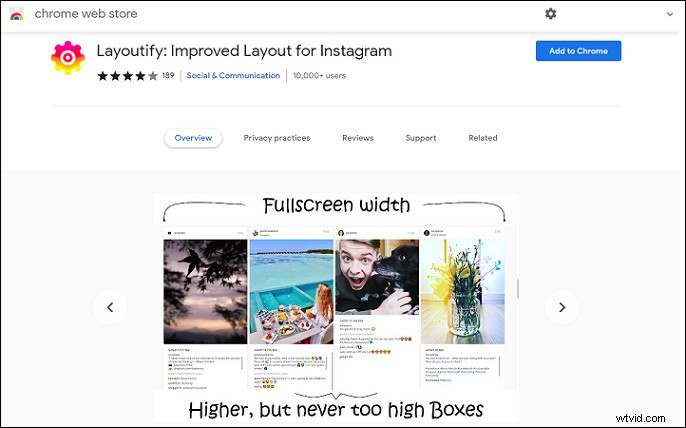
Step 2. After installing the Layoutify extension, visit instagram.com and click the three horizontal dots at the top right.
Step 3. You can now see your liked posts in a grid view within the Chrome browser. Click the Load more button at the bottom of the webpage to view more posts you’ve liked.
Note:
According to Instagram’s Help page, you can see the 300 most recent posts (photos and videos) that you’ve liked.
Conclusion
To summarize, we’ve discussed the way how to see your liked posts on Instagram. You can get the job done on your phone or desktop (with an extension). Just try the step above now!