
Have you ever wanted to see all the Instagram pictures you have liked before? Or maybe you wanted to see a picture again that you know you liked recently? No problem, the Instagram app offers a simple way to see all of the images you have liked on the service.
You’ll need a modern version of the Instagram app to have the ability to see the images you have chosen to like (or love, or heart), so update on your iPhone if need be. We’re focusing on the Instagram app for iPhone here, but this likely works the same on Instagram for Android too, and if you have Instagram on your iPad it will be the same.
How to See All Pictures You Have Liked on Instagram
This works to see all images and posts you have liked on Instagram
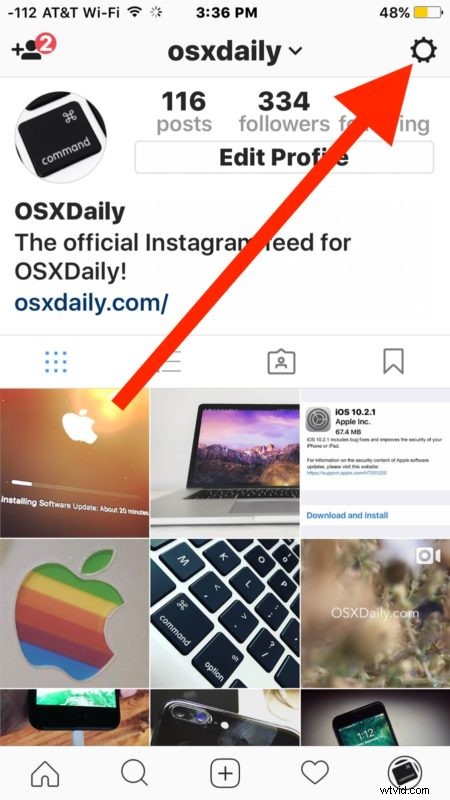
- Go to your primary profile page on Instagram by tapping your avatar icon in the corner
- Now tap the Gear icon in the upper right corner to visit Instagram Options and Settings
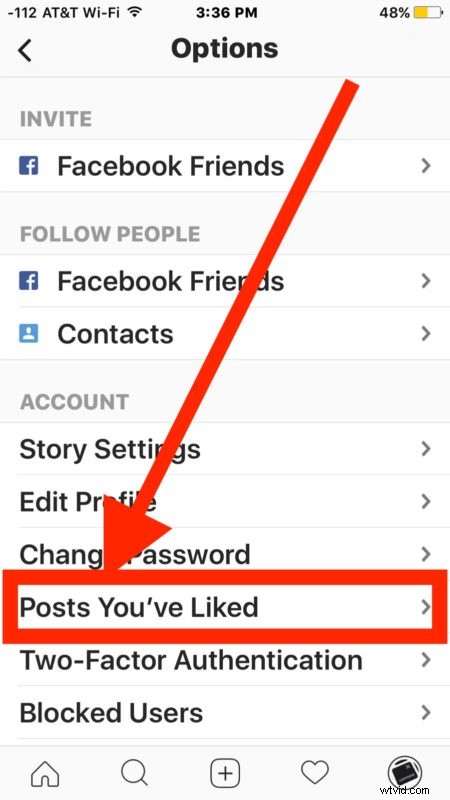
- Under the Account section tap on “Posts You’ve Liked”
- Browse through pictures you have liked on INstagram in list or grid format

You can actually do this with any account that you’re logged into, so if you use multiple Instagram accounts you can check each of them individually.
This is obviously useful so why it’s tucked into the Instagram settings is a little strange. You might think that tapping the big heart icon button in the main menu bar would show you what pictures you have liked on Instagram, but instead that shows you a feed of who likes and liked your photos and who you follow has liked. Perhaps a future version will change how this works.
Since you can’t directly download photos, if you want to save any of the pictures from instagram you’ll have to rely on this trick which utilizes the cropping feature of the photos app.
There are some other interesting options tucked into the Instagram settings, including the ability to clear Instagram search history and to add additional Instagram accounts for easy switching, check them out if you’re interested.