Upload to Instagram multiple photos with different sizes
Sounds complicated? It’s really easier than it sounds!
Our online tool lets you resize without cropping by adding borders of different colors in order to upload multiple photos to Instagram.
It’s free and you don’t even have to create an account or log in if you don’t want to. You can use it on any device, be it a Mac or Windows, smartphone, or tablet. If you’re an iPhone owner, you can make use of Clideo's Video Resizer App and edit visuals in an offline mode.
Read on to learn how to share multiple photos on Instagram in four intuitive steps.
Upload an initial file
Open the Visual Resizer by Clideo and hit the big blue button to import a file from your personal device.
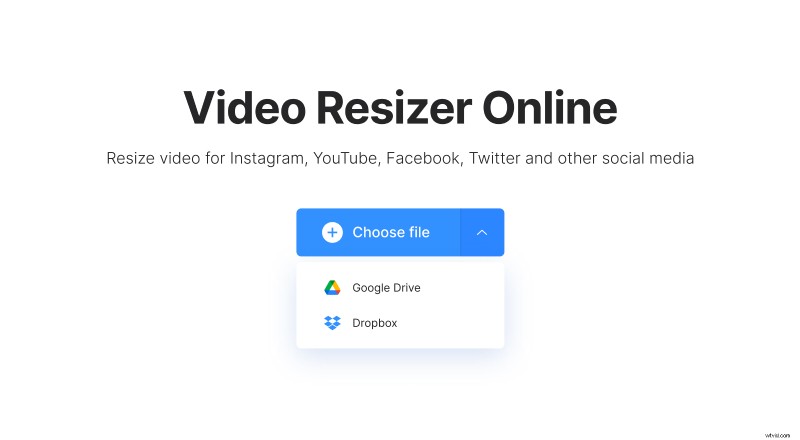
Alternatively, call the drop-down menu on the right side of the pane and upload a photo, stored on one of your cloud storage accounts: Google Drive or Dropbox.
Resize the visual
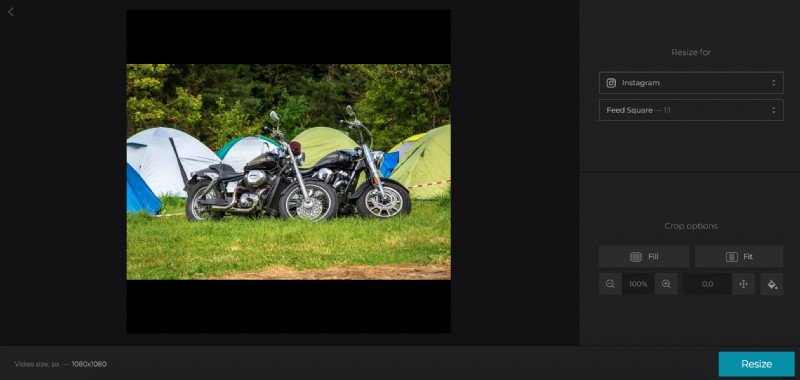
Choose the social medium you need, Instagram in our case, then pick the needed post type. There are more than 90 presets!
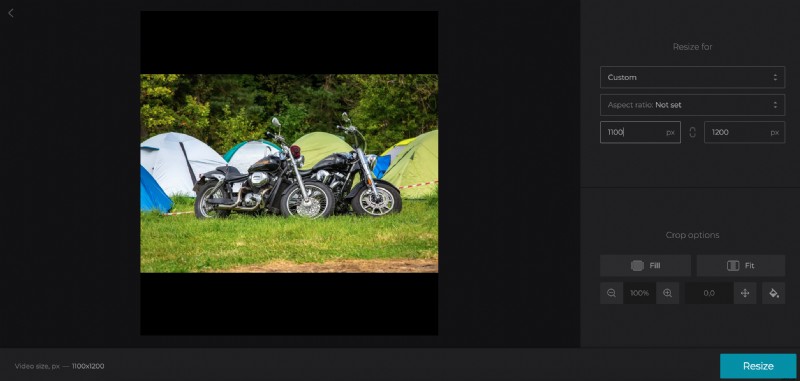
If you want the exact dimensions, hit the “Custom” option and input the photo’s height or width manually, the second parameter will be set automatically in reference to the chosen aspect ratio.
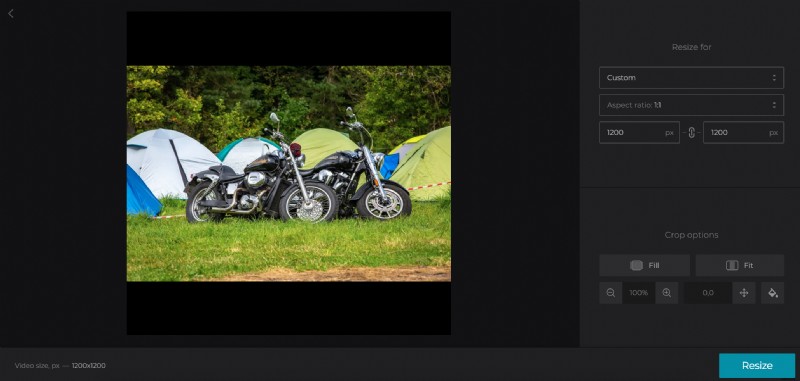
If you don’t want to follow any exact aspect ratio pattern at all, “untick” the chain sign between the boxes and set both parameters manually (don’t forget to check their minimums and maximums in the manual).
Crop the visual
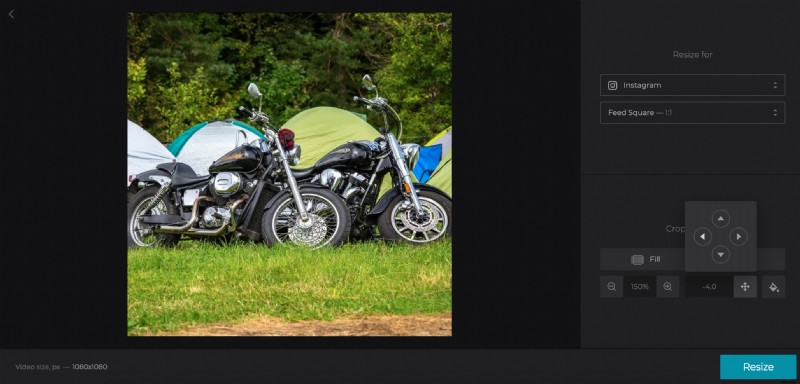
The idea of this whole thing is to allow multiple posting without cropping to keep the whole image. There are two crop options:
- Fit an image with a frame. Choosing this option, you can keep the initial picture untouched.
- Fill the frame with an image.
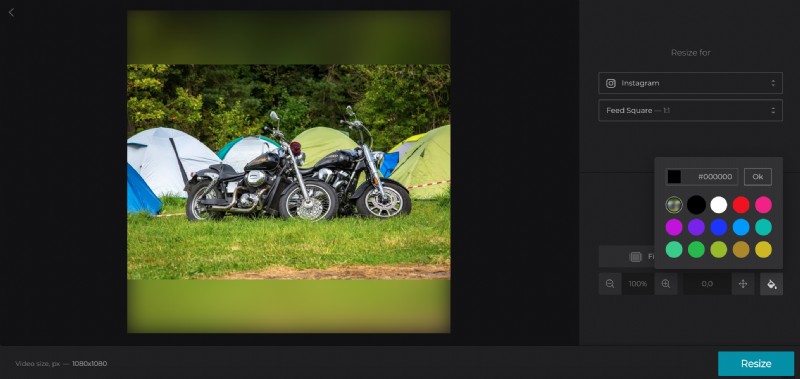
If sideboards appeared, select their background colour or blur them. The standard palette includes 14 hues, but you are not limited to them: enter any hex code you want (Google will help to find the best ones) and enjoy your unique customized colour.
Click on “Resize” and let the magic begin!
Put multiple pictures on Instagram
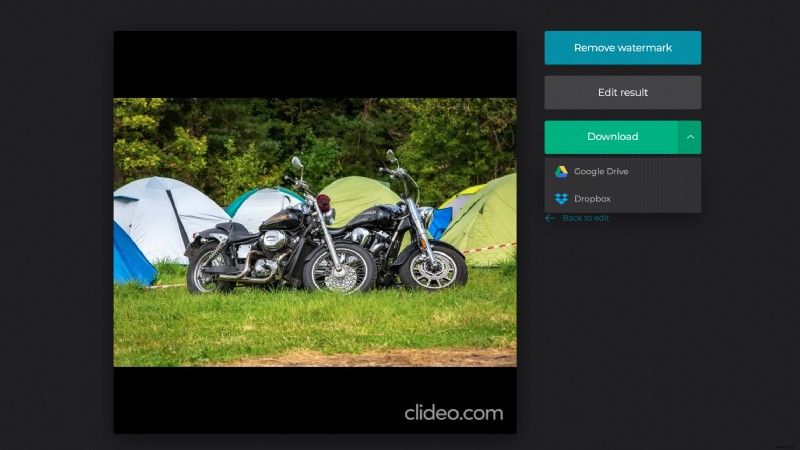
Save the result to your personal device or to the cloud and repeat the steps with the rest of the photos you are going to post. Don’t forget to choose the same preset for all of them! When all the images are properly resized, share them!