
If you’re a Facebook user and an Instagram user, you probably would love to automatically post your Instagram photos to your Facebook profile so that all of your “friends” can see your amazing Instagram pictures, right? Of course you would, that’s the whole point of social networks, right? The good news for you is that Instagram and Facebook make it easy to cross-post between accounts, you just have to link the two.
This tutorial is going to show you how to automatically post Instagram images to Facebook.
Obviously to achieve this you must both a Facebook account and an Instagram account. If you use multiple Instagram accounts just be currently logged into the Instagram account you want to post to Facebook from.
How to Automatically Post Instagram Photos to Facebook
- Open the Instagram app on the iPhone (or Android if you’re into that sort of thing)
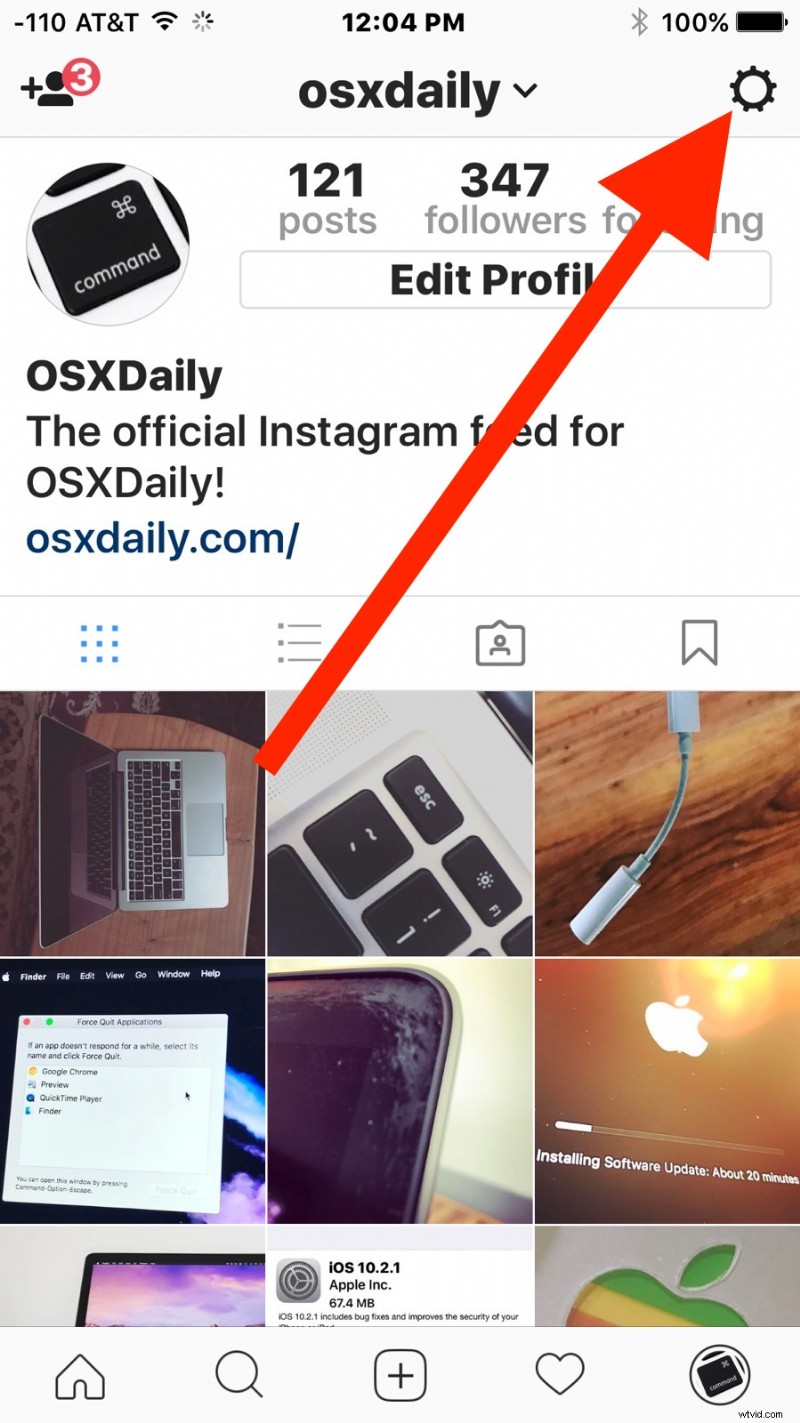
- Go to your profile page then tap on the gear icon for Settings
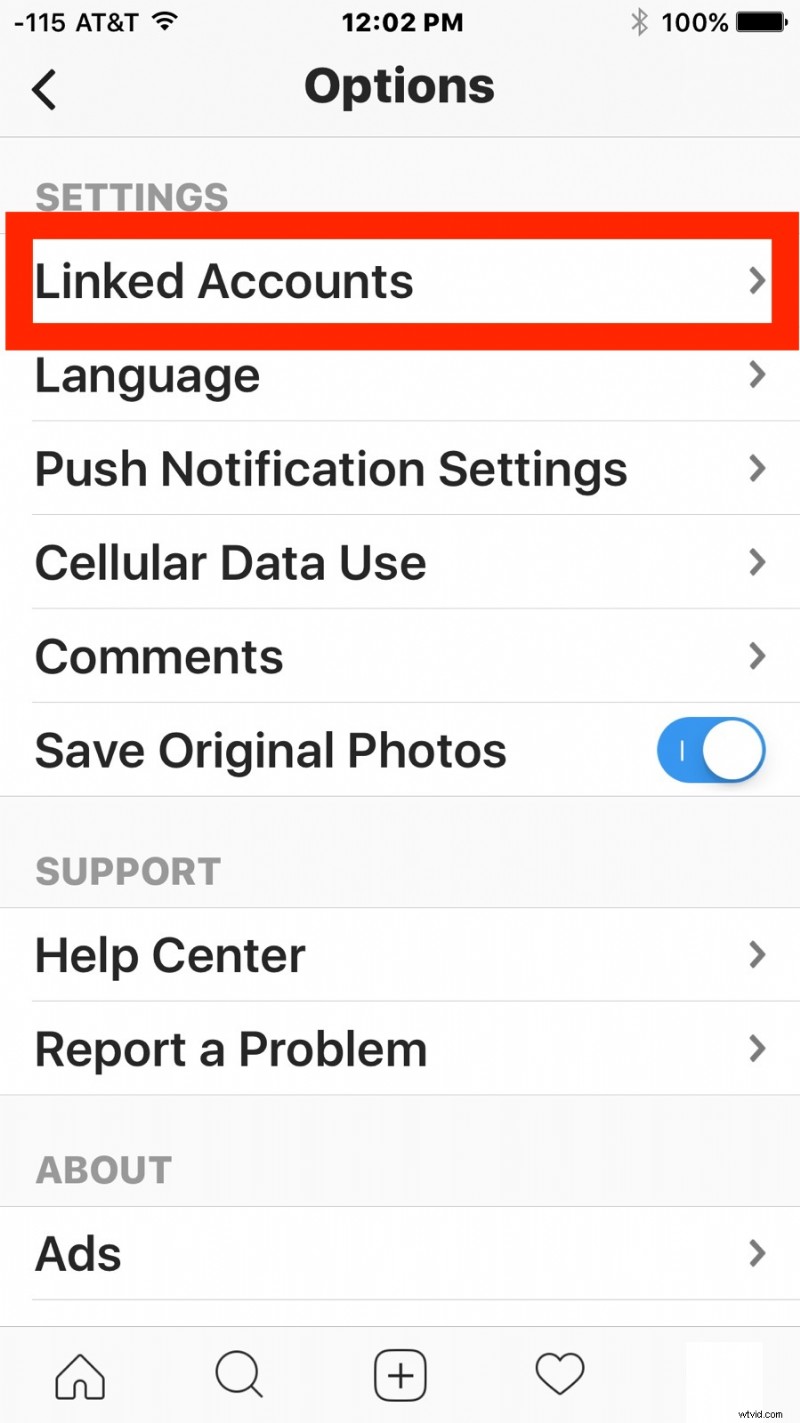
- Choose “Linked Accounts” under the Settings options
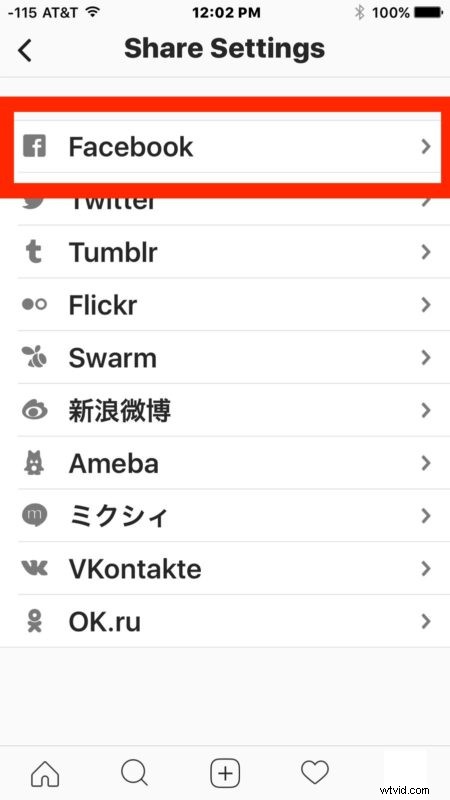
- Select “Facebook” from the linked account list
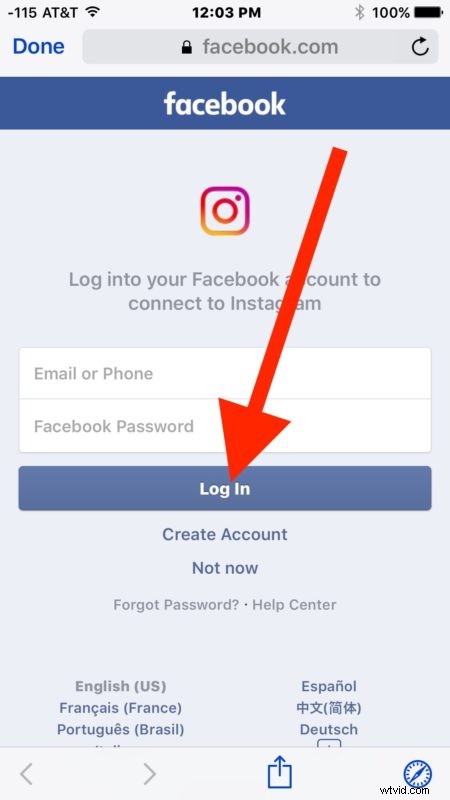
- Login to your Facebook account and confirm
- Return to Instagram out of the settings areas and use as usual

Now when you go to post a picture to Instagram, another option will be available that allows you to share it directly to Facebook as well. And yes, this works with any type of content posted to Instagram, whether it’s a normal picture, a video, or even a Live Photo, as long as it’s posted to your primary feed.
What a magical combination to have Instagram posting pictures to Facebook on your behalf, now you can get more likes for your fantastic Instagram pictures from all of your like-happy Facebook “friends” who are sure to love looking at your photographic wizardry produced on Instagram.
Since this is automated the Instagram pictures will go to Facebook directly after a picture is posted. For past pictures however, you’ll either need to dig them out of your camera roll or save Instagram photos to iPhone and then share them from the Photos app to Facebook.
You’ll notice when setting this up there are a variety of other Linked Account options, including to automatically post to Twitter, Facebook, Tumblr, Flickr, and a variety of other social networks. You can even autopost to them all if you’re into that sort of thing.