
Instagram allows you to send photos that disappear once they’ve been viewed. How to send disappearing photos on Instagram? Can you send disappearing messages on Instagram? Read this post and find the solutions.
Using self-destructing photos, videos, texts on social networks is a good way to protect your privacy. Luckily, both Instagram and Snapchat have the feature. This post will focus on how to send disappearing photos and messages on Instagram.
Try MiniTool MovieMaker to make an Instagram video for free!
How to Send Disappearing Photos on Instagram
You can use Instagram Direct to send disappearing photos and videos, and share posts in the feed. After the recipient opens the disappearing photo you’ve sent in a chat, the recipient will not be able to see the photo.
Follow these steps to learn how to send disappearing photos on Instagram.
Step 1. Open the Instagram app.
Step 2. Click the paper plane icon in the top right corner of your feed.
Step 3. Tap the camera icon (iPhone: messages icon) next to the username of the person you want to send a self-destructing photo to. Or open a chat and click the camera icon to take a photo.
Step 4. You can choose a photo from your gallery or capture a photo. After that, edit the photo as needed.
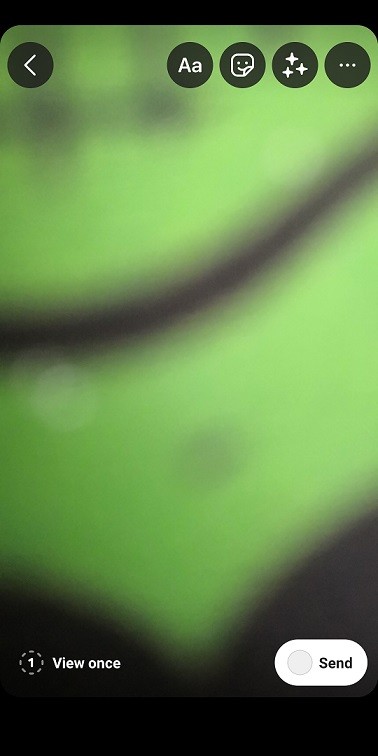
Step 5. In the lower-left corner, you will find the option Allow replay. It lets the recipient replay the photo after viewing it for the first time. If you want the photo to disappear after the recipient view it once, click Allow replay until you see the View Once option.
Then click on Send.
Related article: How to Hide Likes on Your or Other Instagram Accounts
How to Send Disappearing Messages on Instagram
If you want to make private chats on Instagram, you should use the vanish mode. Vanish mode on Instagram lets you have a temporary chat where messages disappear after the conversation is over. This feature also allows you to send disappearing photos and videos.
Here’s how to send disappearing messages on Instagram.
Step 1. Open your Instagram app and click the paper plane icon (iPhone: messages icon).
Step 2. Go to the conversation where you want to enable the vanish mode.
Step 3. Then swipe up from the bottom to turn on the vanish mode and your chat screen will turn black.
Step 4. Now, you can send disappearing messages in this chat.
How to remove vanish mode on Instagram
Turning off the vanish mode on Instagram is very easy. Here’s how:
- Open the chat that you’ve already turned on vanish mode.
- Tap on Turn off vanish mode at the top of the screen or swipe up to disable this mode.
Does Instagram notify when you unsend a message
No. If you unsend a message on Instagram, the recipient will not be notified. The message will disappear from the conversation.
Conclusion
Now, follow this guide to send disappearing photos or messages on Instagram to others!