
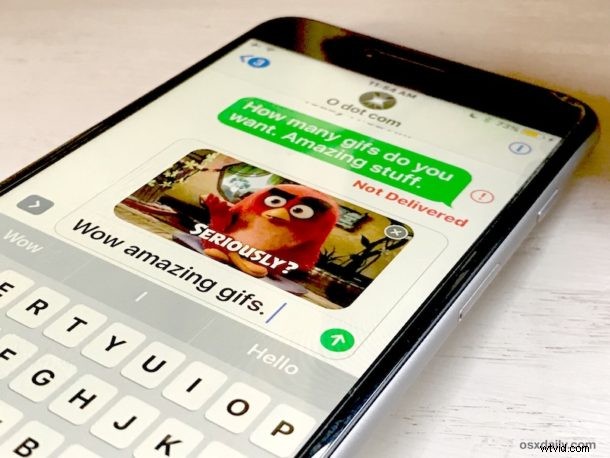
The iOS Messages app for iPhone and iPad includes an animated GIF search feature which allows you to search for and send GIFs to any recipient, whether they have an iPhone with iMessage or not.
Embedded GIF search is just one of the many new fun and quirky Message features included in the latest versions of iOS, alongside stickers, apps, handwriting, and effects. With the image and GIF search feature, you can find animated GIFs and send them directly in Messages app, without having to leave the app and without having to locate a GIF elsewhere to send using the copy and paste method (which still works, of course). It’s all built into Messages, let’s walk through how it works.
Note that your iPhone or iPad must have a modern version of iOS to have the GIF search feature, iOS 10.0 or later includes this capability while earlier versions do not.
How to Search & Send GIFs in Messages for iOS/iPadOS
- Open the Messages app and open any message conversation, or start a new one
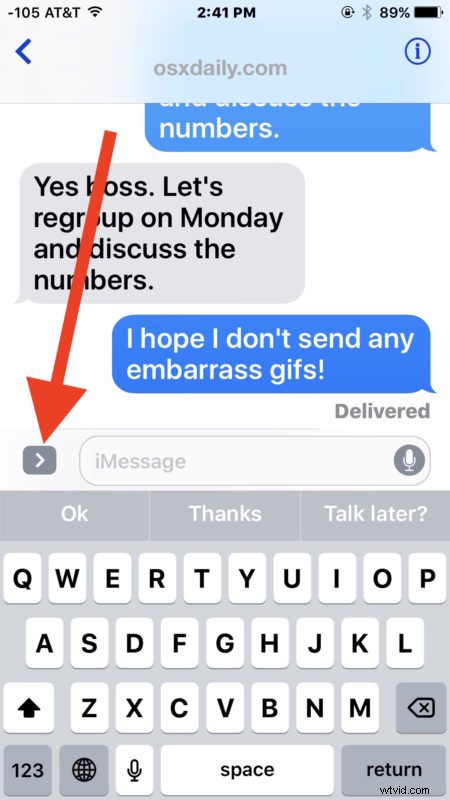
- Tap the arrow “>” button next to the text entry section to reveal additional messaging options
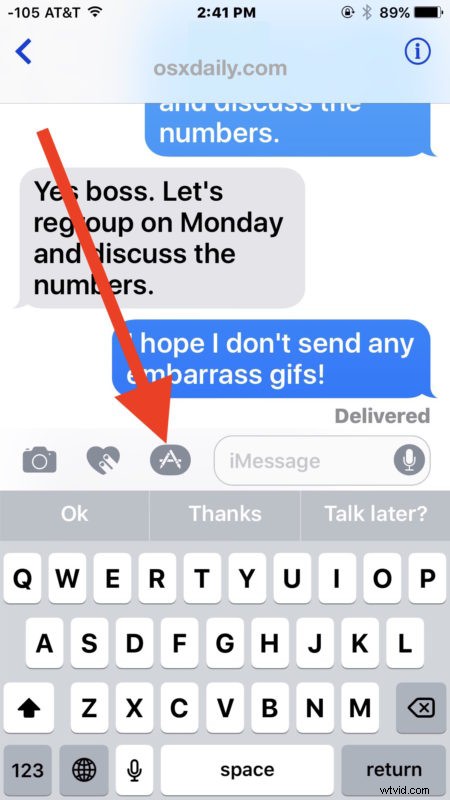
- Tap the “A” button to access the message apps, stickers, and gifs
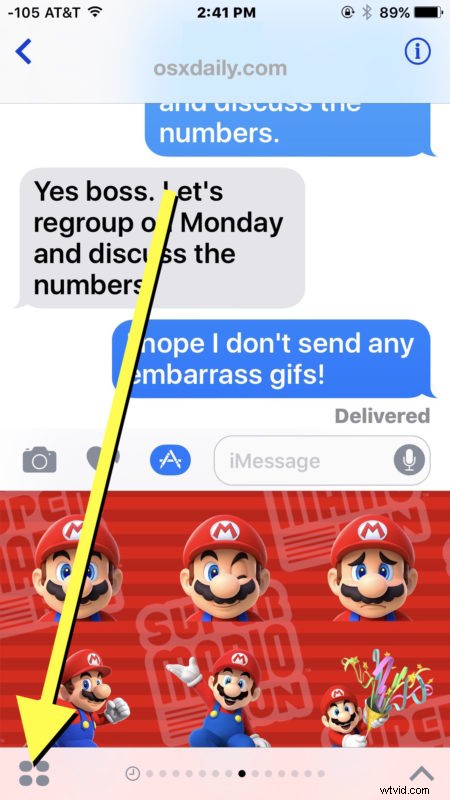
- Now tap on the four square bubble icon in the corner
- Tap on the “#images” red magnifying glass button, this is the gif image search
- Now tap into the search box where it says “Find images and videos” and type the GIF type you’d like to search for
- Navigate through the searched GIFs and tap on one to insert it into the message
- Send the inserted GIF as usual, or include a message with it if desired
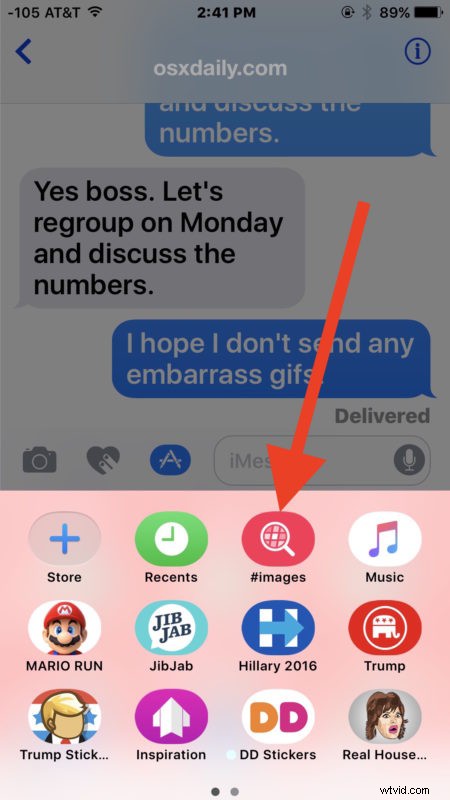
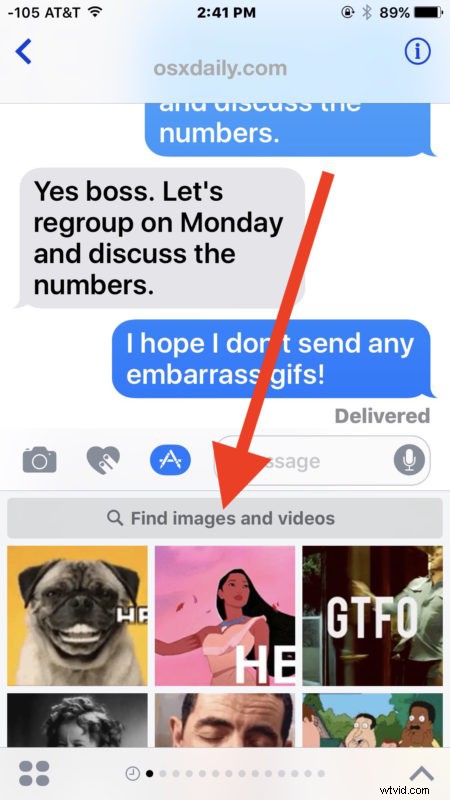

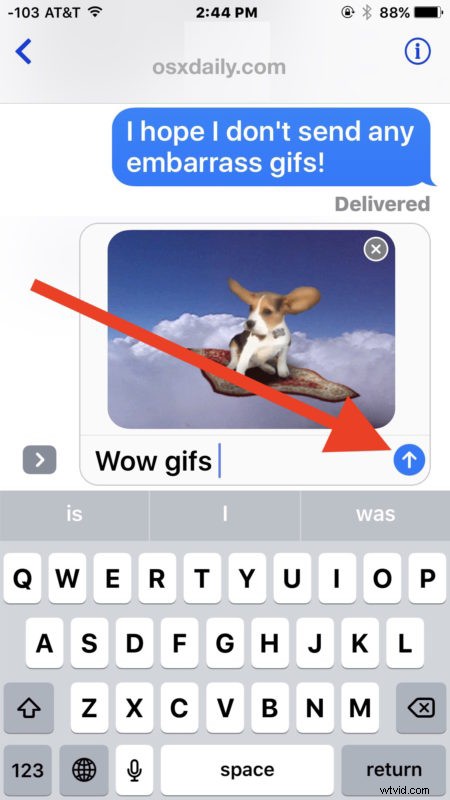
Now you have sent animated gifs easily, without ever leaving Messages app. The GIFS are embedded into the chat window like any other message or picture, but unlike stickers they aren’t glued onto a message to obstruct it.

Sending and receiving animated GIFs in your messages can be really fun or completely obnoxious, try it out yourself and see how it works. Like the other new Messages app features, there’s no way to opt-out or disable the gif search ability, so embrace it instead.

The native Messages gif search feature requires a newer version of iOS, meaning version 10.0 or later. If you’re not on a new iPhone or iPad and you don’t have the latest versions of iOS on your device, you can still receive GIFs from people who are sending them this way, and you can still send animated gifs yourself by using copy and paste as described here.
Do you enjoy the new native GIF search feature in Messages for iOS?