
Did you know you can send iMessage effects by using only your voice? Thanks to the Voice Control accessibility feature, you can not only control every aspect of your iPhone or iPad hands-free, you can also send those fun iMessage screen effects without touching your device too.
Apple’s iOS and iPadOS both offer a ton of accessibility features like Color Filters to help people who have challenges with some colors or are color blind, VoiceOver for people with imperfect vision, the ability to use AirPods as hearing aids, and more. Voice Control is another such feature that helps people with limited dexterity, mobility, and other conditions or situations, to help to control their devices with just their voice.
If you’re an iMessage user who also uses Voice Control, you might be interested in learning how you can send Message effects with Voice Control on iPhone and iPad.
How to Send Message Effects with Voice Control on iPhone & iPad
Before you start sending message effects with your voice, you need to enable Voice Control on your iPhone and iPad. This can be done with the help of Siri using the voice command “Hey Siri, turn on Voice Control”. You can also manually enable it through Settings. Either way you can start using it with iMessage by following the steps below:
- Head over to Settings on your iPhone or iPad.

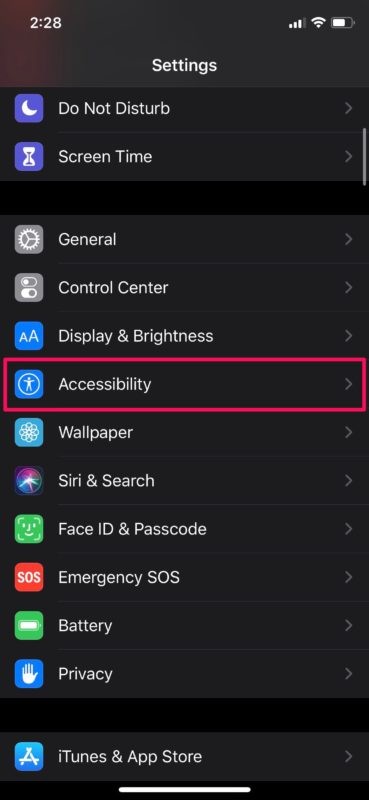
- Scroll down and tap on “Accessibility”.
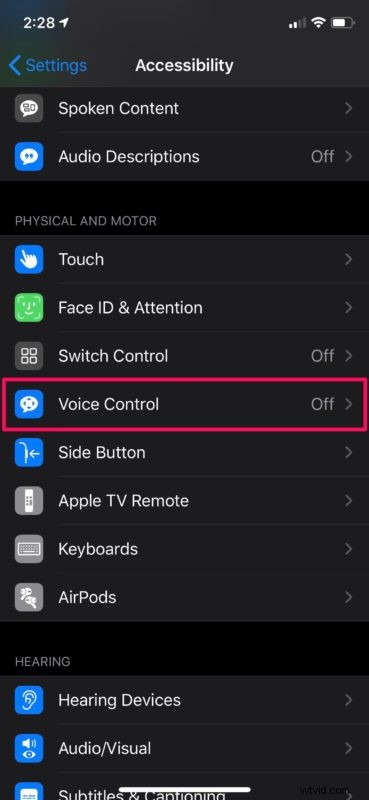
- Next, scroll down and select “Voice Control”.
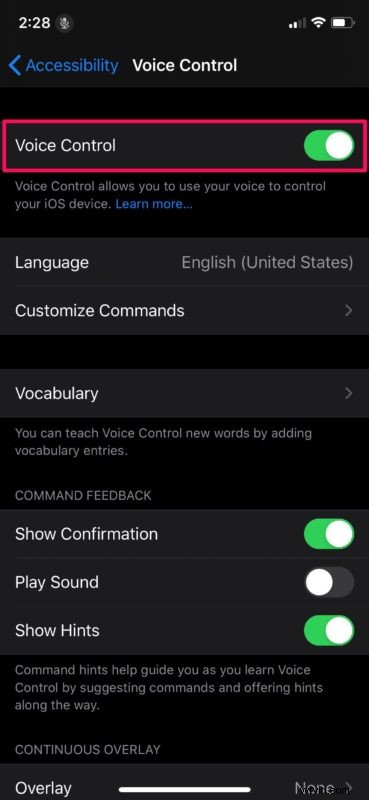
- Here, simply tap on the toggle to turn this feature on.
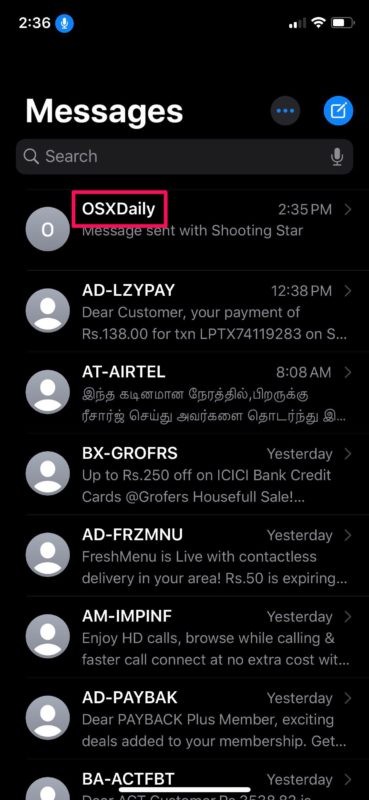
- Now, say “Open Messages” to use Voice Control for opening the Messages app on your iOS device. Then, say “tap” followed by the contact’s name. For example, in this instance, “tap OSXDaily”.
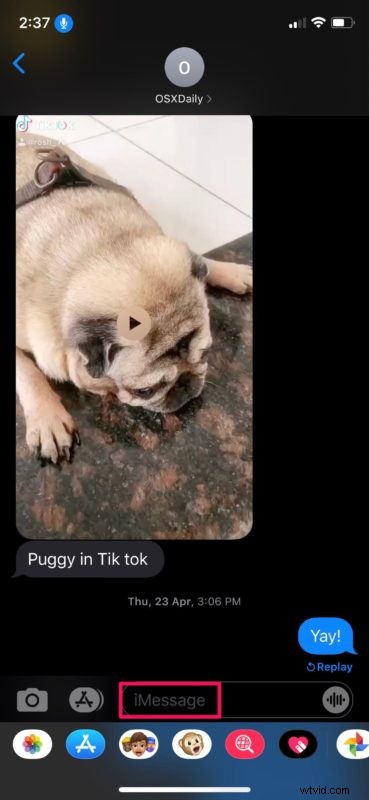
- Now, say “tap iMessage” and start dictating your message.
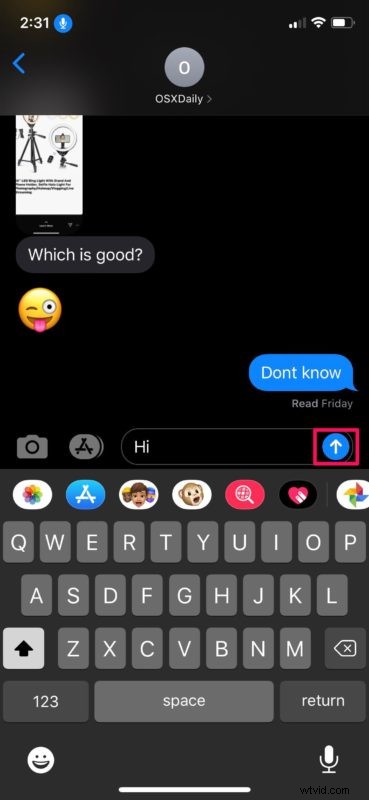
- Once you’re done dictating, say “long-press send”
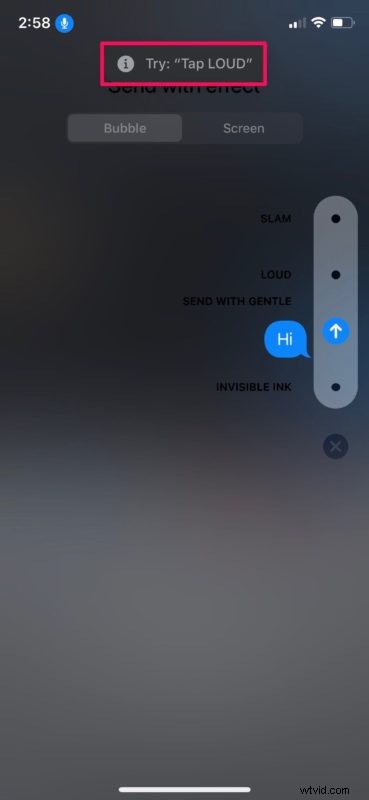
- This will open the Bubble effects menu on your device. To select any of the effects here, you can say “tap” followed by the name of the effect. For example, “tap Loud”. If you make any slight errors while using Voice Controls, you’ll get proper suggestions at the top of your screen, as shown here.
- In order to access Screen Effects, say “tap Screen”. Now, you can use the voice command “swipe left” or “swipe right” to go through the various screen effects that are available. When you’re done selecting an effect for your message, just say “tap send”.
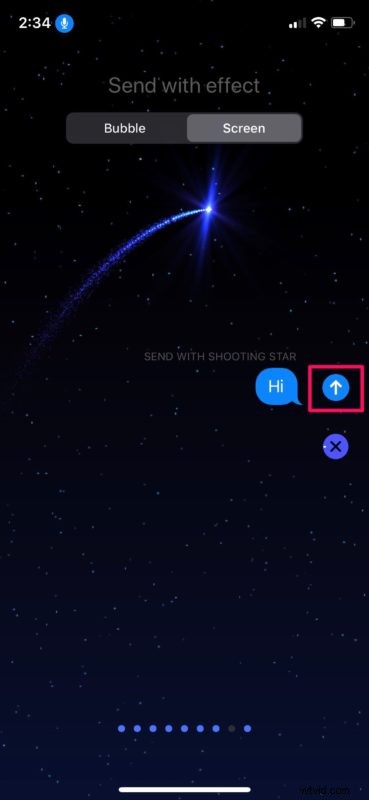
- As you can see in the screenshot below, we’ve successfully sent an iMessage effect hands-free.
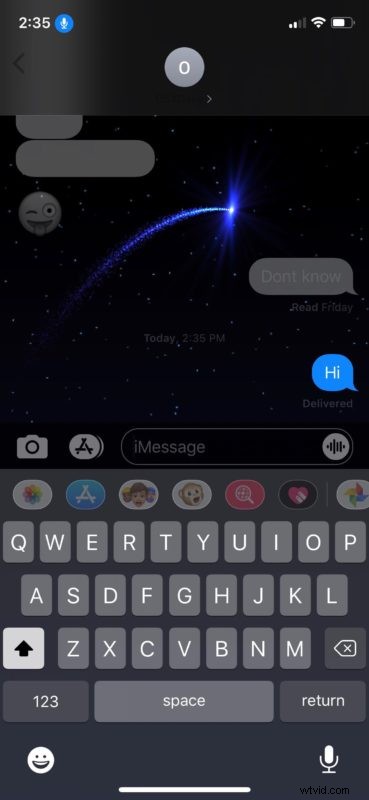
And there you have it, you’re now able to send Message effects with Voice Control on an iOS or ipadOS device.
This is just one of the several cool things that you can do with Apple’s Voice Control feature. You can pretty much control every aspect of your iPhone or iPad without physically touching it with the Voice Control feature, making it a hugely important feature for users with limited mobility, but it’s also used by users without accessibility needs too just for its convenience.
One important thing to keep in mind while using this feature is the fact that your device is always listening to your surroundings. Since Voice Control is not personalized to your voice unlike Siri, it could get activated and perform an action when it detects a phrase regardless of whose voice it is. That’s just something to be mindful of, since someone may say something like “open Safari” and suddenly the browser is open on your iPhone or iPad.
Apart from being able to send message effects with your voice, Voice Control offers a slew of other commands. For example, when you make mistakes while dictating your texts, you can use Voice Control for text editing and deletion. With over 300 commands on the table, there’s definitely a learning curve. And if that’s not enough, you can create your own commands to perform a task of your choice too.
What are your thoughts on using Voice Control to send Message effects from your iPhone and iPad? Share any of your experiences, thoughts, or opinions in the comments.