
You might want to organize the saved posts on Instagram. Luckily, Instagram has a feature called Collections that lets you sort the saved posts into different categories. This post will show you how to create and manage Instagram collections.
How to Create Collections on Instagram
Instagram Collections is a very convenient function for saved video and photo posts management (MiniTool MovieMaker is a free video editor that can be used to edit Instagram videos and make Instagram slideshows).
How to create a collection and how to save a post to a collection on Instagram? Follow the steps below:
Create a collection on Instagram
Step 1. Open Instagram and tap on your profile picture at the bottom right.
Step 2. Click the three horizontal lines (the Menu button) in the top right.
Step 3. From the drop-down menu, choose the Saved option.
Step 4. Then click the plus icon to create a new collection. Tap the saved posts that you want to add to the newly created collection and click Next.
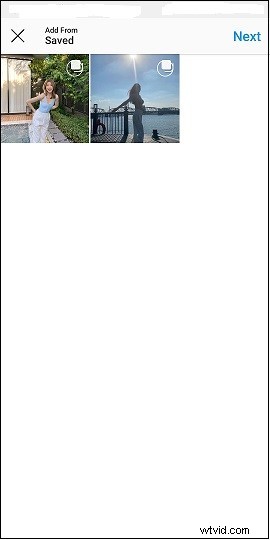
Step 5. Give it a name and click the checkmark icon.
Save a post to a collection
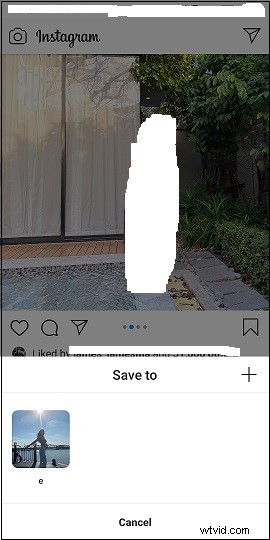
Step 1. Find the post you’d like to save to your collection. Below the post, tap and hold the Save button. Or tap Save and click Save to collection.
Step 2. Tap the collection you’ve created.
You might be interested in: How to See Who Viewed Your Instagram Post
How to View Instagram Collections
It’s very easy to find all your saved posts on Instagram. Here’s how:
Step 1. Open the Instagram app and click your profile picture in the bottom right corner of your screen.
Step 2. Tap the three horizontal lines and choose Saved.
Step 3. Open the All Posts collection to view the saved posts. If you want to manage these posts, just click the three dots and choose Select. Then you can select the posts you’d like to move to another collection. Click Move.
Step 4. Tap the collection that you want to save the selected posts. Confirm the operation by clicking the Move button.
How to Unsave All Saved Posts and Delete Collections on Instagram
How to unsave all saved posts on Instagram
Step 1. Go to your profile tab.
Step 2. Click the Menu button and select Saved.
Step 3. Tap All Posts and click the three dots to choose Select.
Step 4. Select all the saved posts and click the Unsave button.
If you want to remove posts from a collection, open the collection and click the three dots. Select the posts you want to remove and tap the Remove button.
How to delete collections on Instagram
Step 1. Go to Saved and open the collection you want to delete.
Step 2. Click the three dots and select the option Delete Collection.
Step 3. Tap the Delete button.
Note:
When you delete a collection, the posts in this collection will still be saved. You can find these saved posts in All Posts.
How to Save Photos and Videos from Instagram
Want to download saved photos and videos from Instagram? Try an Instagram saver – iGram. It’s web-based and works in any browser. It allows you to download Instagram photos, videos, and IGTV videos.
Go to the website: https://igram.io/ and paste the copied link in the field. Click Download and save your Instagram photo or video.
Conclusion
Instagram Collections is a great way to help you manage photos and videos on Instagram. Now, follow this guide and create collections to organize your saved posts!