

Ever wanted to be alerted to comments and activity on a specific Instagram account or post? Maybe it’s your best friends Instagram, your kids, a brand contest, something posted by a crush, or someone you’re secretly admiring, whatever the reason you can selectively enable notifications for individual Instagram accounts posts rather easily. This is all the more useful now that Instagram has started using a strangely discombobulated algorithmic timeline where missing out on particular IG posts has become a common theme.
Get Post Notifications from Instagram
The post notifications feature works for Instagram on iPhone and probably Android too, but obviously we’re focusing on Instagram for iOS here.
- Open Instagram and navigate to the user post you want to be alerted and notified when activity occurs
- Under the picture post, tap on the three dot button (. . .)
- Choose “Turn On Post Notifications”
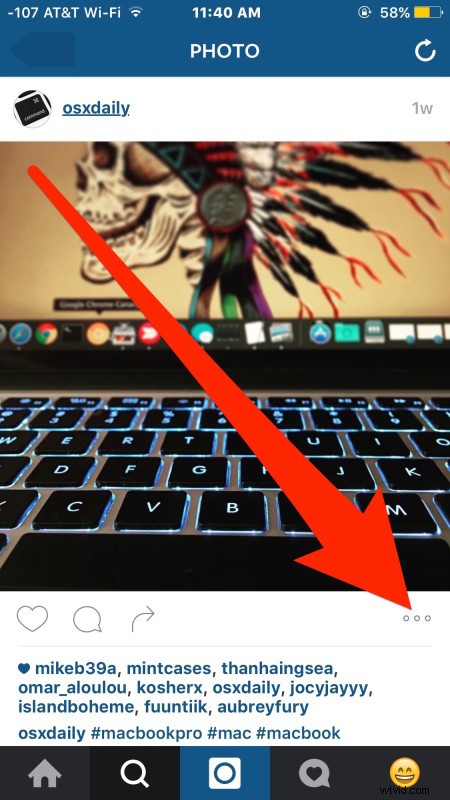
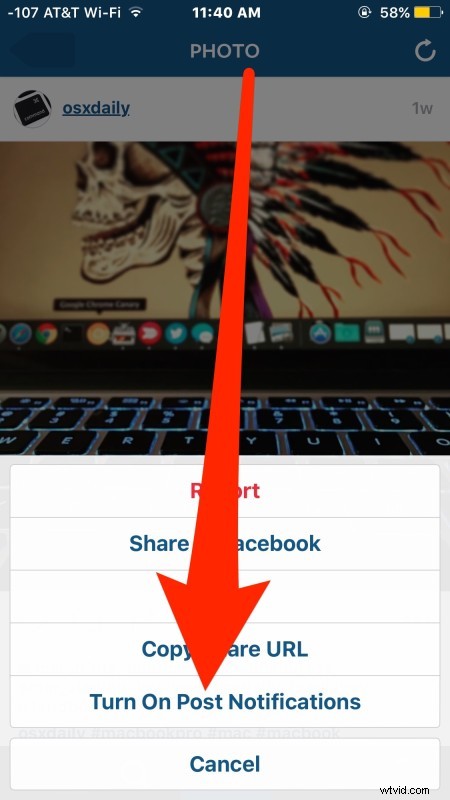
A little grey bar will popup from the top of the Instagram screen alerting you that post notifications are now on, and anytime that user posts to Instagram you’ll now get a notification.
You can turn on post notifications for any account that you can see the posts of, so whether the account is public or private or not doesn’t matter as long as you can see their posts. It works the same with multiple Instagram profiles too, so if you’re juggling between a handful of Instagram accounts you can still use the feature.
This does not send any alert to the user you’re following or turning on notifications for, it’s only on your end. So don’t worry, your secret following notifications are safe.
Heads up to Cult of Mac for the discovery. Want more Instagram tips? Here you go.