REC

Recommended: Video Production, Editing & Gear Maintenance Guide

 WTVID >> WTVID >  >> Filming equipment >> Cell phones

How to Switch Distance Units Between Miles and Kilometers in iPhone Health App

How to Switch Distance Units Between Miles and Kilometers in iPhone Health App

Active individuals who use the iPhone Health app to track their fitness and distance may find it helpful to switch distance measurements from miles to kilometers and vice versa. This is particularly useful for people who would be doing something like training for a 5K but they’re accustomed to using miles as a distance measurement, and similar situations.

With a simple toggle, you can change the iPhone distance measurement unit between kilometers and miles and back again. The change is immediate and carries backwards to prior activity as well as forward to current and future activity, becoming the new default setting unless it is changed again.

How to Change Health App Distance Measurement to Miles or Kilometers on iPhone

This works on any compatible iPhone with motion and fitness tracking enabled:

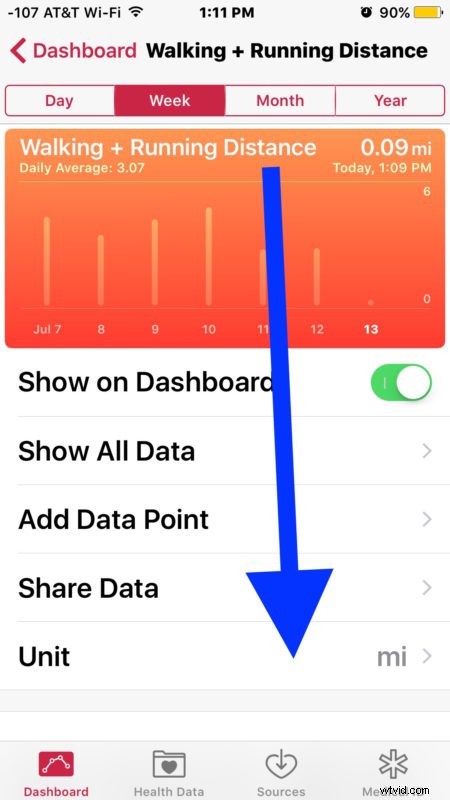
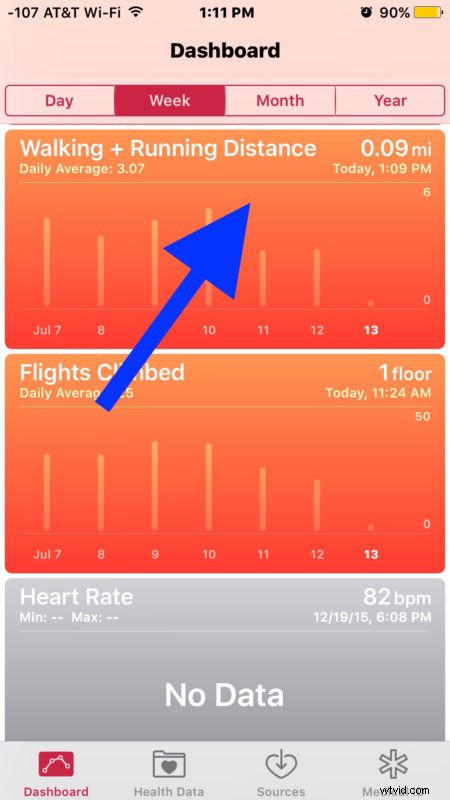
  1. Open the Health app on iPhone and tap on the “Walking + Running Distance” Dashboard
  2. How to Switch Distance Units Between Miles and Kilometers in iPhone Health App

  3. Scroll down where you will see the “Unit” setting and tap on that
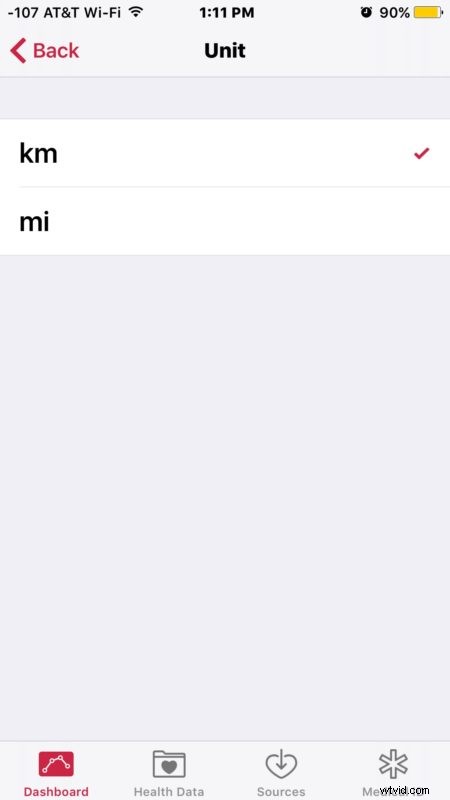
  4. How to Switch Distance Units Between Miles and Kilometers in iPhone Health App

  5. Choose “Mi” for Miles or “km” for Kilometers
  6. How to Switch Distance Units Between Miles and Kilometers in iPhone Health App

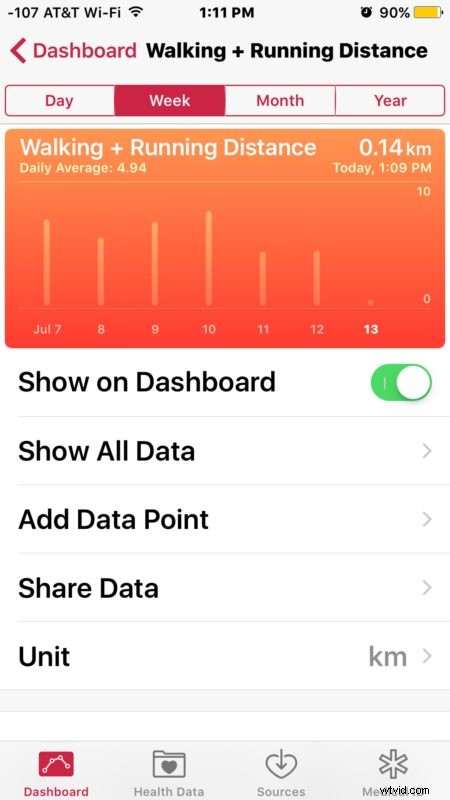
  7. Return back to the Health Dashboard to see the change in measurement
  8. How to Switch Distance Units Between Miles and Kilometers in iPhone Health App

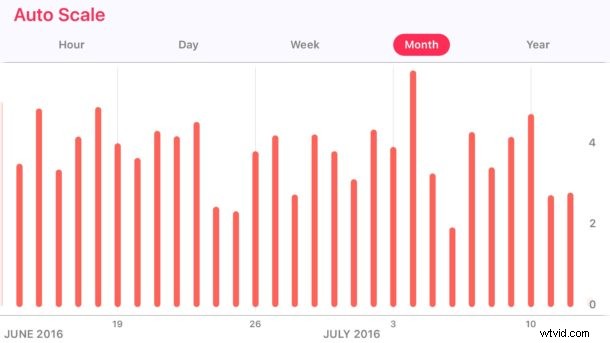
If you rotate the Health app dashboard sideways to reveal more details you’ll notice the new measurement has carried backwards to all prior activities.

How to Switch Distance Units Between Miles and Kilometers in iPhone Health App

This applies separately to the Apple Watch, but any data gathered from Apple Watch will properly input in the new distance measurement. For those that do have Apple Watch, keep in mind you can also select KM or MI on Apple Watch workouts too, which is another helpful trick for any activity, whether you’re a casual mover, runner, walker, cyclist, or anyone else just looking to track their distance to match a particular goal.


  1. Master Camera+ App: Capture Pro-Level iPhone Photos Effortlessly

  2. How to Rename Files and Folders in the Files App on iPhone and iPad

  3. How to Play Exciting iMessage Games on iPhone & iPad: Chess, Cup Pong & More

  4. Enable YouTube Picture-in-Picture on iPhone & iPad: Proven Workaround Guide

  5. Add Music to Video: Free Offline iPhone App for Easy Editing

Cell phones
  1. Top 13 Photo Editing Apps for iPhone & Android in 2022: Expert Picks

  2. Discover Procreate: Premium iPhone Painting App – Free Trial & Features

  3. Quickly Access App Store Updates from iPhone & iPad Home Screen – iOS 13/iPadOS 13 Guide

  4. How to Easily Remove App Ratings on iPhone and iPad: Step-by-Step Guide

  5. How to Check App Privacy Reports on iPhone, iPad, Mac, and PC: Protect Your Data

  6. Best iPhone App to Add Music to Videos Effortlessly – Perfect for TikTok & Reels

  7. 7 Sultans Real Money Casino App for iPhone & iPad – Play Anytime, Anywhere

  8. Top 10 Must-Have iPhone Apps Right Now: Expert Picks