
Try out our new add music to video app
Everyone loves to watch videos, no wonder TikTok appeared and other social media introduced new features such as YouTube Clips, Instagram Reels, Stories and IGTV, Twitter Fleets, etc.
It’s no secret that the key to a good video is the use of background music. And no matter if you want to make your clip funny or breathtaking, it will definitely be better with a soundtrack. But how to add it to a video? There are two simple ways:
- If you have Android, Windows or Mac, the best way will be to use our online add audio to video tool that you can use without downloading anything.
- If you have an iPhone, try our new app for the same purpose! You can use it for free and without a connection to the Internet. It allows not only adding music to any video, but also recording your own sound and extracting an audio track from any other video clip.
Follow the steps below to learn how to use the app to add music to a video on iPhone.
Select a video
Install the app to add music to video from the App Store. Once it’s done, open the application, find the “Plus” button and tap on it. Here you’ll have two options:
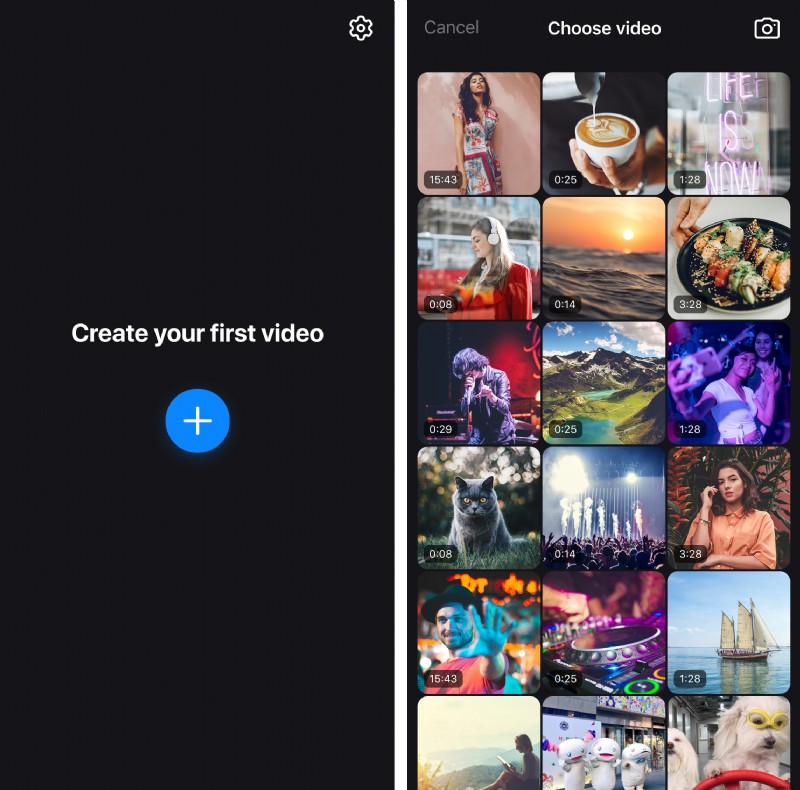
- Just pick the necessary clip from your Library.
- Create a new video using the “Camera” button in the top right corner.
Add music to the video
If you want to use one of the tracks from your Library, just tap the “Plus” button next to its title. You can listen to it first, for that, tap the needed song title and then hit the “Play” button. If a song is in your iCloud, you will have to download it to your device first using the “Download” button instead.
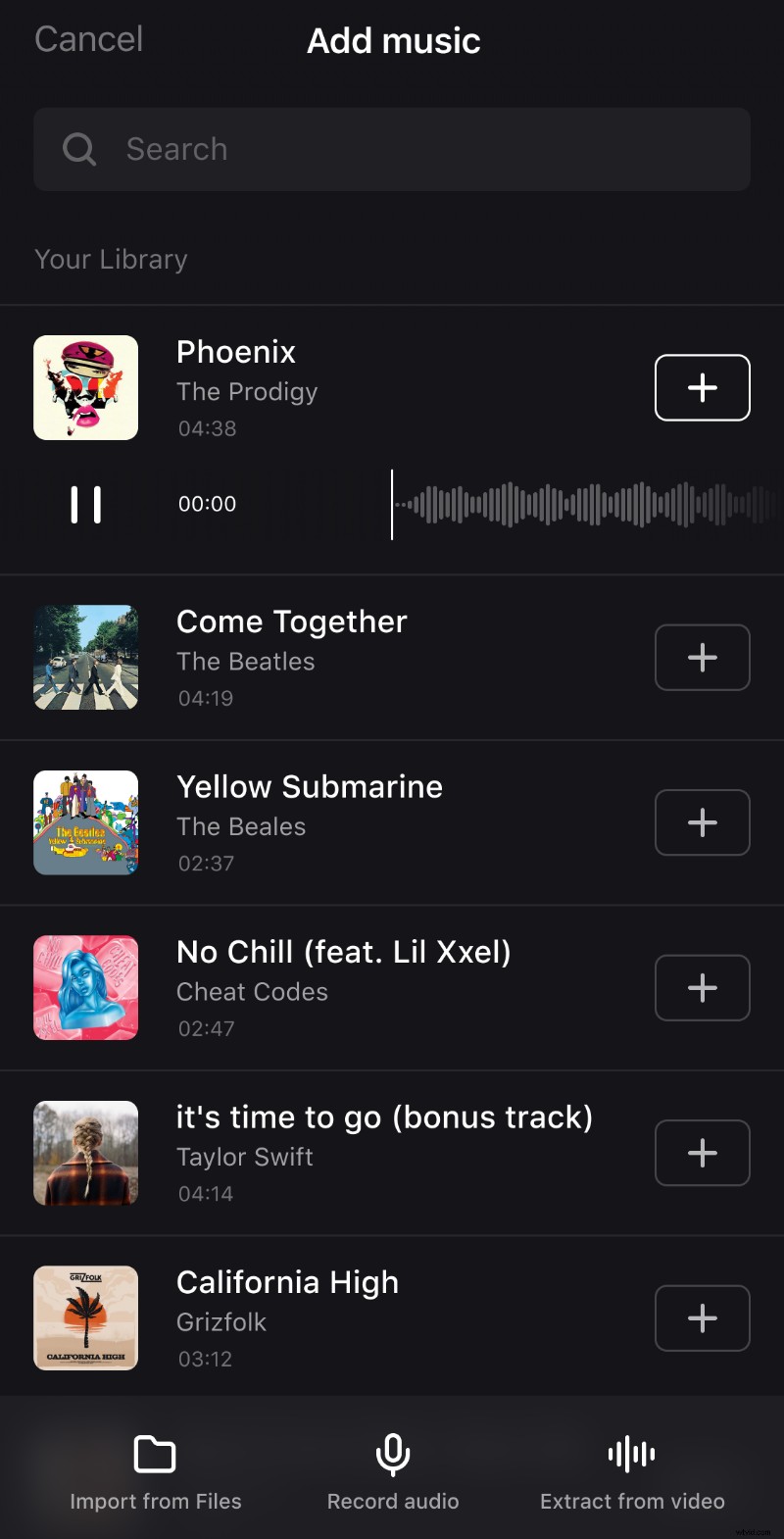
To upload a track that you don’t own yet from iTunes, you’ll need an Internet connection. Hit the “Buy” button next to the title, it will open iTunes where you can buy it.
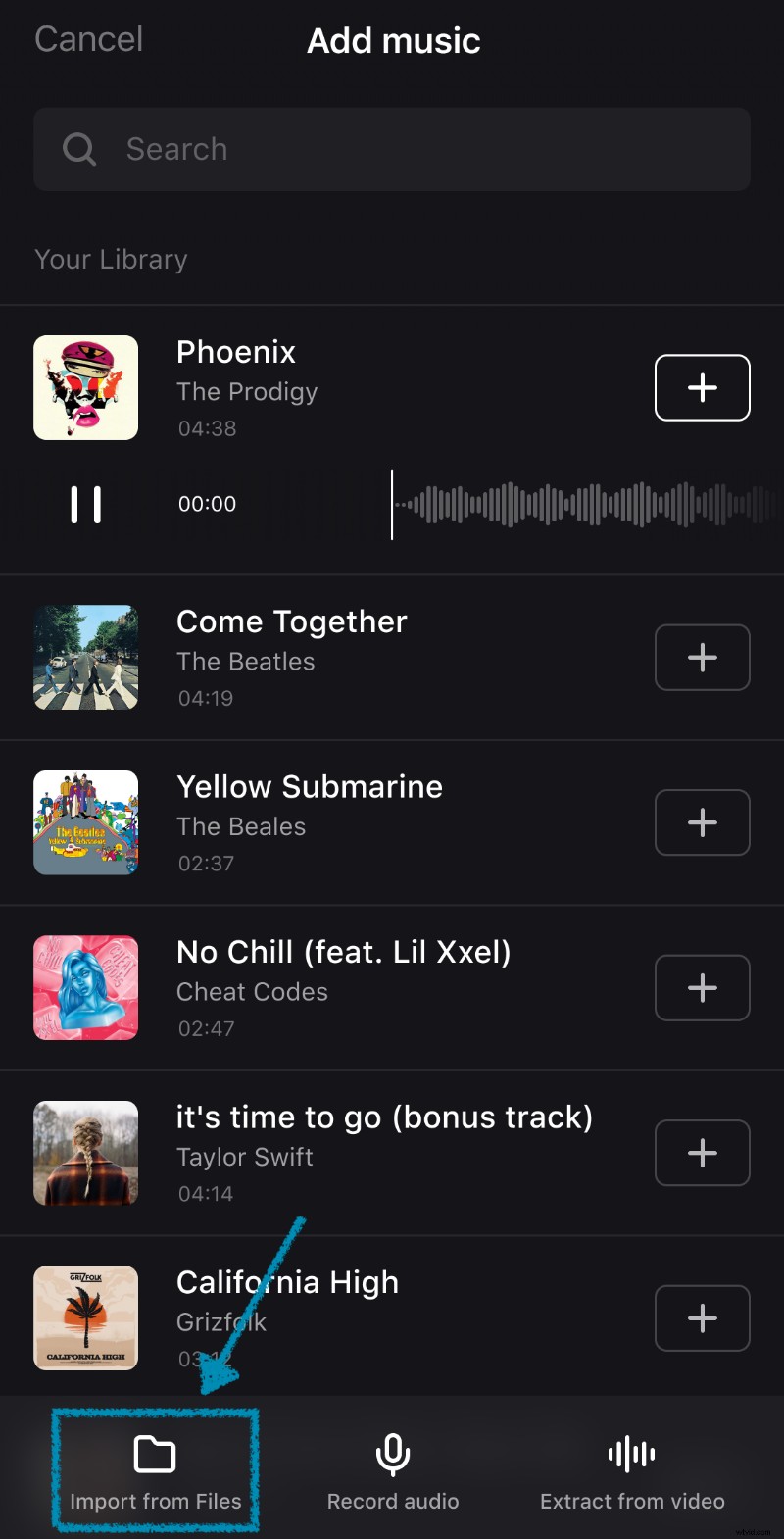
Use the “Import from Files” option on the bottom left to choose a song from your iPhone storage.
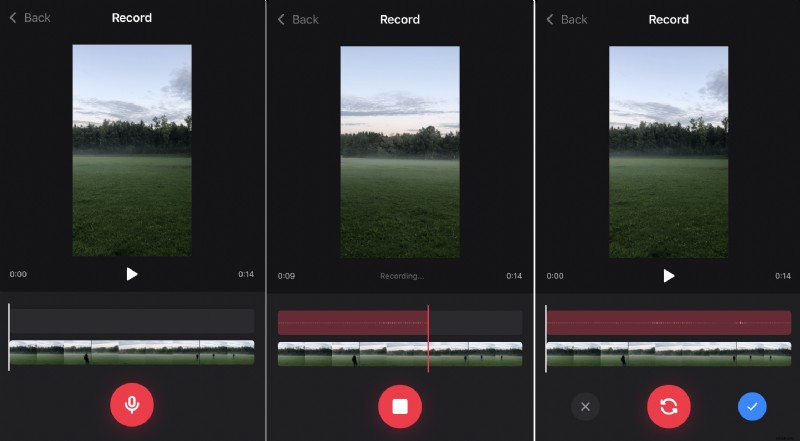
The “Record audio” option allows you to record your own sound. For that, tap on it and then hit the red microphone button to start the recording.To end it, tap on “Stop”. If you’re not satisfied with the recording, use the red “Reply” button to redo it. Tap the blue “Checkmark” button to proceed or the gray “X” icon to cancel.
Use the “Extract from video” option on the bottom right to select a video from your Library and use its soundtrack.
Edit the project
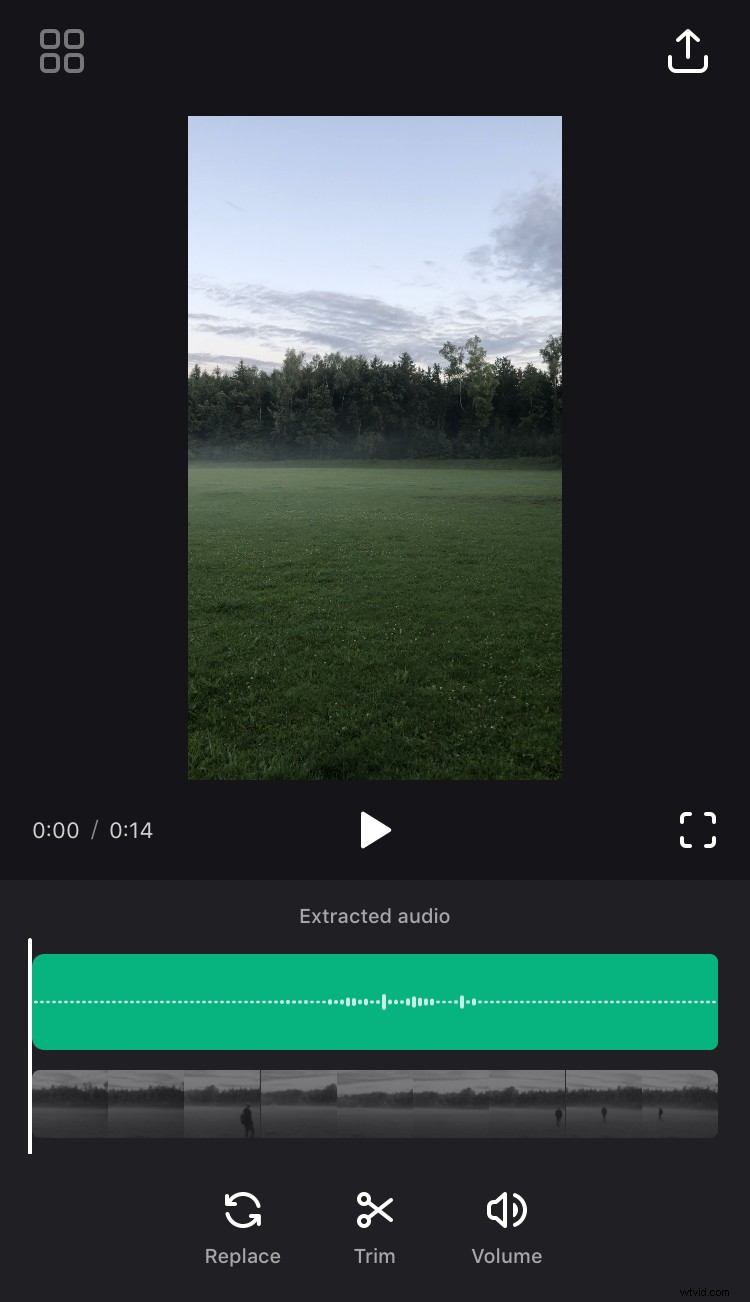
Once both audio and video are added to the editor, you will see your clip and two bars below it.
To modify audio, tap the first bar – this is a sound timeline. Once it’s highlighted, you can drag it to change the starting point of the song.
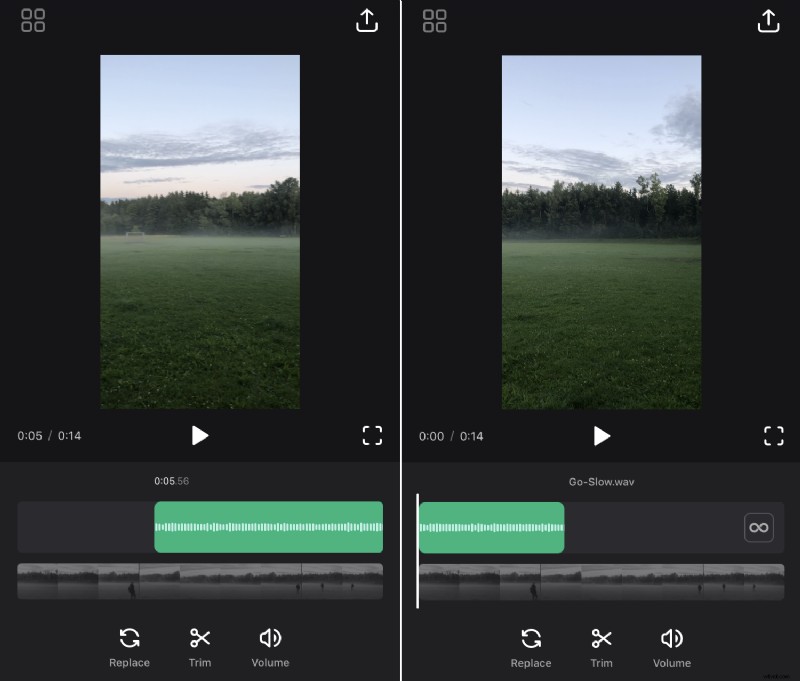
If the track is shorter than the video, you will see a button with the infinity symbol on the right side of the timeline. Hit it if you want to make the track repeat till the end of the video.
Below the timeline, there are three options:
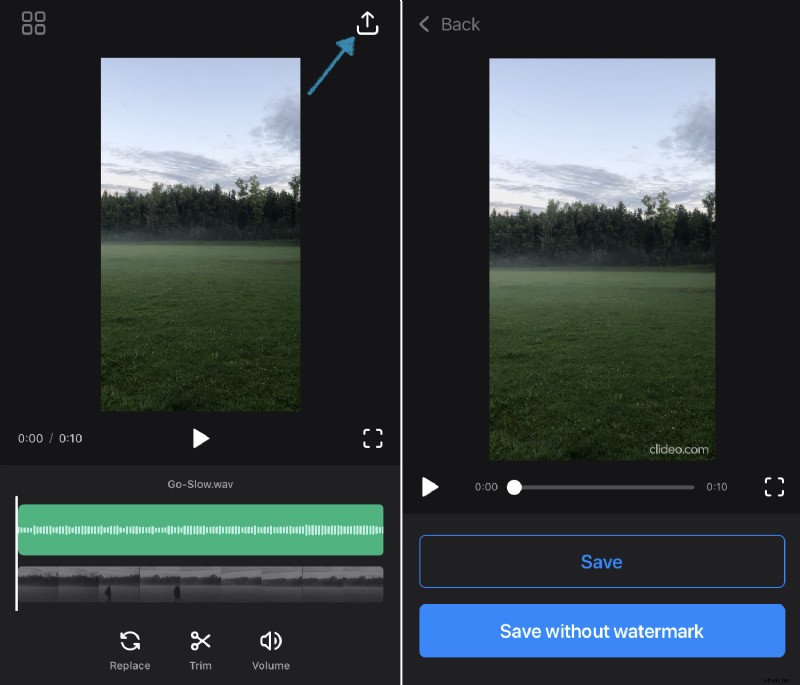
- If you want to use the other song instead of the current one, tap on “Replace”.
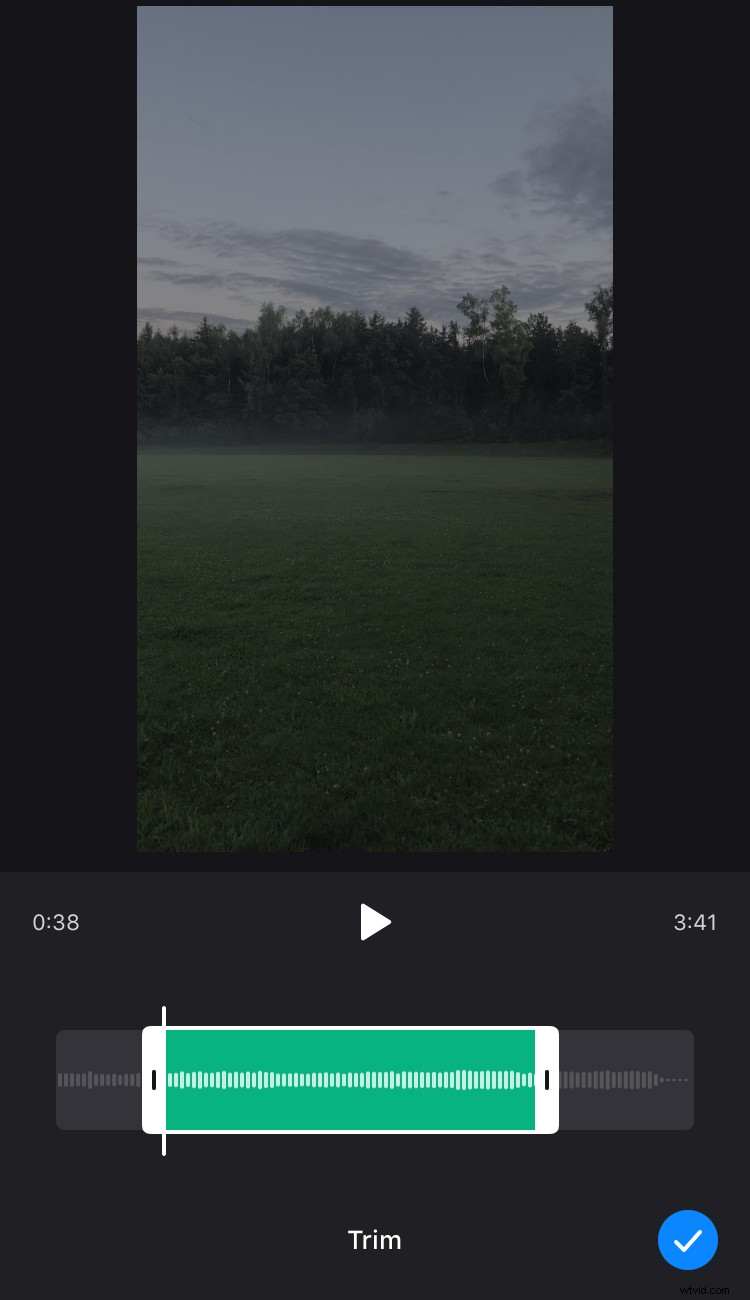
- Use the “Trim” option to cut the track – simply drag the sliders to cut the fragment you need.
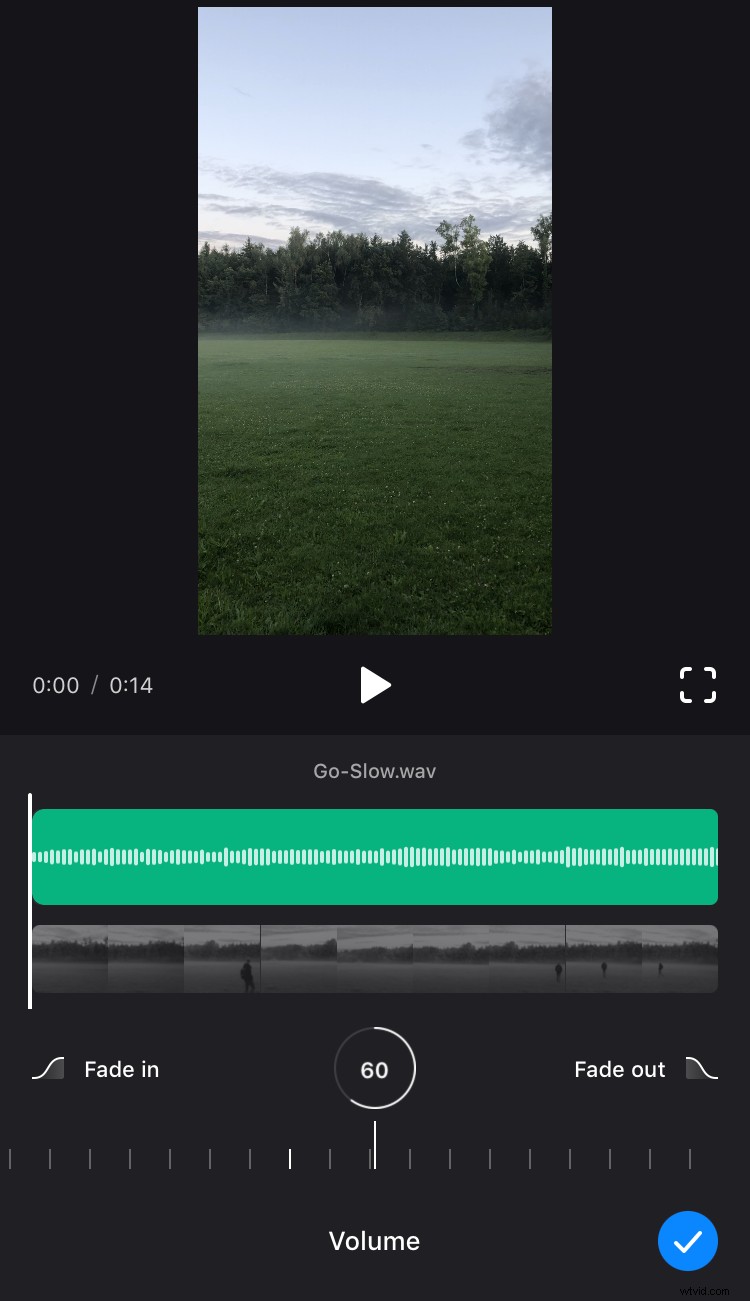
- Lastly, if you want to change the volume level, tap the third option, then move the slider that will appear. There you can also select “Fade in” and “Fade out” options to make the audio start and end gradually.
Touch the video timeline – the bar below the sound timeline. There are two options available to modify it, and they work similar to the ones described above:
- Cut out the video fragment you need by tapping the “Trim” option and dragging the sliders.
- Adjust the volume level of the video with the “Volume” option.
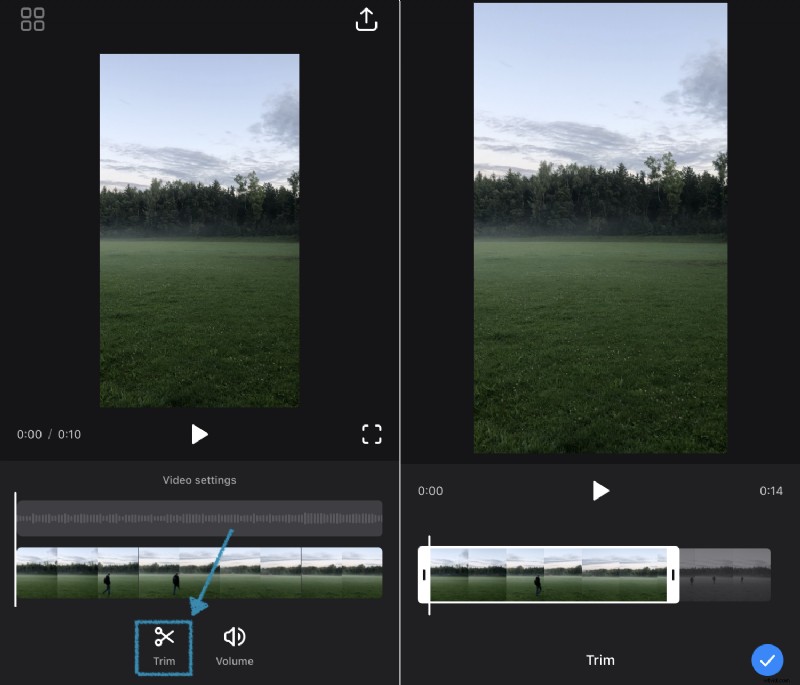
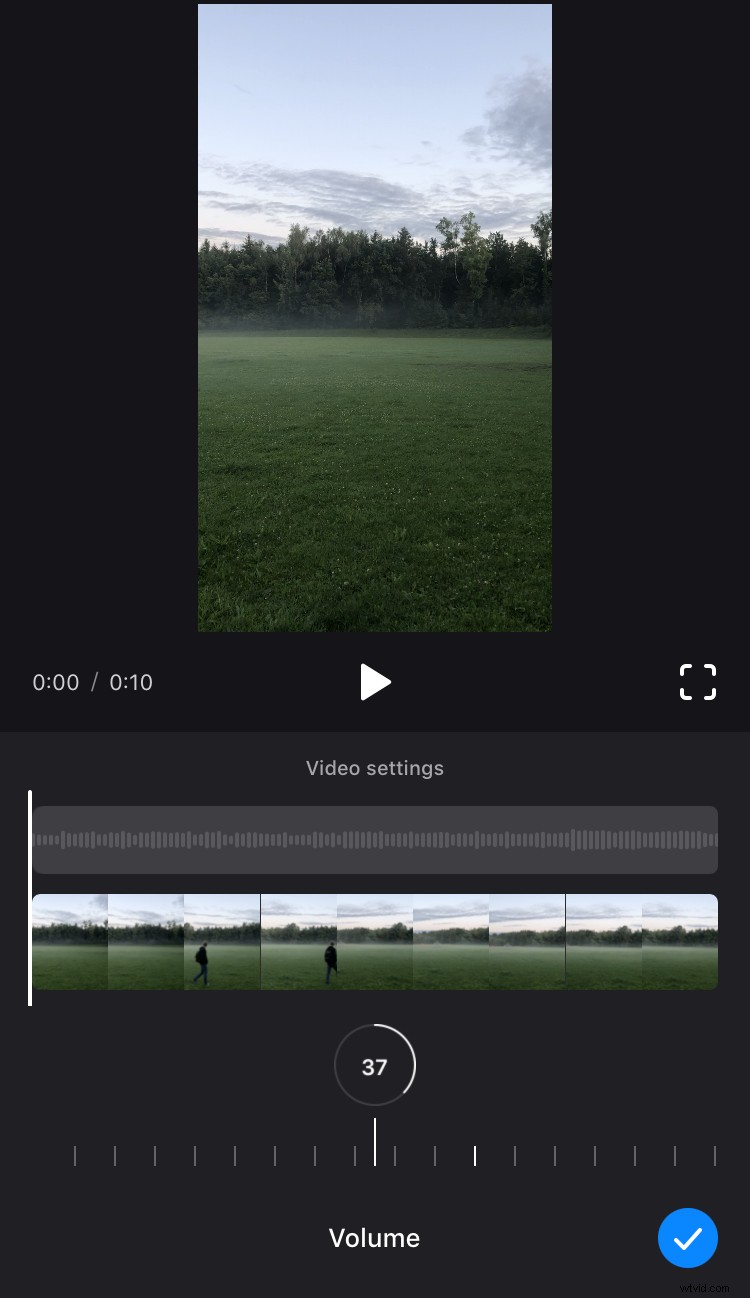
While editing, you can also view the result by tapping the “Play” button under the video. If you want to watch the video on the full screen, click on the frame sign on the right side.
Download the video
Once you’re done with the editing, hit the “Export” button in the top right corner, then “Save”. Don’t lock the screen or switch to other apps while saving since it will interrupt the process.
When the video is saved, you can view it in your Photos or use the buttons at the bottom to post it directly on Instagram or any other social media. You can also create a new video right away by tapping the “Create New Project” button.
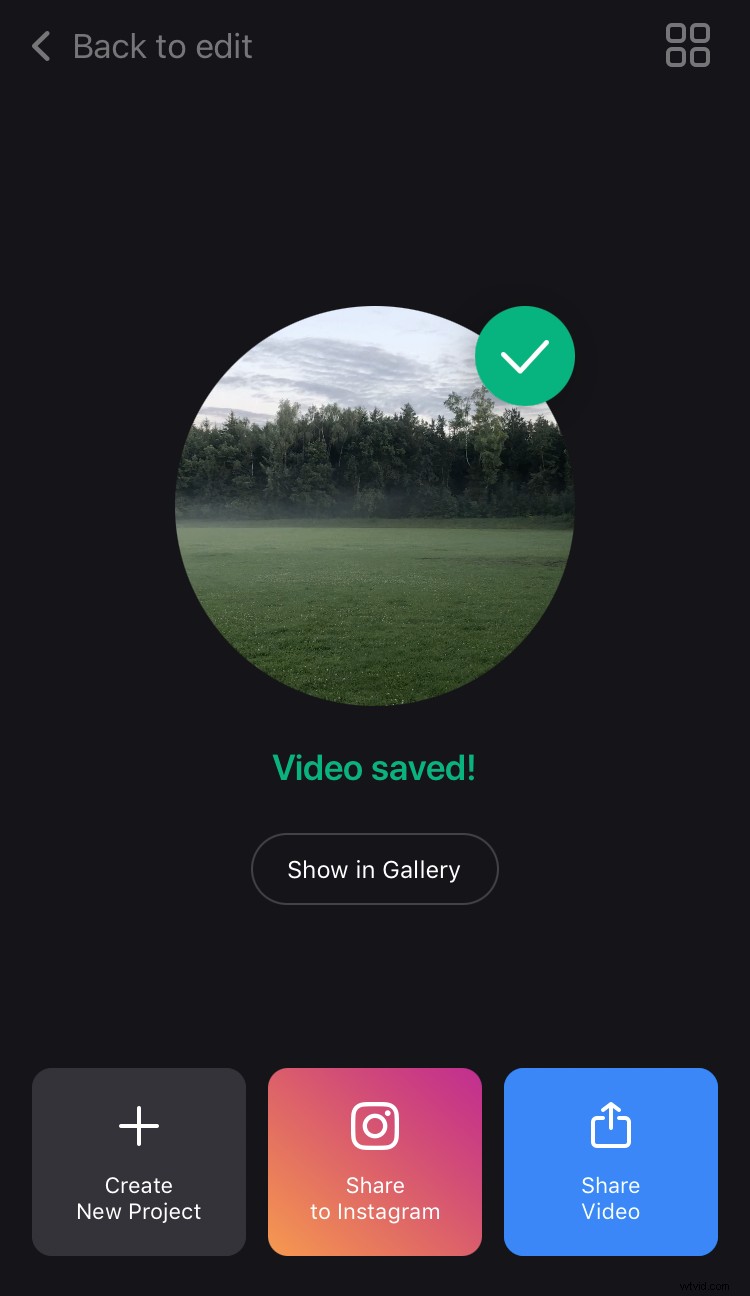
If you want to change something in the current project without losing progress, hit “Back to edit” in the top left corner.