
How to add a song to a video on iPhone
Using Clideo’s Add Music to Video tool for iPhone, you can enhance a video clip in minutes. Working from any browser, the tool is not only super streamlined but it’s also really secure. Any data uploaded can only be seen by you, and even then, it’s automatically deleted after 24 hours.
Best of all, though - the tool is free to use.
So, if you want to know how to add music to videos on an iPhone without needing to download any third-party apps or dodgy software, read on...
Upload a clip
Clideo’s tool allows you to add music to video via iPhone in a variety of ways. Navigate to the Add Audio to Video tool homepage and tap the blue ‘Choose files’ button to select a clip from your device.
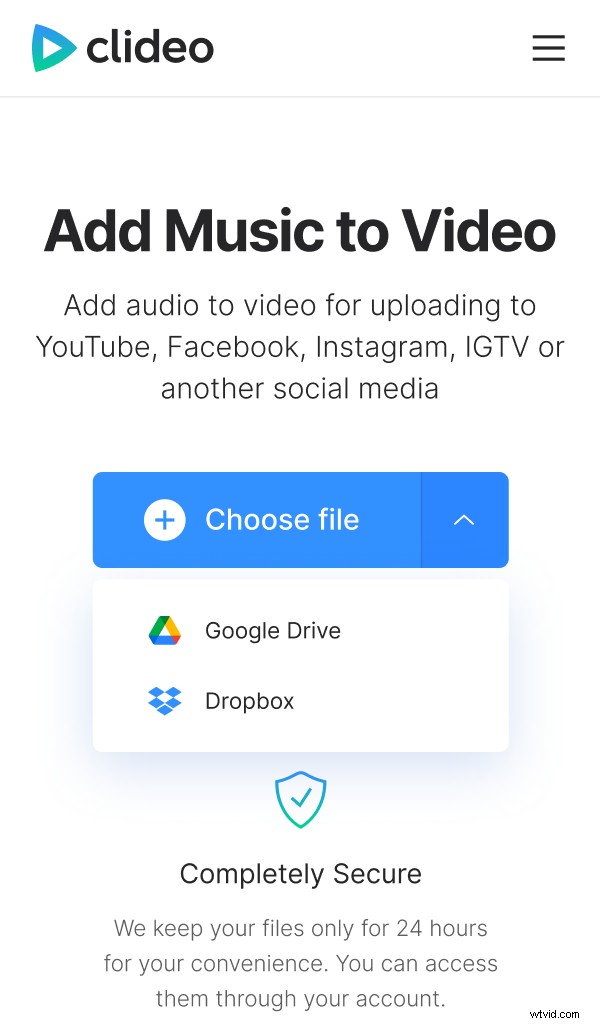
Alternatively, you can select the down-arrow on the right, which will display a drop-down menu allowing you to upload directly from a cloud storage account via Dropbox or Google Drive.
Add the music
Now that your clip has been uploaded successfully, you’ll automatically be taken to the editor page where you can add audio to a video on iPhone.
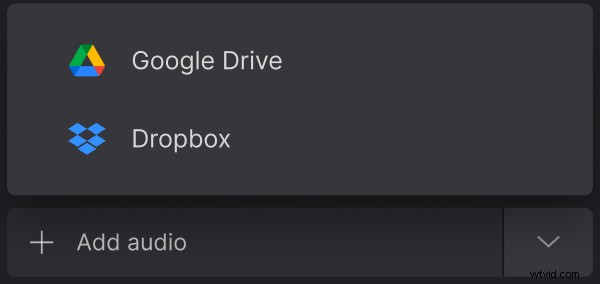
On the right is where you can add your background audio - you can add music or sounds straight from your device. Again - you can opt for one stored in a Dropbox or Google Drive account.
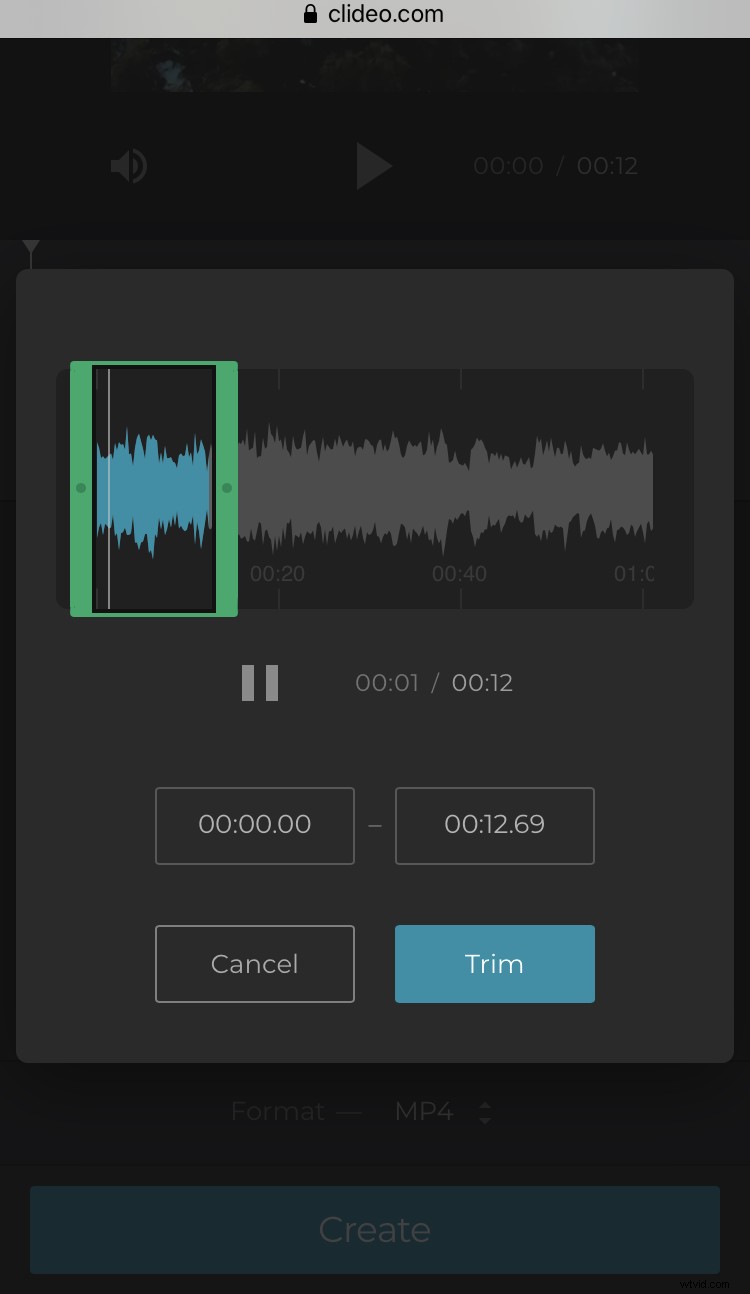
Once uploaded, you can choose where in your clip you'd like the audio to start. You can also trim or loop it if desired.
Additionally, you can change the track’s volume to make the uploaded sounds either completely absorb the video’s original sound, or mix in.
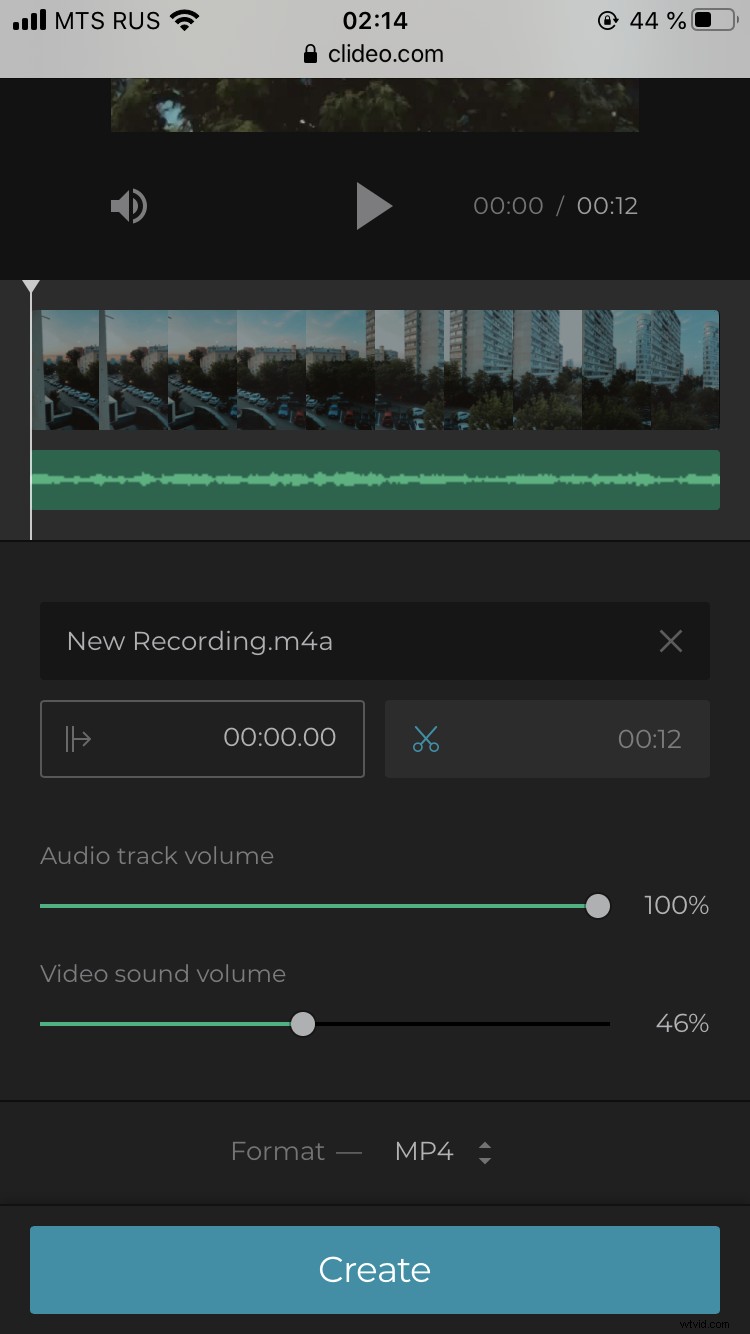
When you're done, select a format for the output file. The MOV format is recommended for iPhone.
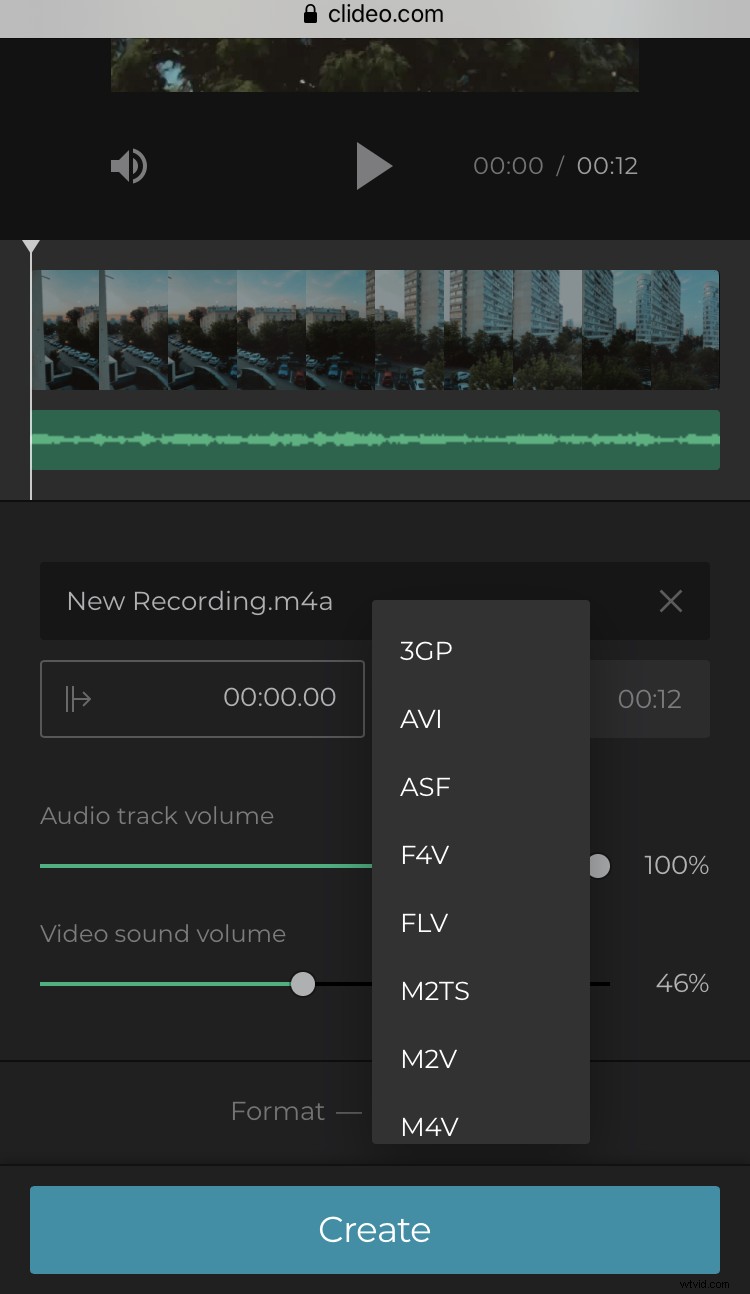
To finish editing, click the ‘Create’ button in the bottom right corner of the screen.
Preview, download and save
Now all you have to do is wait a few moments and your new music clip will be ready to save back to your iPhone.
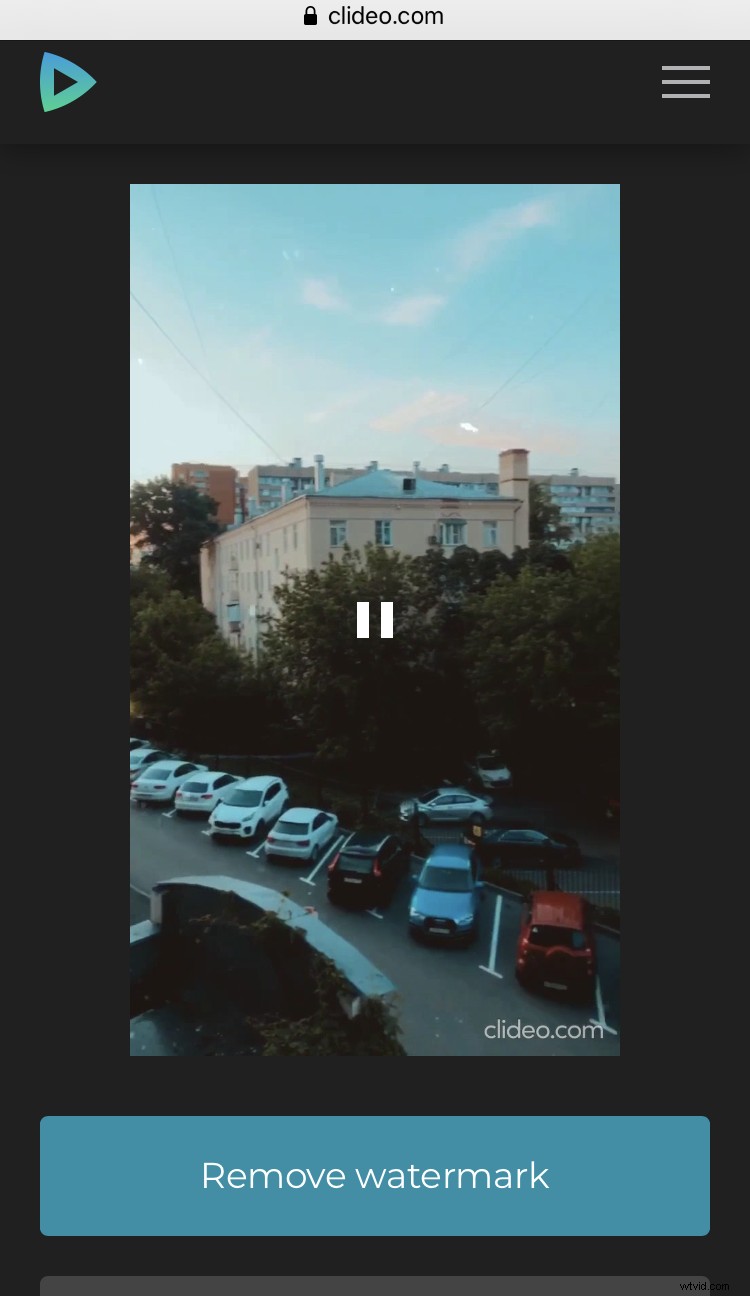
Once it’s ready, give it a preview. If you’re happy, download it to your device, or - again - save it directly to a cloud storage account.
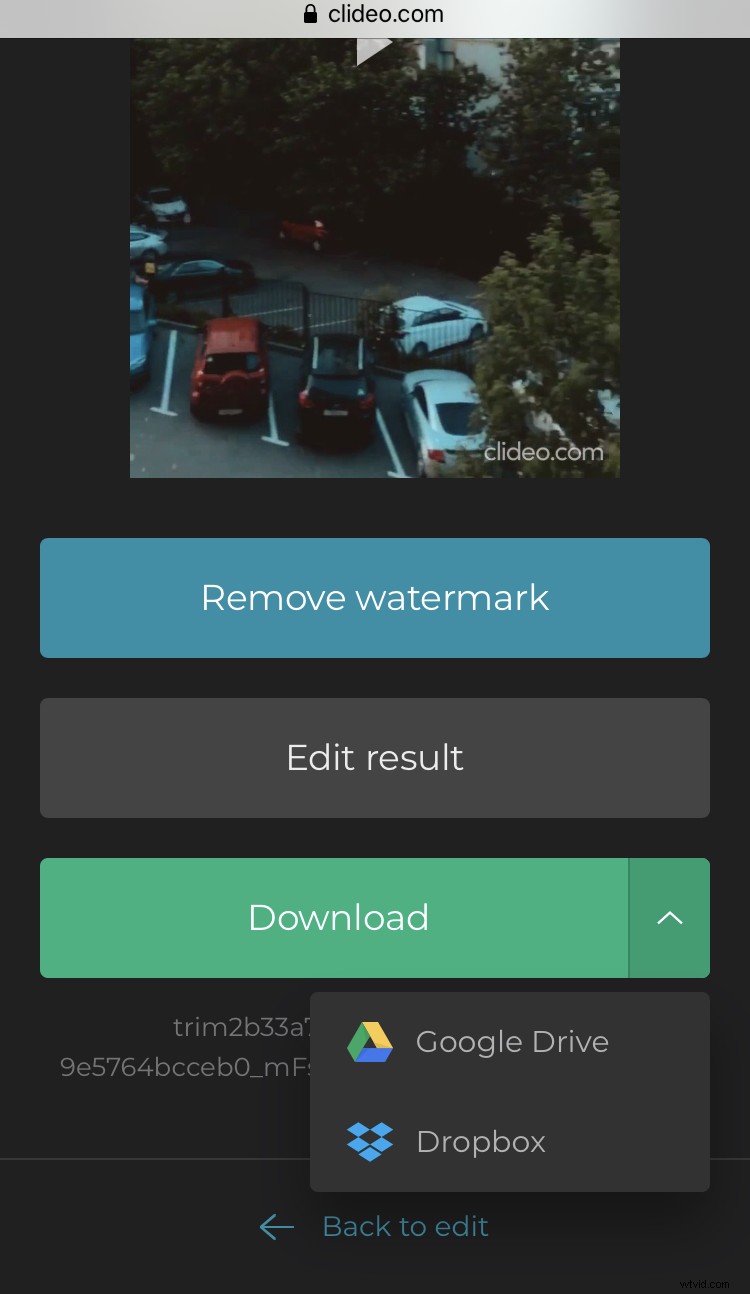
And that’s how you quickly and easily add music to video without an app for iPhone.