
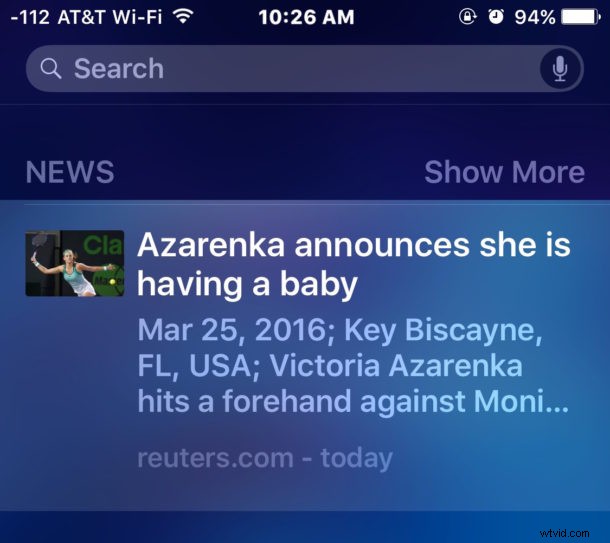
Spotlight Search displays various ‘news’ headlines in modern versions of iOS for iPhone and iPad, and while some users may find this information useful, others don’t care to see what are often tabloid-like headlines splashed across their iPhone and iPad search function. Fortunately with a little effort you can quickly turn off the News headlines from Spotlight and stop them from appearing entirely in iOS search results.
We’re focusing specifically on removing News headlines from Spotlight Search suggestions, but if you want to remove all the suggested stuff like Contacts, Locations, and apps, you can turn off Siri Suggestions which removes every suggested thing from the Spotlight screen except for Spotlight search functionality.
To be clear, we’re talking about the random “News” headlines that show up under the Search feature when you access Spotlight. Additionally, we’ll show you how to stop news articles from showing up when you just want to search your device for something too.
Turn Off News Headlines in Spotlight Search for iPhone & iPad
Tired of seeing random news headlines in Spotlight? Here’s how to stop it all from showing up in iOS:
- Open “Settings” app on the iPhone or iPad and head to “General”
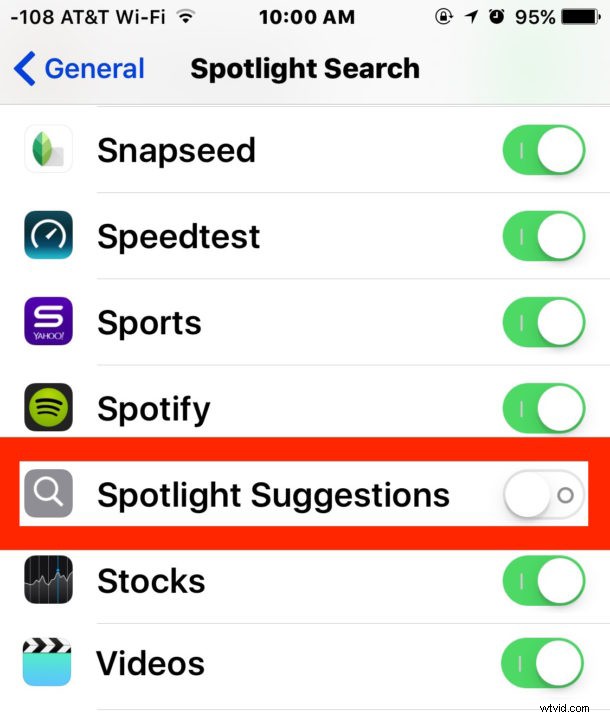
- Go to “Spotlight Search” and then scroll down in the list, locate “Spotlight Suggestions” and turn that to the OFF position, this removes News headlines from Spotlight screen
- Next, locate “News” in the same settings list and turn that off, this disables News results from coming up in Spotlight search (counterintuitively, this has no impact on the headlines appearing)
- Return to the Home Screen and swipe over to see the Spotlight Search section again, no more ‘news’ headlines!
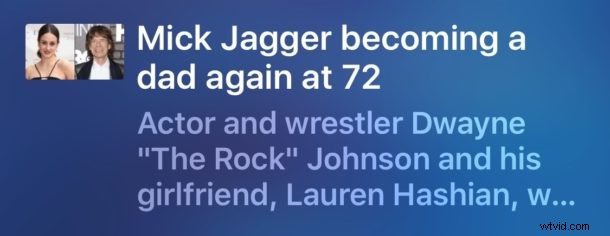
Often the “news” shown at the iOS Spotlight Search screen is tabloid gossip headlines, a bit like what you see when you’re waiting in line at a grocery store:
But here is what you’ll see after toggling the appropriate settings off, being no more “News” or tabloid stuff showing up in Spotlight Search, it’s just the iOS recommendations instead:
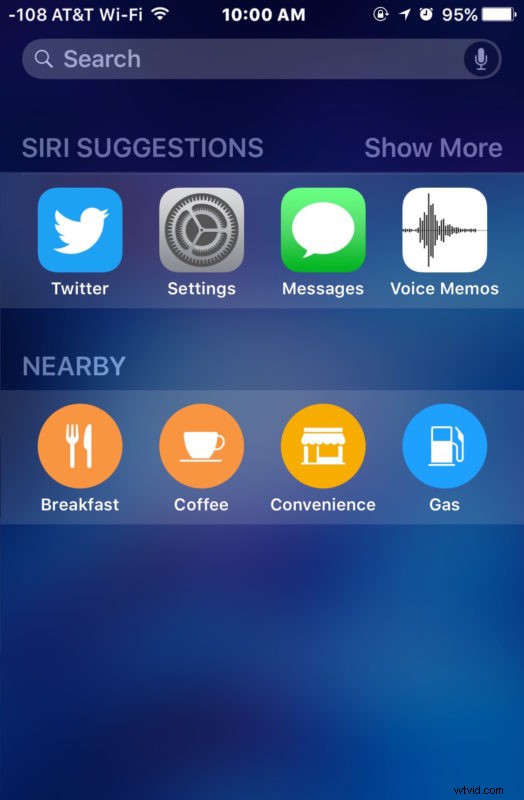
This is a bit cleaner in appearance, but toggling the settings off also prevents things like some celebrity baby announcements from showing up when you’re really looking for information about your cousins baby announcement instead.
As you likely noticed, the setting to toggle these News headlines from appearing at Spotlight is a little less than clear. A setting called ‘Spotlight Suggestions’ winds up controlling news headlines from appearing in Spotlight, whereas if you only toggle the “News” setting off on it’s own, you’ll still see the News headlines appear at the Spotlight screen, but you won’t see news show up in search results. Thus, you have to turn off both News and Spotlight Suggestions to remove the “news” from the Spotlight Search screen entirely.
How to Remove “News” Headlines from Today Screen in iOS 10 and iOS 11
With iOS 10 came yet another way for users to see “News” headlines, this time by way of the Today widget screen. You can remove these from showing up on the screens of iPhone and iPad as well:
- From the iOS Lock Screen or Home Screen, swipe over to reveal the Today view and widgets
- Scroll to the very bottom and choose “Edit”
- Locate “News” and click the red minus (-) button then tap on “Remove”
Now the Today widget screen won’t show the (often obnoxious) News headlines either.
The News and Suggested News headline feature could be more useful if users were given some control over what appears in the suggestion list, but for now there is no method of determining what sources or what type of articles, topics, or news you want to be suggested to you at the Spotlight screen. So for now it’s a choice between having some legitimate news mixed in with plenty of tabloid, opinion, pseudo-news and sensationalism, or nothing at all.
For me personally, I turn the feature off as I don’t find it helpful or relevant, but undoubtedly many users will like having the random mixture of headlines show up in their Spotlight on iPhone, iPad, and iPad touch. Try it out either way, you can always reverse the change and either get the news and tabloid headlines back, or hide them again.