
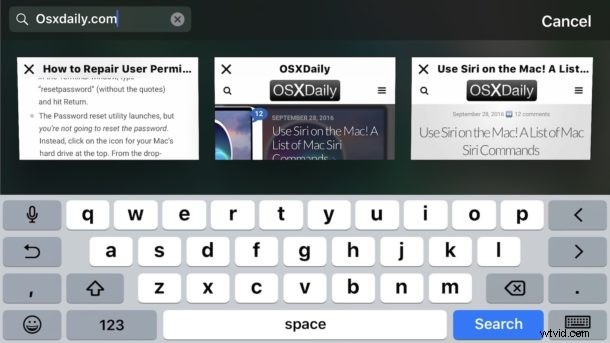
One of the great new Safari features in new versions of iOS is the ability to search through your browser tabs using a keyword. For those of us who basically live in a web browser with a billion tabs open, this is incredibly useful, as it makes retrieving and narrowing down Safari tabs significantly faster on an iPhone or iPad since you can just search for a keyword match.
This tutorial will demonstrate how to use this excellent Tab Search feature in Safari for iOS.
Be aware that searching Safari tabs looks for the search term match in the webpages title or URL, it does not search for matches on a webpage itself (however, you can use the “Find on Page” function in iOS Safari for page level matches).
How to Search Safari Tabs for Matches on iPhone & iPad
- Open Safari in iOS as usual and then tap on the Tabs button (the Tabs button looks like two overlapping squares)
- On iPhone, rotate the iPhone sideways into horizontal mode – note rotating is not necessary on iPad
- Tap into the “Search” box in the upper left corner and then enter a search term to narrow down browser tabs
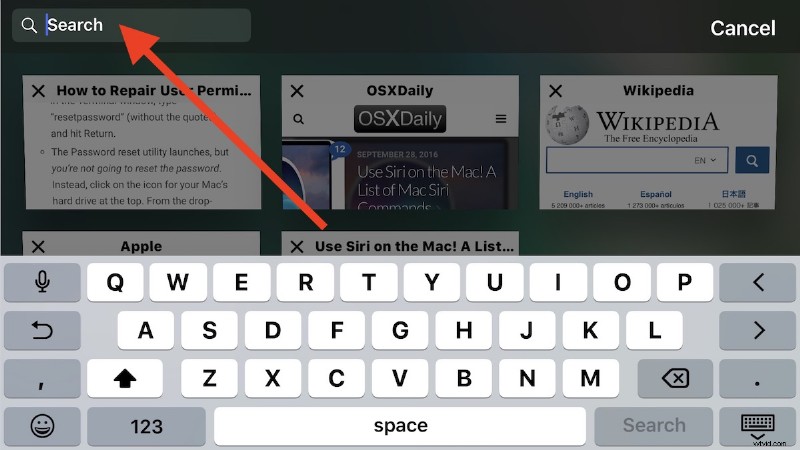
The matching tabs will immediately display in the tab view of Safari:
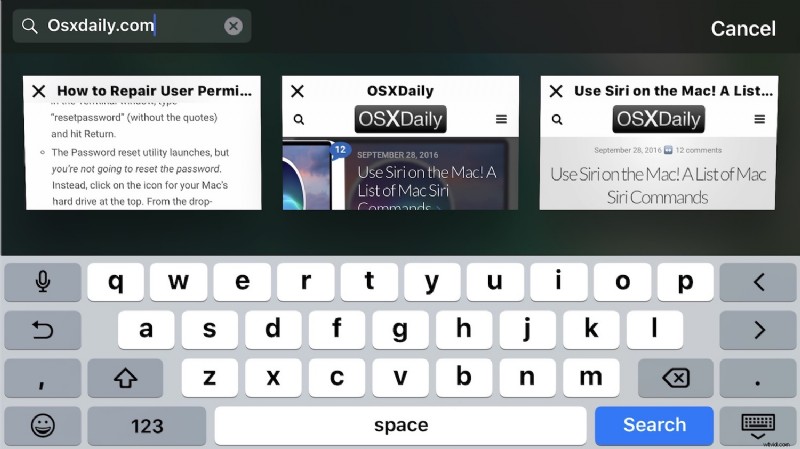
In the screenshot example, multiple Safari tabs are open but a search for “osxdaily” narrows down the visible tabs to only display the browser tabs which match the search term.
If you are having any difficulty with this feature, remember that the iPhone (or iPod touch) must be rotated sideways into horizontal mode for the feature to work on those devices, whereas the iPad does not need to rotate. Accordingly, you may need to toggle orientation lock into the OFF position on the iPhone to gain access to this feature.
This is obviously going to be most useful for users who have many browser tabs open at once, but it’s handy even if you want to quickly sort through and only display open tabs which match for a specific website or topic as well.
Currently the ability to search tabs is limited to iOS 10.0 or later for iPhone, iPad, and iPod touch, the tab search ability is not yet implemented on the Mac.