
Have you ever been looking at a web page or reading something in Safari on your iPhone and then accidentally closed it? Or maybe you closed the tab and then realized you weren’t quite finished with it, or you’d like to get that closed tab back for some other reason? You can easily re-open closed tabs in Safari on the iPhone, but you’d be forgiven if you overlooked the feature.
This tutorial will demonstrate exactly how to reopen a closed tab on iPhone Safari browser.
Re-Open Closed Safari Tabs on iPhone & iPad
Obviously you’ll need to be in Safari already to achieve this. Then, after a Safari browser tab or window has been closed, do the following:
- Press the tab button in the corner of the Safari app to bring up the tab view
- Tap and hold down the + plus button in the tab view of Safari to bring up “Recently Closed Tabs”
- Tap on the tab you want to re-open to immediately reopen that browser tab in Safari on iPhone
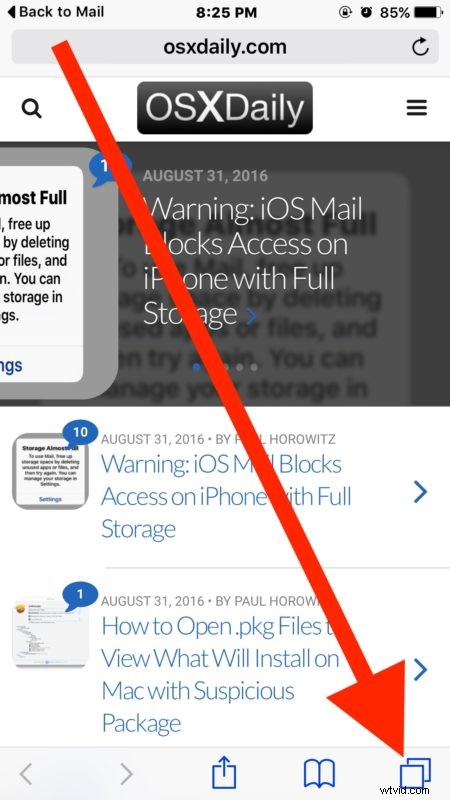
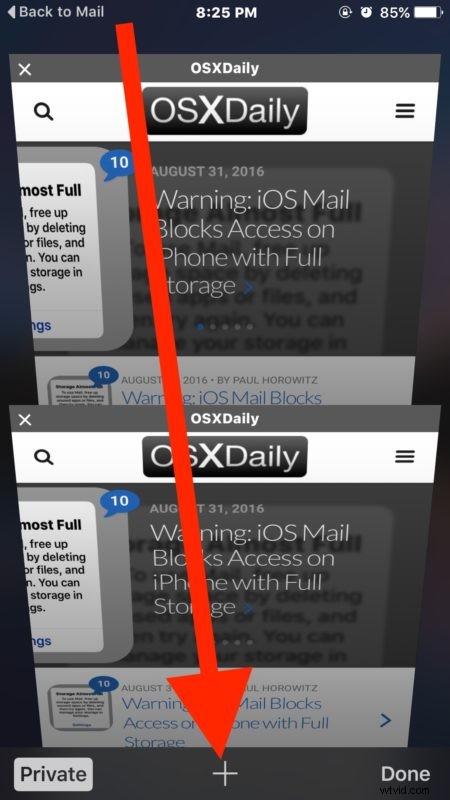

You can repeat this to reopen as many recently closed tabs as you want in Safari for iPhone. Note that if the tab was closed too long ago, it won’t be available to reopen.
Note the subtle difference between how opening closed tabs is performed in Safari on iPhone and iPod touch versus the similar but different trick to re-opening tabs in Safari for iPad. This is largely because the iPad version of Safari has the + new tab button visible all the time, whereas the iPhone version of Safari has the new tab button hidden behind the tabs overview button.
Of course desktop and laptop users also have this ability, where it’s arguably even easier as you can go aboutreopening closed Safari tabs on Mac with Command+Z keystroke combination.