
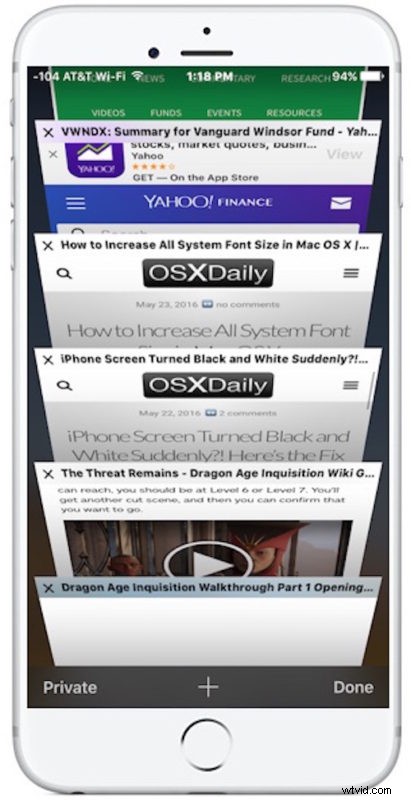
Safari Tabs let you maintain many different webpages and web sites on the iPhone, switching through them as necessary to review different sites and content. For those of us who open a ton of tabs in iOS Safari, it’s easy to be overwhelmed by huge numbers of tabs as you browse more sites and pages over time.
There are two ways to close open Safari Tabs on the iPhone and iPod touch, we’ll cover them both. And yes this applies to iPad too, but the iPad Safari app has a slightly different interface, thus the focus here is on the iPhone version.
1: Access Safari Tabs on iPhone by Pressing the Overlapping Squares
First you need to access the tabs. The small overlapping squares logo in the corner of Safari is the tabs button, tapping on this will access all of your Safari browser tabs:

2: Closing Safari Tabs on iPhone with the X
Once you’re in the tab view, you can close any open Safari tabs by tapping on the tiny (X) button to the left of the tab. It’s quite small and easily overlooked, so don’t be shocked if you missed it:

3: Close Tabs in Safari on iPhone with a Swipe
Another method to close tabs in Safari for iPhone is with a swipe gesture, simply swiping left over the tab will send it off screen and dismiss the tab. In many ways, the swipe gesture is easier than tapping on the micro (X) close button
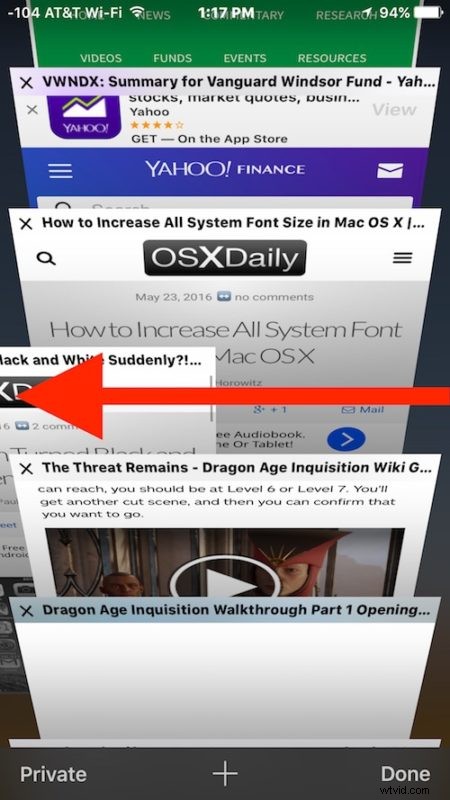
And yes, either the swipe gesture or the tiny X button works to close any iCloud Tabs that are open on screen, as well as any tab that is open in Private Browsing mode of Safari for iOS
If you want to close all tabs in Safari for iOS, you have to either swipe left repeatedly on each tab, or press the (X) button repeatedly on each tab until they’re all closed. Briefly some older iOS Safari versions had a close-all option but it vanished with modern versions of iOS along with some other improvements to the way tabs and privacy mode is handled.
Closing tabs can be helpful if you’re wanting to free up tab room in Safari, but it’s also valid for troubleshooting Safari crashes on iPhone, especially if a single webpage is consistently problematic.