
Did you know you can search through web browsing history in Safari on an iPhone or iPad? With the excellent Safari History search feature you can easily retrieve and find previously visited sites, webpages, and videos, whether from earlier in the day or even well over a year ago – assuming the searchable Safari history has not been removed anyway.
This offers a fantastic tool to track down old web content that you may have a hard time finding on it’s own. For example, if you knew you watched a web video somewhere about a topic like “Carl Sagan” but can’t quite remember what it was or where it was located on the web, you can search for that term and all history matching the search terms will be retrieved.
How to Search Browser History on Safari for iPhone, iPad
All modern versions of Safari in iOS have searchable history, here’s how it works:
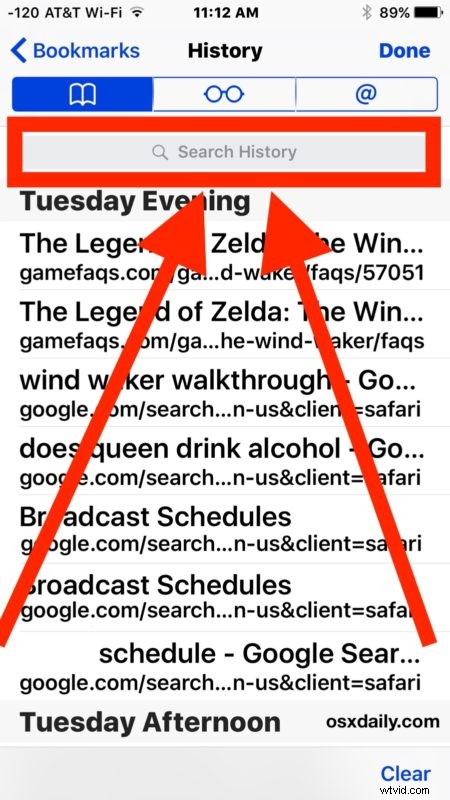
- From the Safari app on iPhone or iPad, tap the bookmarks / history button (it looks like an open book icon)
- Choose the the book tab and go to the History section
- At the top of the History section, tap into the “Search History” box
- Type your search query term to search Safari browser history on the iOS device

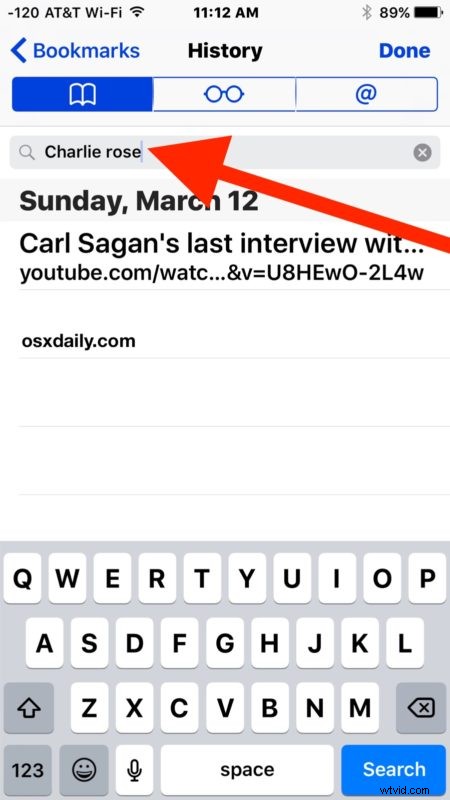
If you tap on any searched history result, the page or site will immediately open in Safari.
In the example above, I searched for “Charlie Rose” to track down an old interview I had watched on YouTube, and the video I was searching for was found immediately.
You can search through any search history on Safari on the iOS device, even history that is quite a bit older, as long as you (or the user) has not cleared Safari history on the device being searched.
Note that if you use Safari and iCloud on an iPhone or iPad as well as another device, you will have other devices history to search through as well – even if it was not searched for on the current device. This is a feature of iCloud and is available to users with the same Apple ID and iCloud enabled on multiple iOS and Mac OS devices.
You can also search for an item match in Safari history and then remove that specific page from Safari history in iOS after it has been matched and found, offering a way to selectively clear history from a device without wiping it all.