
Safari for iPhone, iPad, and iPod touch allows users to clear all caches, website data, and history together in one fell swoop, but sometimes you may want to be more discerning than that.
The modern versions of Safari for iPhone and iPad allow users to delete Safari website data, searches, cookies, cache, and Safari activity from the past hour, today only, or today and yesterday, as well as for all time. This is a great solution if you want to wipe Safari browser data over a recent period of time, rather than everything for all time, though you can continue to do that from iOS Safari too if you wish.
This is great for when you forget to use Private Browsing mode in Safari for iOS, since it allows you to remove website history, searches, and browsing data after the fact, at whatever time interval is appropriate.
How to Remove Recent Safari Search, History, & Website Data on iPhone, iPad, iPod touch
Keep in mind this removes not only Safari data from the local device, but also from iCloud connected Safari devices as well. Because of how iCloud works, if you didn’t do it this way, the Safari caches, search history, and browser data would remain on other iOS devices.
- Open Safari if you haven’t already done so and tap on the bookmark icon, it looks like an open book
- Choose the bookmark tab, again this looks like an open book, then tap on “History” near the top of the screen
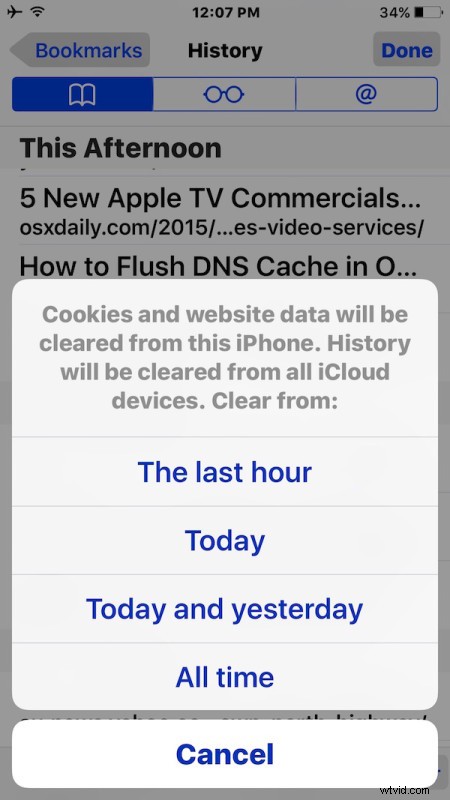
- In the corner of the History view, tap the “Clear” button, then choose one of the following options:
- The last hour – removes all history of web activity in Safari from the past hour
- Today – removes any and all web history from Safari in the current day
- Today and yesterday – same as before, plus removes website data from the prior day as well
- All Time – this removes all Safari data from all time, like going through Settings in iOS to delete all website data
- When finished, tap on “Done” in the corner of the History section of Safari to return to Safari as usual


The effect is immediate and the removal of all website data in Safari occurs on the local iPhone, iPad, or iPod touch as well as carrying over to other iCloud connected devices using the same Apple ID.
For those wondering, the reason data is removed from iCloud devices as well is because otherwise someone could simply pick up a related device using the same iCloud account and find the same browser data and history that was just deleted, which kind of defeats the purpose for multi-device users and situations.

Of course, if you don’t want to delete everything from a given time period, another option is to delete individual specific pages from Safari history in iOS if you only have a page or two that you want removed from your Safari activity on a device. And ultimately, if you’re finding yourself removing website data and history often, you may want to just get in the habit of using Private Browsing mode in Safari on iOS, which prevents any of it from being kept in the first place.
By the way, Mac users will find a similar recent history removal option in Safari for Mac OS X too, which offers the same time interval options for removing data from the Safari web browser.
If you know of another approach to deleting Safari search history and other data from iPhone or iPad, share with us in the comments!