

If you’ve ever needed to know how late a particular store or restaurant is open, just pull out your iPhone and ask Siri. This should in handy when you’re out and about running errands or need to make a last minute shopping stop, but it’s clearly useful for many purposes. And if you have a new iPhone with Hey Siri enabled for hands free queries, it works great in the car or when you’re out walking around too.
As usual with Siri, the secret is simply in asking the right question, but as long as the business, restaurant, or store is listed and Apple Maps can find it, the store hours will be able to be retrieved.
Simply summon Siri as usual by either using Hey Siri or holding down the Home button, then asking the following type of question:
- How late is [store name] open?
- How late is [restaurant name] open?
Siri will respond with the hours, showing them on screen and also announcing them aloud (unless you muted Siri).
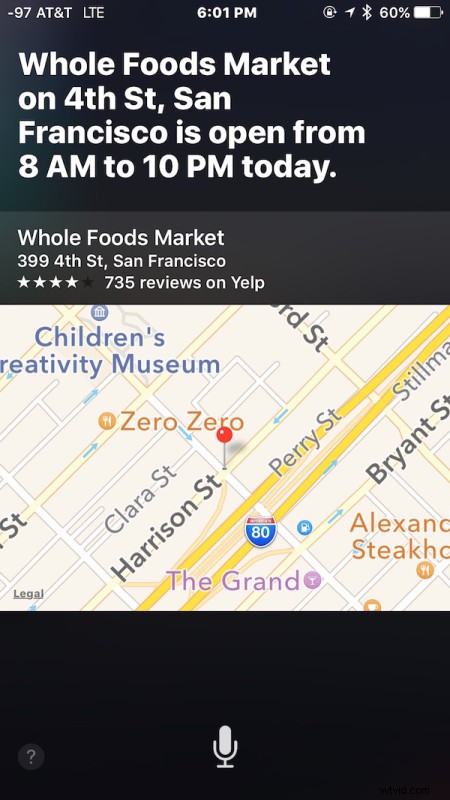
For example, “How late is Whole Foods open?” or “How late is Best Buy open?“, or How late is In-N-Out Burger open? work great and are obvious for big box stores and chain stores, but you can even ask for more obscure local staples as well, whether it’s your favorite Hawaiian food restaurant (FEED ME), pizza joint, local pub, or Thai place. Just get the name right, and Siri will tell you when they open and close, like so “How late is Liholiho Yacht Club open?”
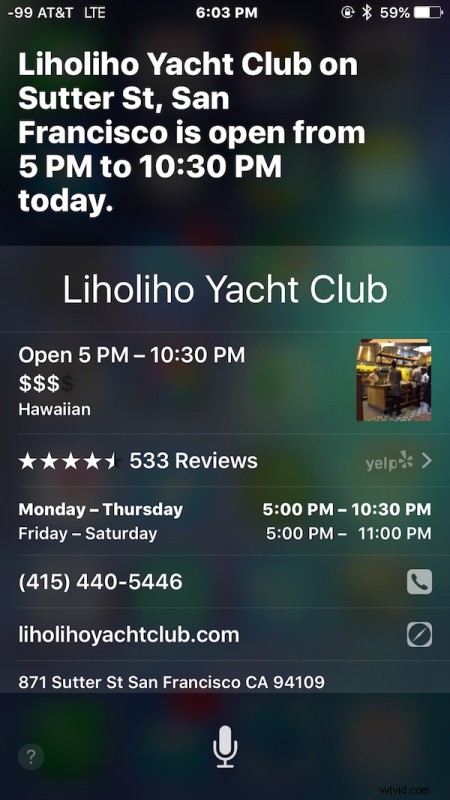
You’ll notice the listings open and closing hours are shown, as well as a phone number, map, and other details about the location. Missing currently however is whether the location accepts Apple Pay, but you can check that with the Apple Maps application by tapping on the little map from the Siri return if you’re curious.
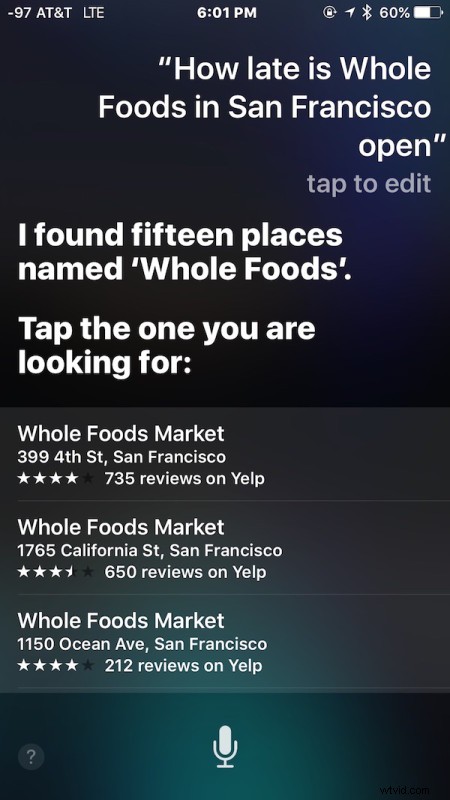
Note that if you ask for a store or business with many locations nearby, aim to be specific about the location by specifying a street with it, otherwise you’ll get a listing to tap on, which takes away from the hands-free effect.
Obviously we’re focusing on iPhone here, but yes of course this works on the iPad and iPod touch with Siri as well, but since most of us carry the iPhone around it’s a bit more relevant for shoppers.
Siri continuously gains new abilities, but you can see an enormous list of Siri commands here if you’re just getting started with the virtual assistant.