

The Safari Reading List feature is nice and lets you save web pages in Safari for later reading, even if the iPhone or iPad goes offline. This is done by caching the web page into the Safari Reading List feature, which is then stored locally on the iOS device. If you use Safari Reading List often though you’ll likely find that Safari Reading List cache can take up quite a bit of local storage space on an iOS device, which can be felt on a device that is otherwise running out of available space. Thus, you may want to take the time to delete the cache from Safari Reading List on a iPhone, iPad, or iPod touch.
Note that Safari Offline Reading List cache is completely different from generic Safari browser cache which is cleared in iOS separately with this trick.
How to Clear Safari Offline Reading List Cache on iOS
- Open the “Settings” app and go to “General” and then to “Storage” / “Storage & iCloud Usage”
- Choose the “Manage Storage” option underneath the Storage section (for local device, not iCloud)
- Locate “Safari” in the list of apps and tap on it
- Swipe left over the “Offline Reading List” portion to reveal a “Delete” button and tap on that to clear the Safari offline reading list cache from the device
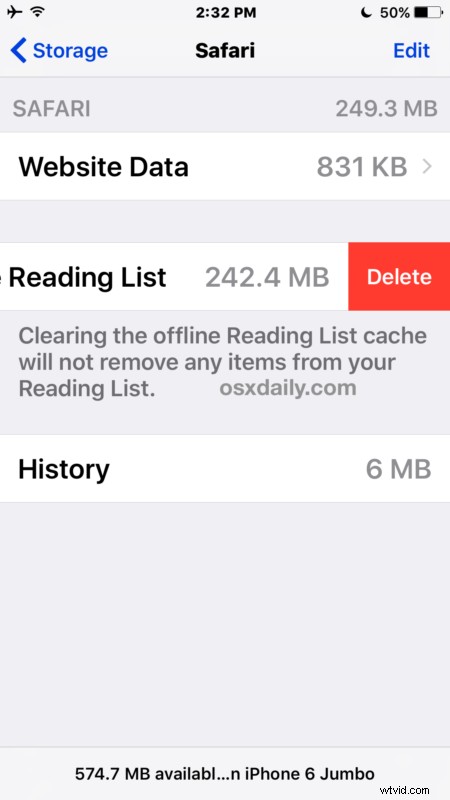
Wait a moment or so and you’ll find that whatever the offline reading list size was it will quickly go to nothing once it has been cleared.
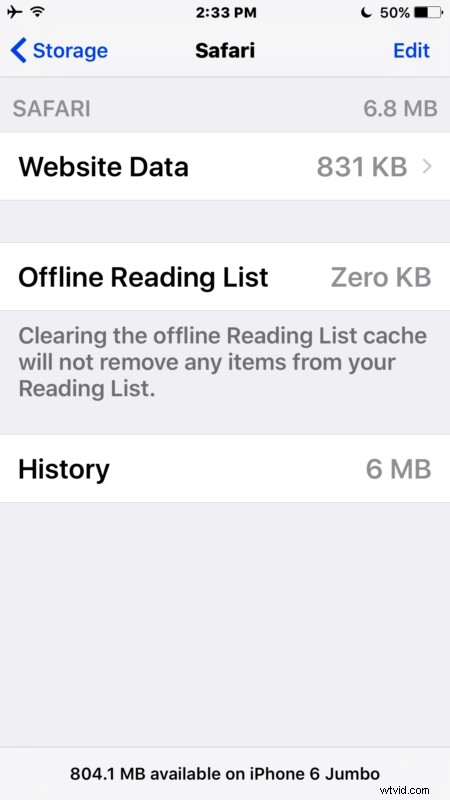
Keep in mind that by deleting the offline caches, the reading list itself is not altered, it’s only the local caches that are removed. That means if you wanted to read the Reading List items offline again you’d have to reload them through safari Reading List and let them cache again, though using Safari Reader is preferred by some users.
If you don’t use Safari Reading List you won’t be missing anything from this, and you might not have any local cache stored in Safari anyway. Again, this is a separate process from clearing general Safari browser history and cache from iOS, which is done through Safari Settings rather than General settings.