
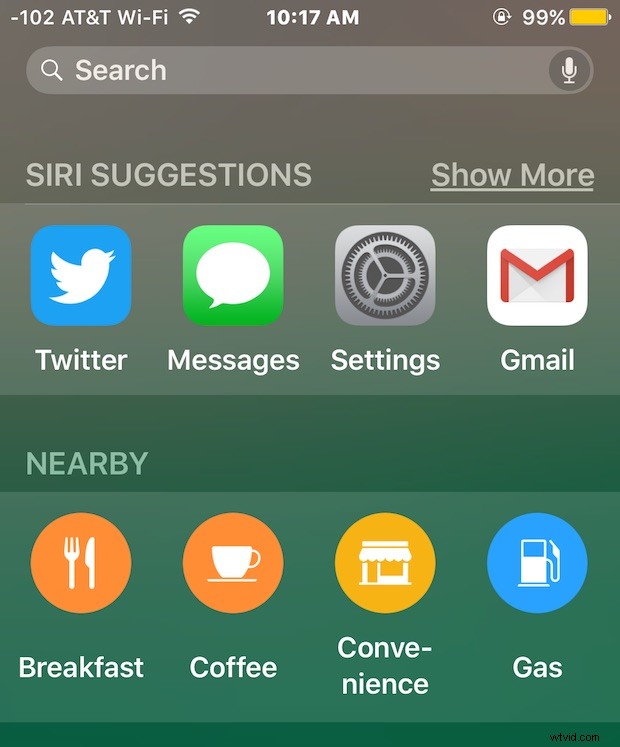
Siri Suggestions is a feature of modern versions of iOS that recommends contacts, apps, nearby locations, and news, right from the Spotlight search screen. Siri Suggestions aims to be intelligent and learn from user behavior on the iPhone and iPad, offering contacts and apps depending on usage patterns, location, and the time of day, and while this feature is appreciated by many iOS users, some don’t use it, and others may find it unnecessary, slow, or unhelpful.
If you’d like, you can turn off Siri Suggestions in the Spotlight search screen of iOS easily. Doing so still allows you to use Spotlight just as before in prior versions of iOS, including searching the local device, the web, and Wikipedia, it simply removes the suggested section from offering results before searching in Spotlight.
How to Turn Off Siri Suggestions in Spotlight Search of iOS
From the iPhone, iPad, or iPod touch do the following:
- Open the Settings app on iOS and go to “General” and then to “Spotlight Search”
- Flip the switch for “Siri Suggestions” to the OFF position
- Exit Settings and return to Spotlight search to find the feature disabled
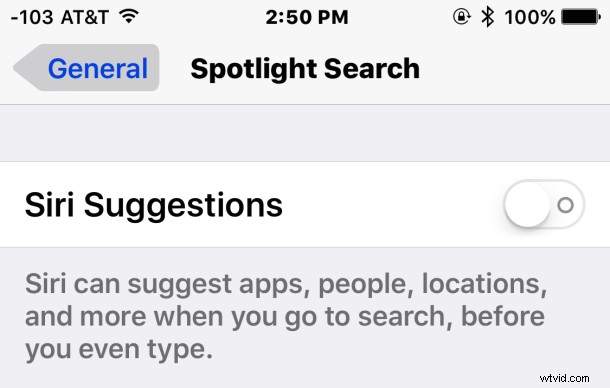
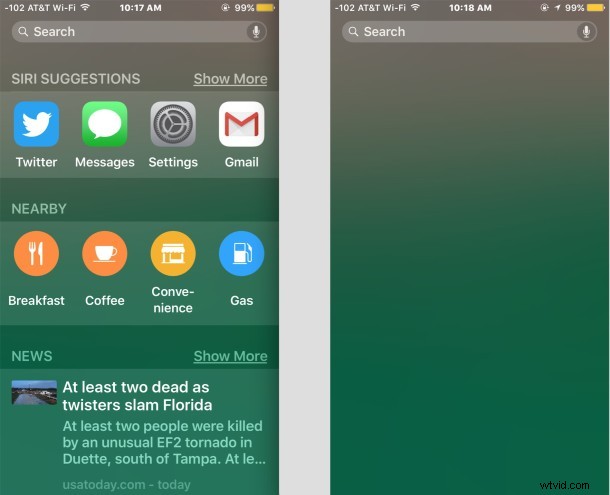
Returning to Spotlight in iOS will no longer have the contacts, apps, nearby locations, and news data within the search page.
In the screenshots below, the left side shows Siri Suggestions enabled in Spotlight search, and the right side shows Spotlight in iOS with Siri Suggestions disabled:
If you use this feature often you likely won’t want to do this, but there is a potential advantage for disabling Siri Suggestions on some older devices in that it speeds up iOS 9 on some of those devices with less powerful hardware, whereas the latest iPhone and iPads likely won’t notice any difference in performance.
Of course, you can also enable or re-enable Siri Suggestions by simply returning to the same settings screen and flipping the switch to the ON position.
Siri Suggestions is available in iOS 9 and later versions, so if you’re running a prior version of iOS you won’t see the feature at all, and thus won’t have a toggle to enable or disable the service.