
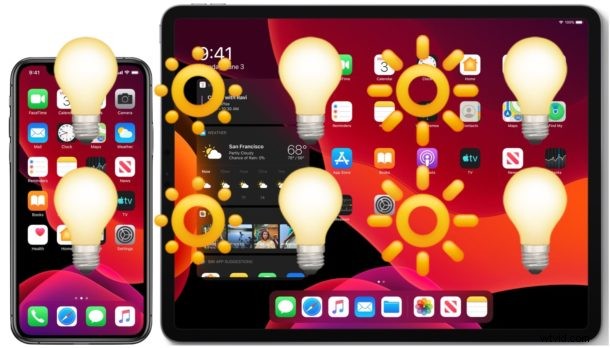
Auto-brightness automatically adjusts the display brightness of an iPhone or iPad depending on surrounding ambient lighting conditions. Some users love this feature and some users don’t, and there are Settings options to both enable and disable auto-brightness on iPhone or iPad.
If you want to change or turn off auto-brightness on iPhone or iPad running iOS 13, iOS 14, iPadOS 13, iPadOS 14 or later, you may have noticed the setting is no longer in the location it was before. This has led some users to believe the feature no longer exists, but it has just been relocated.
This article will show you how to find and adjust the auto-brightness setting on iPhone or iPad running modern iOS or iPadOS system software. These settings will apply to all modern iOS and iPad versions, as well as all modern devices like iPhone 11 and iPhone 12 too.
How to Disable Auto-Brightness in iOS 14, 13, and iPadOS 14, 13
Here is how you can disable auto-brightness on iPhone or iPad with the latest system software versions:
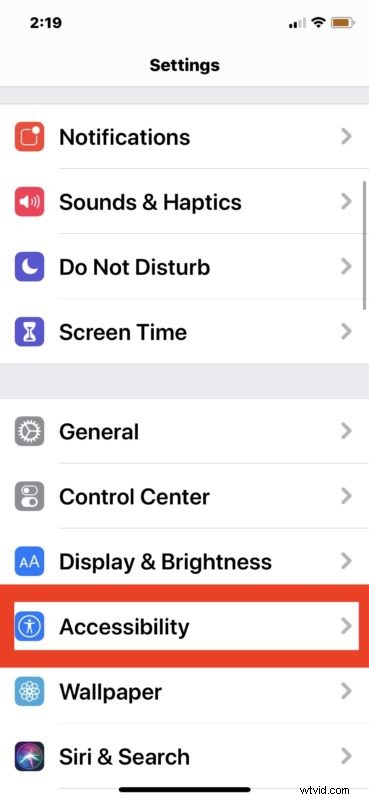
- Open the “Settings” app on the iPhone or iPad
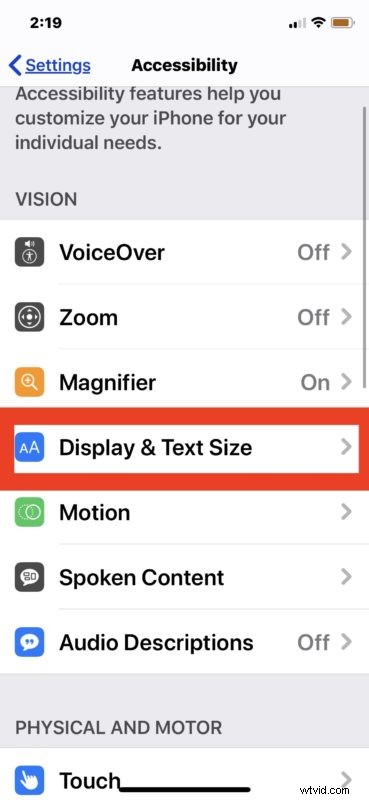
- Go to “Accessibility”
- Choose “Display & Text Size”
- Scroll down and find the “Auto-Brightness” setting and turn that to the OFF position by tapping the button
- Exit out of Settings
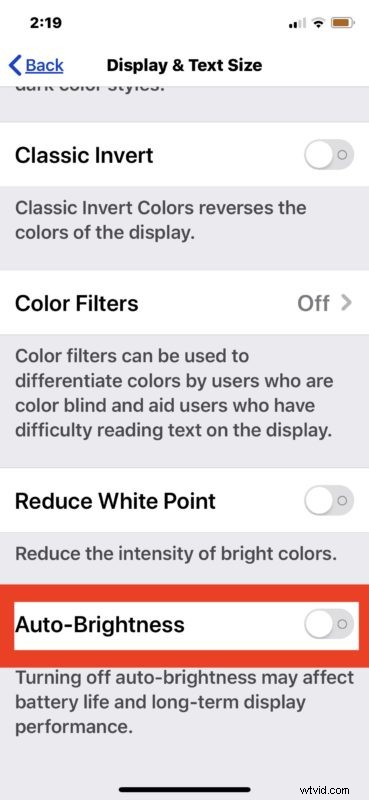
With this setting turned off, the iPhone or iPad display will no longer automatically adjust brightness. This means you have to adjust brightness entirely on your own through the Settings or Control center, as it will no longer adjust itself depending on what the surrounding light is.
Some users may prefer this setting if they want their screen to be super bright or very dim all the time, or even at a steady 50%, or whatever their choice is.
How to Enable Auto-Brightness on iPhone & iPad with iOS 14 / iOS 13 / iPadOS 13 / iPadOS 14
Here is how you can enable auto-brightness of display on the latest iOS and iPadOS system software versions:
- Open the “Settings” app on iPhone or iPad
- Go to “Accessibility”
- Go to “Display & Text Size”
- Locate the “Auto-Brightness” setting and turn to the ON position
- Exit out of Settings as usual
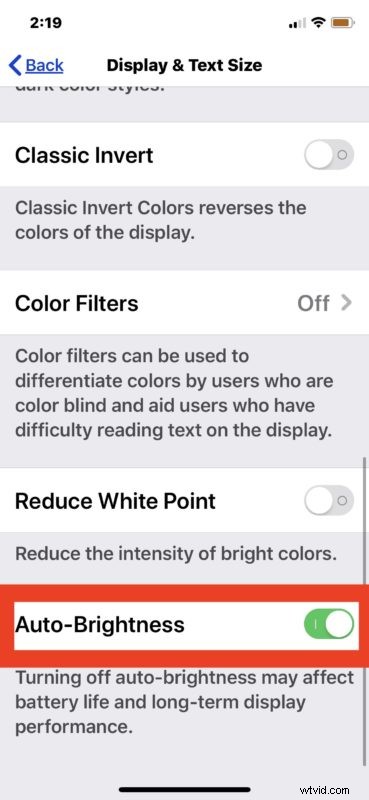
With auto-brightness enabled, the iPhone or iPad screen will adjust automatically as the lighting around you changes.
The default setting on iPhone and iPad is to have the auto-brightness feature enabled, but some users may wish to change the behavior, toggle the feature off or on, or adjust it and disable it as their needs demand.
This obviously applies to new versions of iOS and iPadOS. For some background, the “Auto-Brightness” setting has moved around multiple times in iOS so if you’re looking around for the setting and can’t find it then you must know which version of system software is running on your iPhone or iPad. For example, in iOS 12 the auto brightness setting is found and located in a different subsection of the Accessibility settings. Even earlier versions of iOS had the setting located directly in the broader Display & Brightness section of Settings, which was easily accessible when adjusting screen brightness in general. For whatever reason the latest and greatest iOS and iPadOS releases and newer have moved the setting agin, and because it has moved around multiple times in the past, don’t be surprised if you discover the setting has changed locations yet again in a future version of software for iPhone and iPad too.
You can also precisely adjust the Mac display brightness and stop the Mac screen from dimming automatically too, if you’re also a Mac user.
Do you use auto-brightness on iPhone or iPad? What do you think of it? Let us know your thoughts and opinions in the comments below.