
The Location Services capabilities of iPhone and iPad allow the devices to use onboard GPS, Wi-Fi, cell tower location data, and Bluetooth to determine the location of the iPhone or iPad. With iPhone, this location data can be pretty much exact, placing the location of the iPhone (and potentially you) perfectly on a map thanks to GPS and cell tower triangulation, and it’s impressively accurate with iPad too. Many iOS apps rely on location data to function properly, for example the various map applications rely on device location data to be able to accurately route directions to and from destinations, you can easily share your current location with someone through Messages, and weather apps use location data to gather location relevant weather data. But not everyone is thrilled with their location being used by apps or the iOS operating system, and some users in high security or privacy-important environments may wish to completely disable Location Services on their iPhone or iPad.
This article will show you how to disable all Location Services on an iPhone or iPad, preventing geographic location data from being gathered or used by all apps and most iOS services too.
How to Disable All Location Services on iPhone or iPad
Note this completely turns off all geographic location services and features on an iPhone or iPad, which may prevent some apps (like Maps) from behaving as expected:
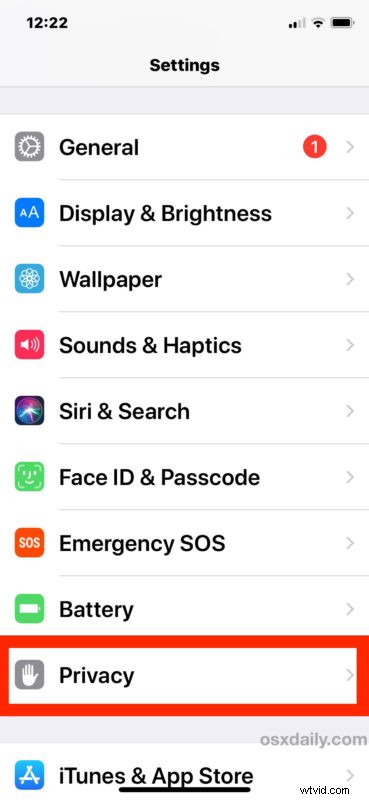
- Open the “Settings” app on iPhone or iPad
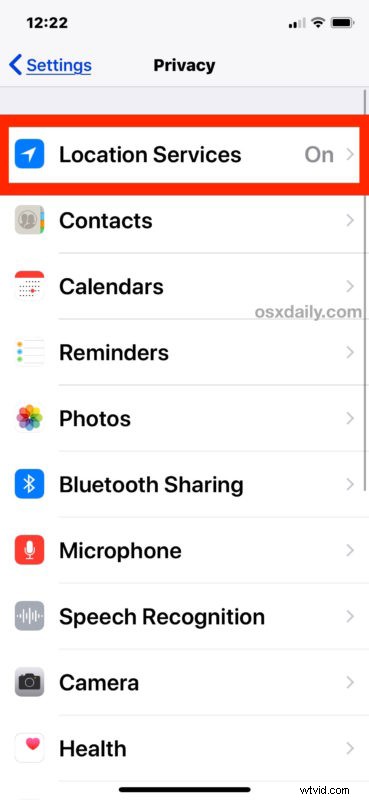
- Choose “Privacy” from the settings options
- Now choose “Location Services” from the privacy options
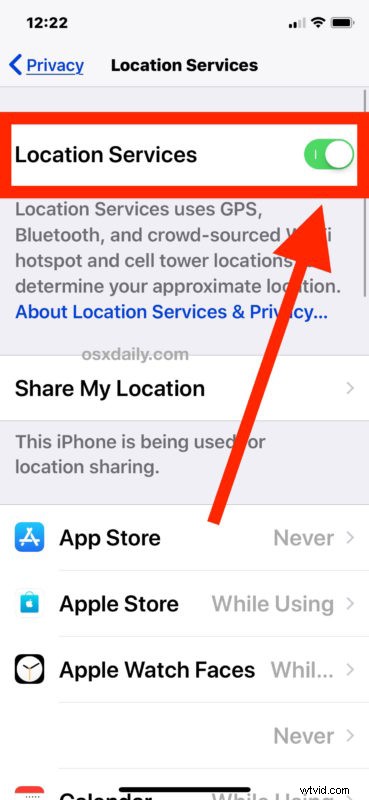
- To disable all Location Services completely, toggle the switch next to “Location Services” to the OFF position
- Confirm that you want to turn off and disable all possible location services by tapping on “Turn Off”

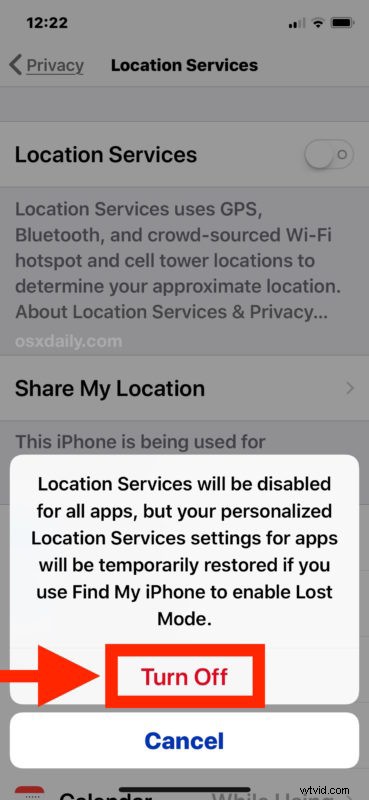
(Note that by disabling Location Services, the location information of an iPhone will still be used if that iPhone is used to place an emergency call from that device.*)
Remember, turning off Location Services completely will prevent any app from being able to use your geographic location or location data. That includes apps that require geolocation to function properly, like Maps.
You can also choose to disable Location Services on a per-app basis, which is a great targeted approach if you’d rather keep the Location Services feature on broadly, for things like maps and directions, but still want to strictly limit which apps and system services are able to use, access, and retrieve your location data. Most iPhone and iPad users should probably follow this approach, and leave the feature enabled while instead selectively turning off location data for the majority of apps. This is done through the same Location Services section of Privacy settings, but you must choose each app specifically in the list to customize, selecting “Never” to disable location services for the apps in question.
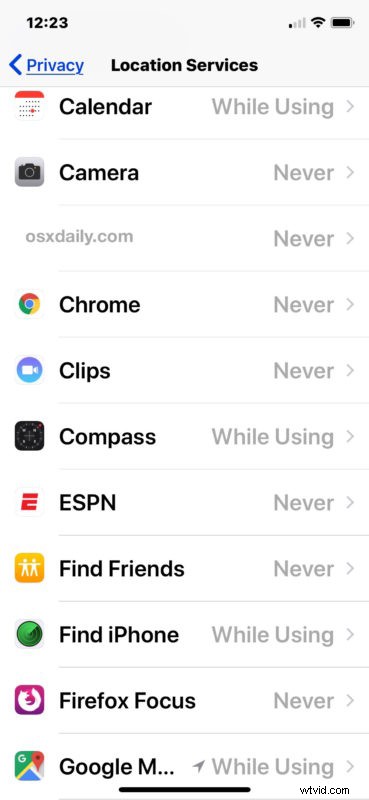
My personal opinion (in case you wanted my specific thoughts on this topic) is to leave Location Services enabled in iOS, but to very strictly limit what apps and services are able to use your location data. Frankly, the vast majority of apps do not need your location data, and they should not have access to it. My opinion is that some apps make sense to use your location data, including apps like Maps, Google Maps, Find My iPhone, Find My Friends, Compass, Waze, Weather, maybe even apps like Calendar and Reminders if you just location aware features in those. But that’s about it. Anything else almost certainly doesn’t need your location data to function, but if you aren’t sure, just think about how the app is used… is location required to get the usage you desire out of a particular app? The answer is probably obvious, and also probably a no. Does a camera app need your location in order to function? Nope, turn it off. Does social media need your location data to function? Nope, turn that off too. Does a language learning app need your location? Nope. Does a maps app that uses your current location to route you accurately to a destination need your location? Yes. Just use a little common sense.
Why Disable Geographic Location Services on an iPhone or iPad?
There are many possible reasons to disable geographic location services on an iPhone or iPad, but the most commonly cited reasons to disable location data come down to security and/or privacy.
Security: If you’re using an iPhone or iPad in a high security environment, you may want to disable location services to protect the location. In fact, depending on your job and where you live, you may even be required to disable location services on a device, as is the case now with many personnel employed by government and military.
Privacy: If you’re using an iPhone or iPad at a location that you’d rather keep private, perhaps your personal home address, an office, school, shelter, a favorite swim hole, or some other beautiful place that you’d rather not be discovered, overused, and ruined, then disabling geolocation and geotagging on iPhone camera, disabling geolocation and location services for all social media apps, removing location from photos, stripping geotags and geolocation and other metadata from pictures, and anything similar is a great idea.
Battery life: The other reason that many iPhone and iPad users choose to disable location services – though usually only on a per-app basis – is to improve device battery life. Using GPS and location data requires more power, and thus if an app is using a lot of location data, it can reduce the battery life of an iOS device. If you’re interested in this particular concept, we’ve discussed before here how you can find what apps are using location services in iOS, which can also help to mitigate battery drain on iPhone and iPad.
* You can get more information about location services and how your iPhone or iPad uses them by tapping the little blue text in the Settings that says “About Location Services & Privacy”, where you’ll be presented with the following information in the iOS Settings app (as of iOS 11.4.1), repeated below for easier reference and reading:
Ultimately it’s up to you as a user (and perhaps your employer) how you use Location Services in iOS and whether or not you want certain apps, all apps, or as little as possible using your geographic location data.
And for Mac users, you’re not left out either, though the process is obviously going to be different you can disable Location Services on a Mac too if desired.