
Instagram lets you hide like count on all the posts in your feed. If you don’t know how to hide likes on Instagram, you should read this post. It will explain how to turn off likes on Instagram in different ways.
Instagram gives you the option to turn off like counts so that no one can see how many likes you get. How to hide likes on Instagram? Let’s dive into this post! (Try MiniTool MovieMaker to make an Instagram video!)
How to Hide Likes on Instagram
There are three different ways to hide likes on Instagram.
How to Hide Likes on A Post Before You Publish It
The first way is to turn off likes on an Instagram post before sharing it. The steps are:
Step 1. Open your Instagram app, click the + to create a new post.
Step 2. Edit the post and save the changes.
Step 3. Tap on Advanced settings and you will see the option Hide like and view counts on this post. Turn it on to prevent people from seeing the total number of your likes and views.
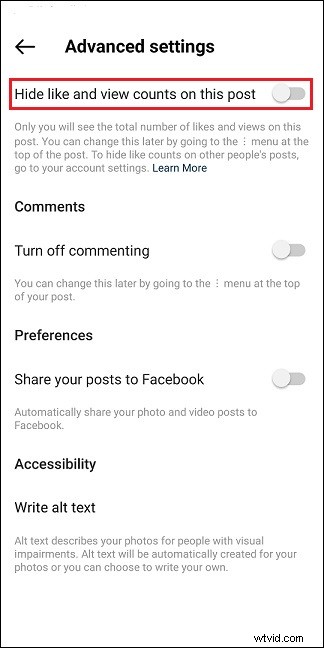
Step 4. Share the post.
How to Hide Likes on A Post You’ve Published
To turn off likes on Instagram posts that you’ve already published, take the steps below:
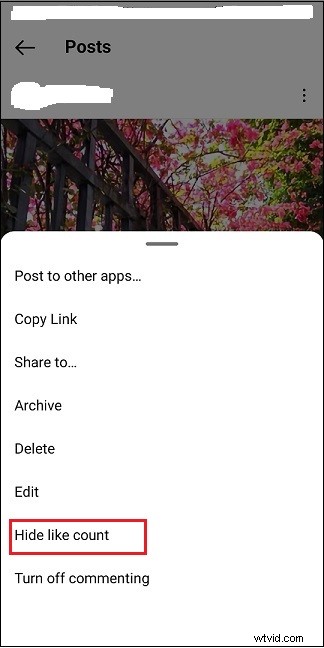
Step 1. Click on your profile and find the post you want to hide likes.
Step 2. Click the three dots and select the Hide like count option from the pop-up menu.
Want to know how to view Instagram anonymously? See this post: How to View Instagram Posts and Stories without Account.
How to Turn Off Likes on Other Instagram Accounts
If you wish to hide like counts on other people’s posts, here’s how to do it.
Step 1. Click your profile icon at the bottom right corner.
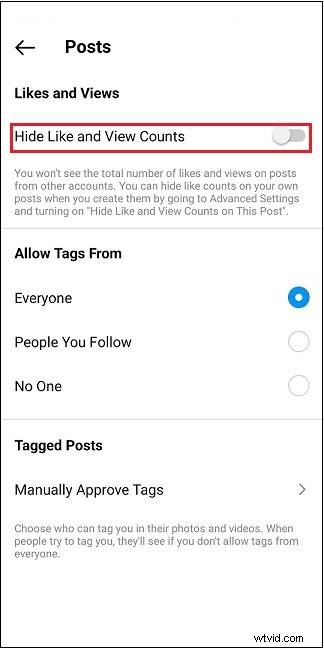
Step 2. Tap the Menu button and head to Settings > Privacy.
Step 3. Under ‘Interactions’, click Posts and toggle on Hide Like and View Counts.
Note:
Can’t find the hide like option on your Instagram app? Please update Instagram to the latest version and restart it.
How to Turn Off Instagram Notifications
When someone likes your post, Instagram will notify you even you’ve already disabled like counts. Here’s how to turn off notifications on Instagram.
Step 1. Go to your profile.
Step 2. Tap the Menu button and choose Settings > Notifications.
Step 3. Select Posts, Stories and Comments and check the Off option.
Related article: Instagram Not Working? Here’re 8 Ways You Can Try!
Tip: How to See Posts You’ve Liked on Instagram
How to view your previously liked posts on Instagram? Here’s how:
Step 1. Open your profile and click the Menu button.
Step 2. From the drop-down menu, select Settings > Account.
Step 3. Click Posts You’ve liked and you can see the 300 most recent liked posts.
Conclusion
It’s simple to hide likes on Instagram. Follow this guide to prevent you or others from seeing likes on Instagram!