
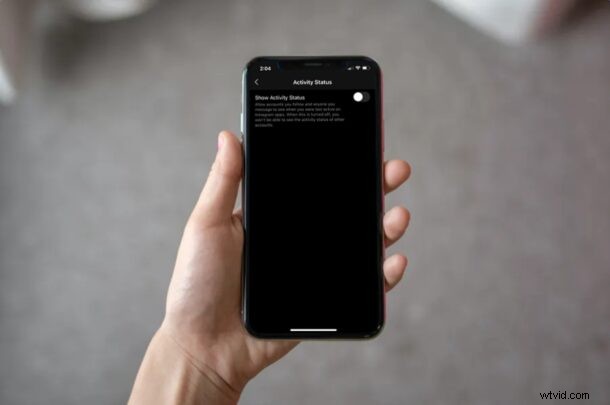
Do you use Instagram on a regular basis to stay connected with your friends, family, and colleagues? In that case, you may have already noticed that Instagram Direct shows when a user was last active. It’s similar to WhatsApp’s Last Seen feature, but it can be easily disabled if needed.
For those who aren’t aware, Instagram Direct allows users to send private messages to other users. A user’s online or last active status shows up right below their Instagram name when you open Direct and go through the list of conversations. Although this is a pretty good feature to have, privacy buffs might rather want to keep this turned off, so that others have little to no idea regarding their Instagram activity.
Looking forward to hiding your online status and last active details on Instagram? Read on to learn how to hide your activity status on Instagram.
How to Hide Activity Status on Instagram
Hiding your activity status is actually a pretty simple and straightforward procedure on Instagram, regardless of whether you’re accessing it from an iPhone or iPad. Just follow the steps below to get started.
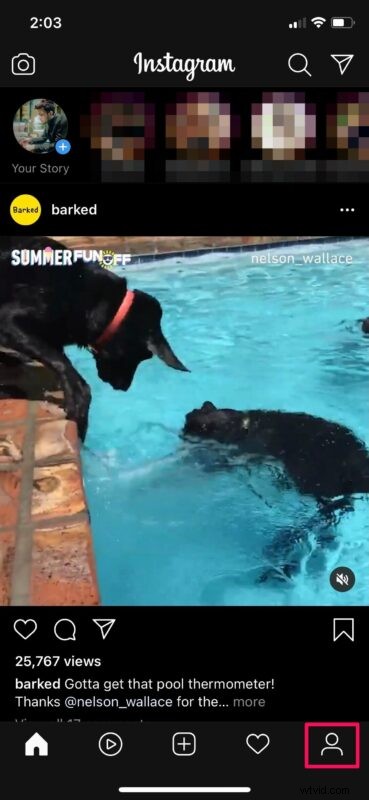
- Open “Instagram” from the home screen of your iPhone or iPad.

- Launching the app will take you to the home feed. Tap on the profile icon at the bottom-right corner of your screen to visit your own profile.
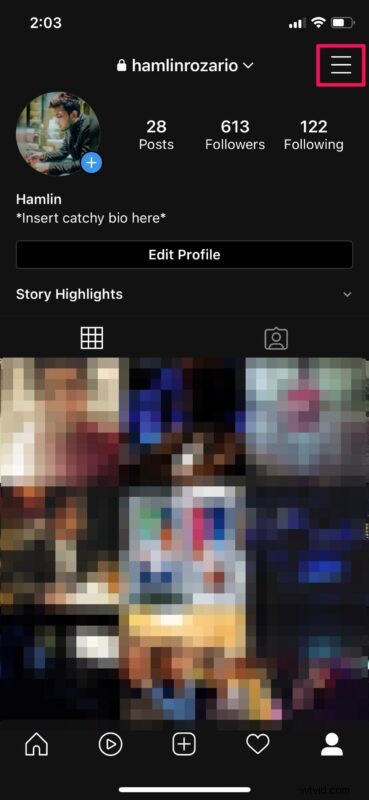
- Next, tap on the triple-line icon at the top-right corner of your screen.
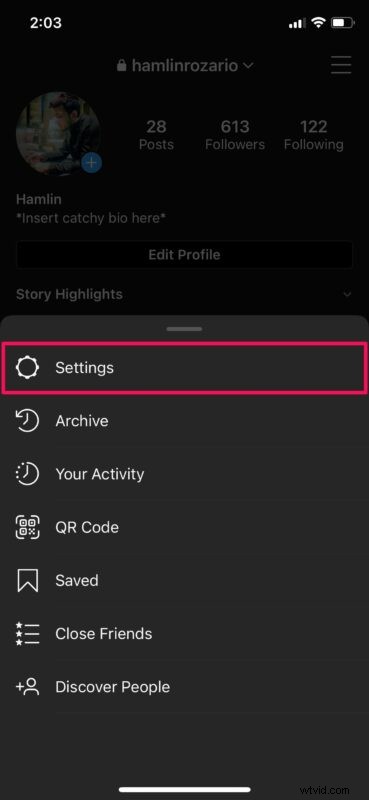
- A quick menu will pop up from below. Here, choose “Settings” to proceed further.
- Now, tap on “Privacy” located just below Notifications, as shown in the screenshot below.
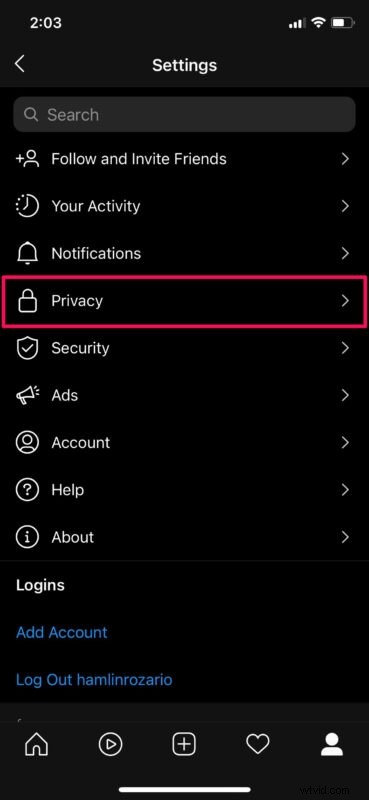
- In your privacy settings menu, tap on “Activity Status” located just above the Connections category.
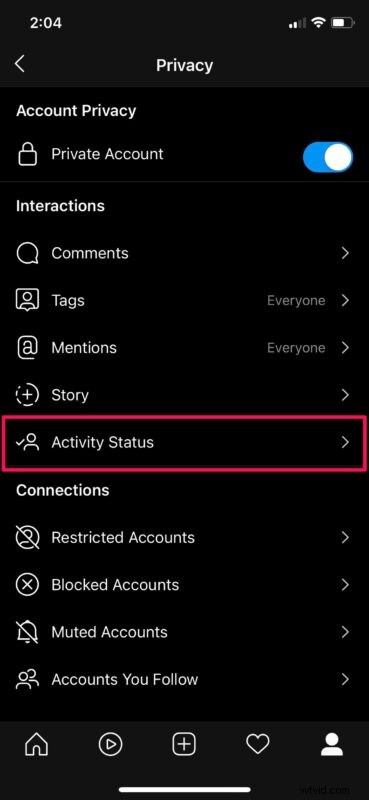
- Now, simply use the toggle to disable Activity Status for your account.
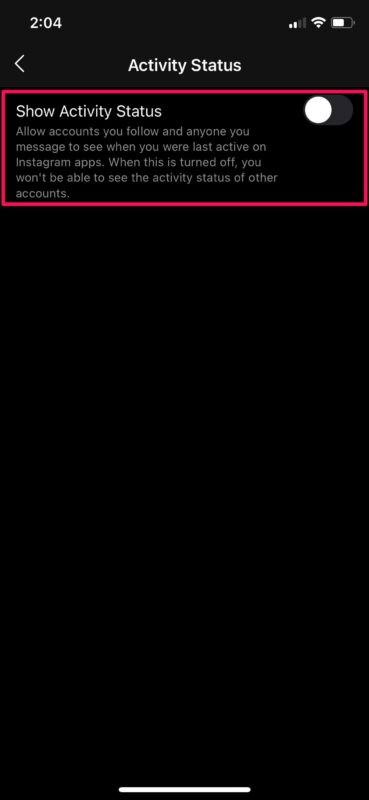
It’s pretty easy to hide your activity on Instagram once you learn how this works. And of course you can always reverse this if you want to show and enable activity status again.
From now on, the accounts you follow and people you’ve texted over Instagram Direct will no longer be able to see if you’re online or when you were last active. Keep in mind that you won’t be able to see the activity statuses of other Instagram users too.
By default, although Activity Status is turned on, only people who you follow or users you have previously DM’ed will be able to see your online and last active statuses on Instagram. Therefore, if you have a public account, you don’t have to worry about your followers keeping track of your Instagram activity.
Do you use other popular social networking platforms to stay connected with your loved ones? Well, if you use WhatsApp as your primary messaging platform, you’ll be able to hide your last seen status in WhatsApp in a similar way. Or, if you use Facebook, you can turn off your active status so that your friends have no clue when you go online.
Did you hide your Instagram activity from the people you follow and message? What are your overall thoughts on this handy privacy feature? Do share your valuable opinions and experiences in the comments section down below.