
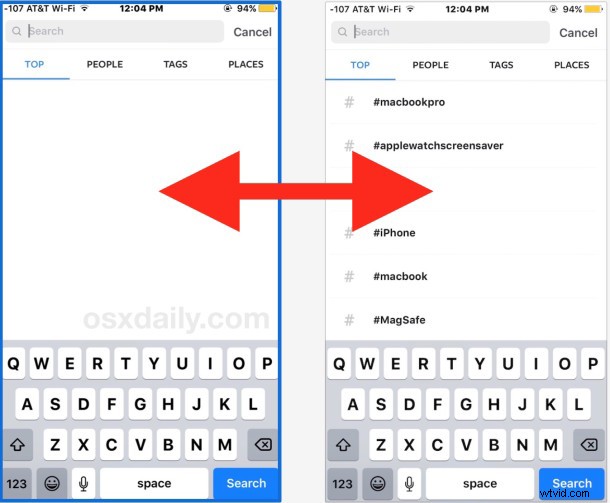
As Instagram continues to grow with pictures of just about anything imaginable, you may find yourself browsing and searching for photos of, well, anything. Instagram keeps track of the searches you make in the app, and when you return to the search tab and search field, you’ll find your prior search history is visible. That’s helpful for quickly returning to a prior search, but sometimes you may want to clear that search history in Instagram as well.
Fortunately, Instagram allows deletion of the prior searches, so you can wipe away the search history all of those iffy keywords, hashtags, and user names that you don’t want showing up in the search section of the app anymore.
Deleting Search History in Instagram
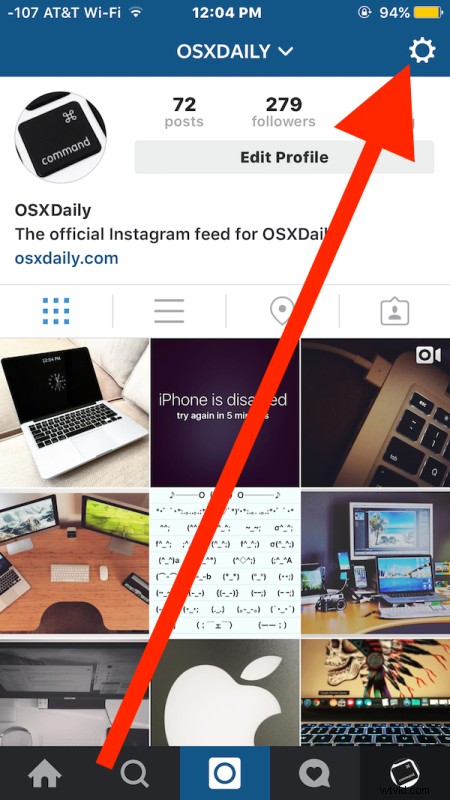
- Open Instagram and tap on the profile button in the lower right corner to access the primary profile page of the active account
- Click on the gear icon to access the Instagram Options page
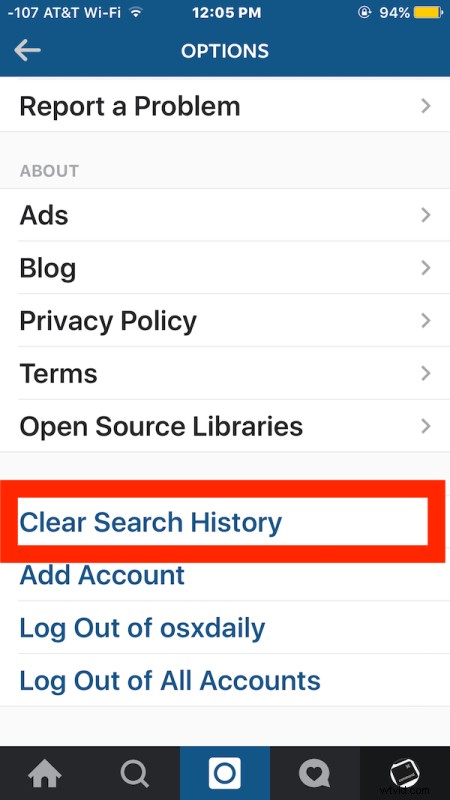
- Scroll all the way down in the Options menu and tap on “Clear Search History”
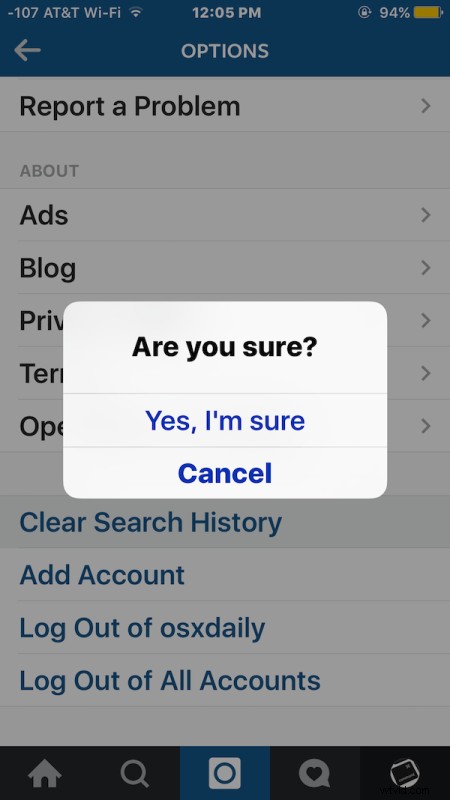
- Confirm that you want to clear search history by tapping on the Yes I’m Sure button
- Return to the Search page on Instagram, the prior search history will no longer be visible

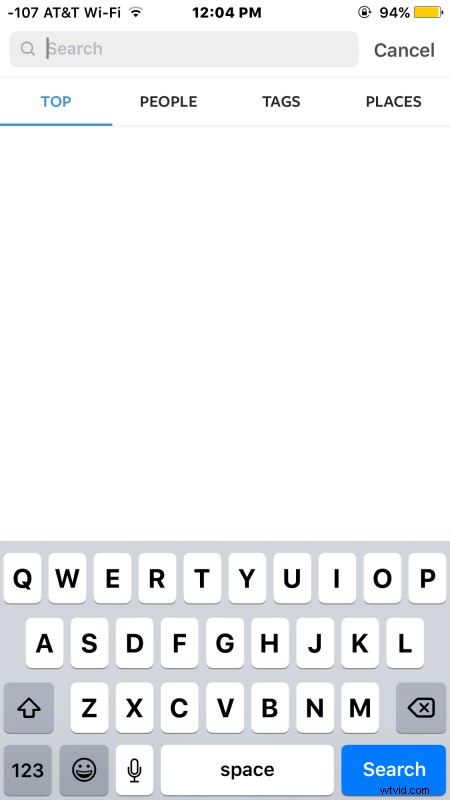
This is easy and offers a simple way to get some privacy back, or to ditch some dubious searches or parameters that you no longer want visible in the search history section. Maybe you were drooling over pictures of chocolate cake, or obsessing over pictures of a fancy car, or paying a little too close attention to a particular yoga pose, whatever the reason, you’ve cleared the searches and you can go about your way without the prior search history there. Of course even if you’re not clearing the search history because you’re embarrassed by whatever it was or want some privacy, it can also be helpful to clear so that you have a more simplified quick search section again.
This clears the search history for the active username only, if you use multiple Instagram accounts you will need to clear their search history individually for each account.
This applies to the Instagram app for iPhone and Android too. Thanks to Cult Of Mac for the handy tip idea.