
 Most iPhone and iPad users will use the same Apple ID and iCloud account repeatedly on the same device and across other devices, as they should, since that is how they are designed to work. Nonetheless sometimes you may buy an iPhone, iPad, or iPod touch on the used market and discover that someone has made and used so many different Apple ID or iCloud accounts on the device that an error message shows up when going through the device setup, saying that the device is “no longer eligible” to make an account. The exact error messages are “Account Limit Reached: This device is no longer eligible for creating a free iCloud account” and “This device is no longer eligible for creating an Apple ID”.
If you see an “Account Limit Reached” or “no longer eligible” message when trying to setup an iOS device, or when trying to create an account on a specific iPhone, iPad, or iPod touch, then here is what you can do to fix it.
Before anything else you should make sure the iOS device is no longer associated with the prior owners account. The easiest way to do that is have the original owner disable Find My iPhone on the device (in Settings > iCloud) and then log out of iCloud on the device. If the person is not around to do that, they can remove iCloud and the Activation Lock remotely by using the iCloud.com website. After you have done that, delete the iCloud account from iOS so that you can proceed with creating and using a new one. Assuming there is no associated ID with the device anymore, you can proceed.
How to Get Around “Account Limit Reached: This device is no longer eligible for creating an Apple ID” Error and Make a New ID Anyway
This process can be started on any device or computer, with any web browser. You’ll need the original iOS device as well.
- Open a web browser on another device (or Safari on the device in question) and go to this webpage to create a new Apple ID at apple.com
- Go through the process of creating a new Apple ID and iCloud account as usual, you’ll need to use an email account that is not otherwise associated with an Apple account (if you forgot your Apple ID or password, reset it with these instructions instead)
- Back on the iOS device, go to Settings > iCloud > and enter the newly created Apple ID to login to the device
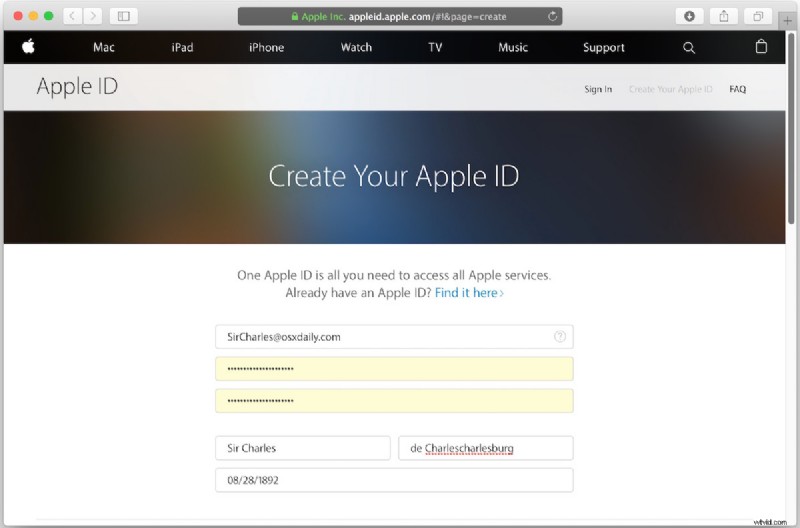
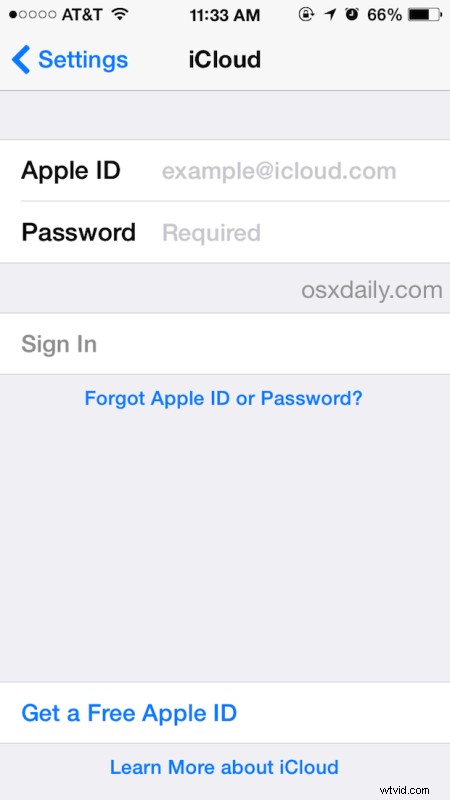
That’s it, you’ve created a new Apple ID and can log into iCloud on the device that moments ago was saying it was no longer eligible to do so.
This is a pretty rare situation to encounter, but it seems to pop up most common with older iPhone models that have been resold or handed down many times, particularly in families or on the used device market. So, rather than freak out and think the device is useless, just remember if you see the ‘not eligible’ error, just make a new Apple ID from a different device or different computer using the Apple website, and log in as usual afterwards. Easy!
Have another solution for dealing with this error message? Let us know in the comments.