
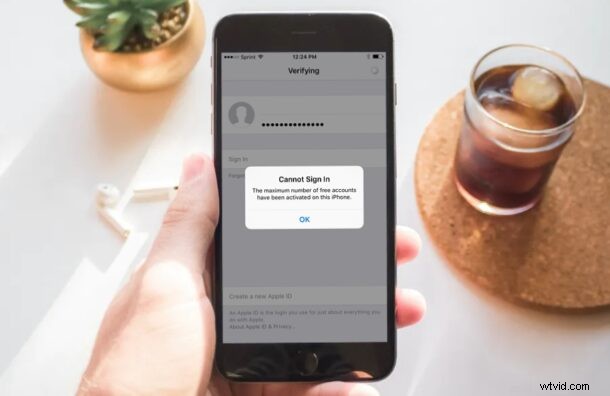
Are you unable to create a new Apple ID or iCloud account on your iPhone? More specifically, are you getting an error stating “maximum number of free accounts have been activated on this iPhone”? If so, you’re probably wondering what to do about it.
Apple limits iPhones and iPads to a maximum of three free iCloud accounts or Apple IDs per device. This is a hardware limitation and there’s nothing you can do about it. Typically, iOS and iPadOS users sign in with just one Apple account and use it across all their devices, so there’s no way you’re reaching the limit. However, if you bought a used iPhone that was previously used to create multiple accounts by its original owner, you may come across this issue.
Although there’s no way to get rid of this hardware limitation, there’s a workaround that you can use to sign in to your iPhone with a new Apple account. So, read on to learn how you can avoid this error.
How to Fix “maximum number of free accounts have been activated on this iPhone” Error
This is the only workaround that you can use to avoid getting this error on your iPhone. You’ll need to create a new iCloud account on a different device. So, without further ado, let’s take a look.
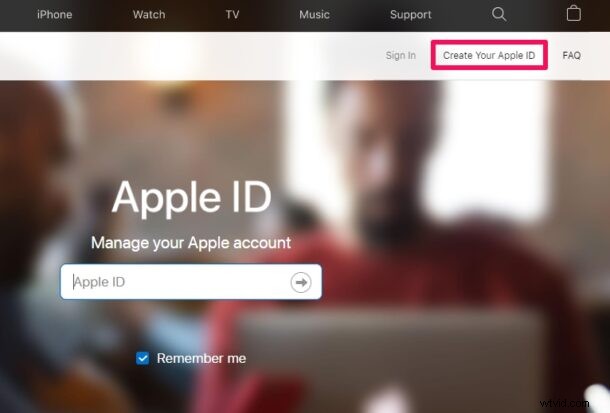
- Launch the web browser on any other device and head over to appleid.apple.com. Here, click on “Create Your Apple ID” located close to the top-right corner of the page.
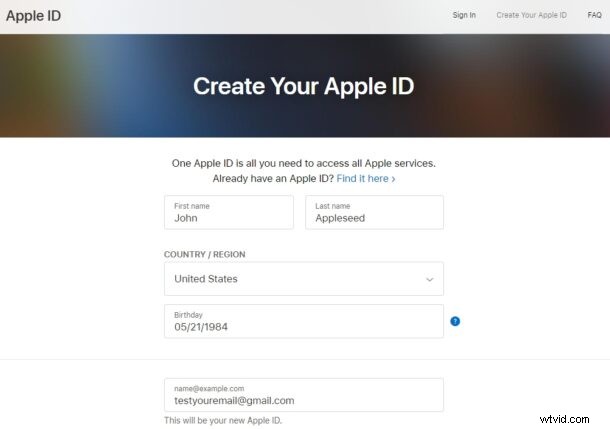
- Now, fill in your personal details and make sure you’re using an email address that’s not associated with an Apple account. Finish creating your Apple ID.
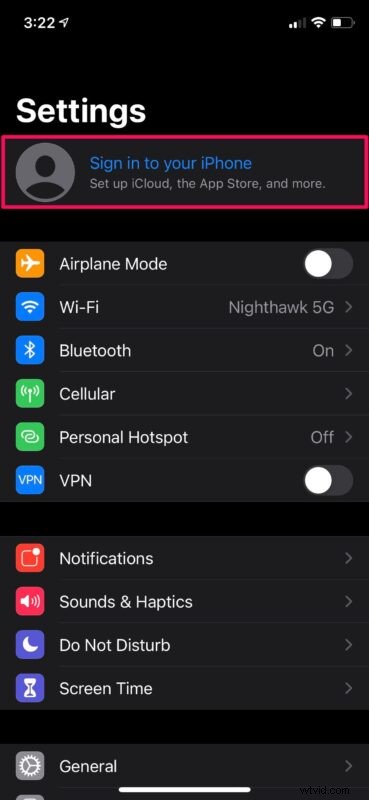
- Now, go to settings from the home screen of your iPhone.

- In the settings menu, tap on “Sign in to your iPhone” located right at the top.
- Enter the login details for the Apple account that you just created and tap on “Next” located at the top-right corner of your screen.
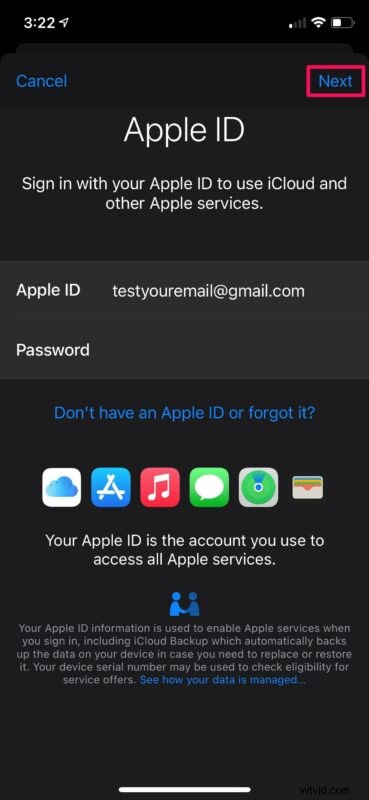
Now you should be able to sign in to the device without getting the same error.
The hardware limitation here is that you can simply cannot create more than three new iCloud or Apple accounts on a single device. However, by skipping that step and using a different device for creating a new account, you can avoid getting this error.
This issue is mostly faced by people who’ve purchased second-hand iPhones, and it’s not entirely clear why this feature exists. Maybe Apple added this limit to stop people from abusing the free 5 GB iCloud storage space that comes with every Apple account, or perhaps as a way to reduce device churn.
Although we were focusing specifically on iPhones in this article, this limitation is also applicable to other Apple devices like iPads, iPods, and even Macs. Therefore, the best way to make a new iCloud account without affecting the limit would be by using the web browser on any of your other devices rather than doing it via Settings.
We hope you were able to work your way around the “maximum number of free accounts have been activated on this iPhone” Error. How do you feel about this hardware limitation? Should Apple increase this limit or remove it all together? Do you have any additional insight as to why this feature exists, or another approach to get around it? Share your thoughts, experiences, and insight in the comments.