
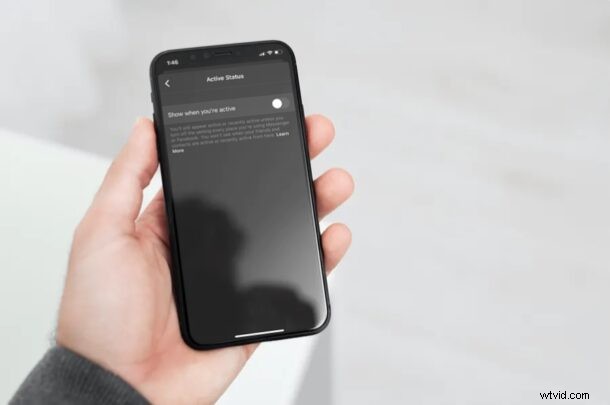
Do you use Facebook to stay connected with your friends, family, and colleagues? If so, do you want to hide your online status from your Facebook friends whenever you launch Messenger? Thankfully, it’s pretty easy to disable your active status on Facebook Messenger, regardless of what device you’re using Facebook from.
Facebook’s active status is pretty similar to the activity status on Instagram and the Last Seen feature on WhatsApp. It allows other users to see if you’re online or when you were last online on Messenger. Although this is a pretty good feature to have, privacy buffs might rather want to keep this turned off, so that others have little to no idea regarding their Facebook activity. So, looking to disable the active status and online status indicators on Facebook? Read along and you’ll have done so in a matter of seconds.
How to Hide Online Status on Facebook
Hiding your active or online status is actually a pretty simple and straightforward procedure on Facebook, regardless of whether you’re accessing Messenger from an iPhone or iPad, or Android for that matter.
- Launch the “Messenger” app on your iPhone or iPad.

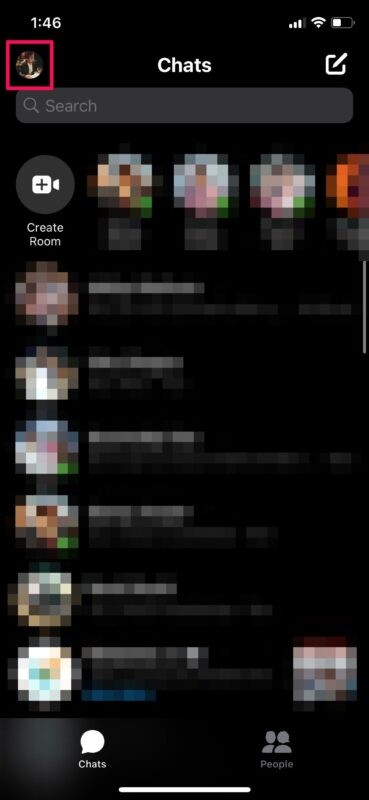
- This will take you to the chats section of the app. Here, tap on your profile icon at the top-left corner of your screen.
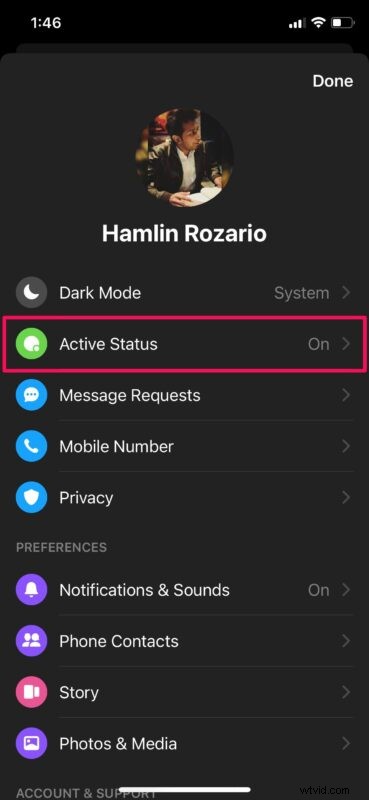
- Now, tap on the “Active Status” option located right below Dark Mode, as shown in the screenshot below.
- Here, simply use the toggle to quickly disable your online status.
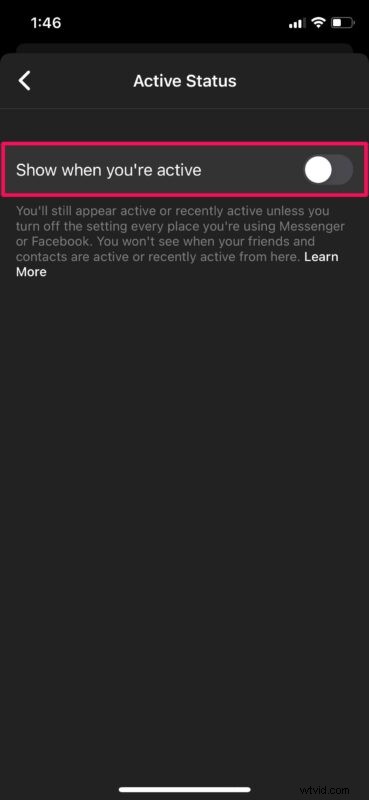
There you go. You’ve hidden your online presence from your other Facebook friends. Pretty easy, right?
Keep in mind that if you use Facebook or Messenger on multiple devices, you need to make sure that you’ve disabled your active status on all your other devices too. Or else, you’ll still appear active or recently active when you log on to Facebook or Messenger on a device where the setting is enabled.
When you choose to hide your online status, you will not be able to view your friends’ active statuses as well. So, you’re out of luck if you’re trying to be sneaky.
Do you use other popular social networking platforms to stay connected with your loved ones? Well, if you use WhatsApp as your primary messaging platform, you’ll be able to hide your last seen status in a similar way. Or, if you use Instagram, you can turn off your activity status so that the people you follow or DM have no clue when you go online.
Now you know how to keep yourself hidden while you chat with your close friends on Facebook using Messenger. Feel free to share any thoughts, experiences, or opinions on this topic in the comments.