
Like Instagram, you can hide like counts on your Facebook posts, too. Also, you can make your Facebook page likes private. Can you hide likes on Facebook? How to hide likes on Facebook? This post offers a step-by-step guide.
If you think that focusing too much on Facebook like counts has a negative impact on you, you can hide likes from your Facebook posts to have positive experiences. In this post, we’ll show you how to hide likes on Facebook on your smartphones and via web browsers.
If you want to make a stunning video for Facebook, try MiniTool MovieMaker.
How to Hide Likes on Facebook Posts
In this section, we’ll explain how to hide likes on Facebook on mobile phones and desktop.
How to Hide Likes on Facebook on Mobile
Step 1. Launch the Facebook app on your Android or iOS device. Click the three lines icon at the top right corner on Android, or click the Menu button at the bottom right on iPhone.
Step 2. Tap the Settings & Privacy option, and click the Settings.
Step 3. Click on the Reaction Preferences under the Preferences section.
Step 4. You’ll see the On posts from others toggle and On your Posts toggle. Toggle on On your posts so that other people won’t see the number of reactions under your Facebook posts. In other words, this can hide likes from your posts on Facebook.
To hide friends likes on Facebook, turn on the toggle for On posts from others so that you won’t see the total number of reactions for posts others share to News Feed, Pages, and groups.
Want to save pictures from Facebook? Read this post: 4 Practical Methods to Help You Download Facebook Photos.
How to Hide Likes on Facebook on Desktop
Step 1. Open the Facebook desktop app or go to Facebook via a web browser. Tap the Account icon (your profile picture) at the bottom left
Step 2. Click the Settings & privacy, then select the News Feed preferences.
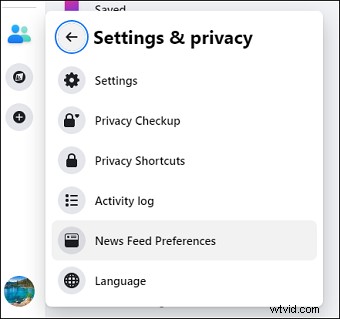
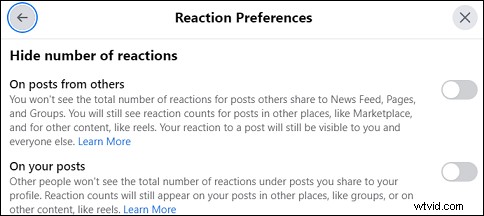
Step 3. Choose the Reaction Preferences from the pop-up window.
Step 4. Turn on the toggle for On your posts to stop other people from seeing the number of reactions under posts you share to your profile. Or you can choose the On posts from others to hide friends likes for posts they share to News Feed, Pages, and Groups.
How to Hide Page Likes on Facebook
Apart from hiding likes for Facebook posts, you can also hide likes on specific Page categories on Facebook via a web browser. Here’s how to hide Page likes on Facebook via a web browser.
Step 1. Open facebook.com via a web browser, and click the profile picture at the top left to go to your profile.
Step 2. Click on More and then select the Likes from the dropdown list.
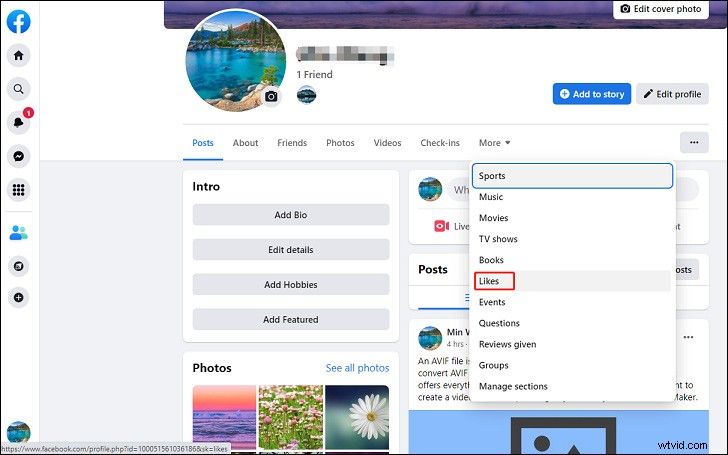
Step 3. Tap the three dots icon in the Likes box and then select the Edit the Privacy of Your Likes option.
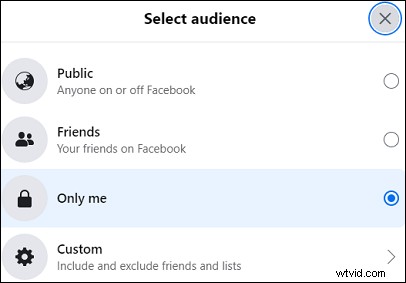
Step 4. From the Edit Privacy of Likes window, choose a Page category, and click the Public icon.
Step 5. You’ll see 4 options, Public, Friends, Only me, Custom. To remove likes from public on Facebook, you can choose Friends, or Only me, or Custom, and then click the Close.
Conclusion
That’s all about on how to hide likes on Facebook. Now, you can follow the above methods to hide like counts from your Facebook posts on specific Page categories on Facebook.