
If you don’t want to receive the same message notifications from Facebook (Meta) and Instagram, just disconnect Facebook from Instagram. This post offers a step-by-step guide on how to Facebook and Instagram from the Instagram website or app.
If you want to keep your Facebook or Instagram account separate to post from one platform to the other, just unlink Facebook and Instagram. The following will explain how to unlink Facebook and Instagram, and it also includes instructions on how to connect Facebook to Instagram and
Want a free video editor for your Facebook and Instagram videos? MiniTool MovieMaker is recommended here.
How to Unlink Facebook and Instagram
It’s available to unlink Facebook and Instagram from the Instagram website or mobile app.
How to Disconnect Facebook from Instagram on Desktop
Step 1. On your computer, open a web browser and go to the Instagram website, and log in.
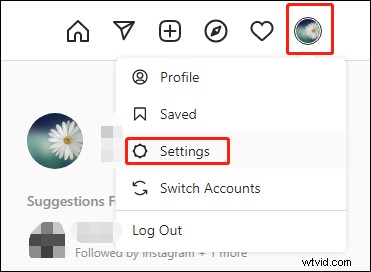
Step 2. At the upper right corner, click your profile picture and select Settings.
Step 3. Scroll down to the lower-left corner, tap the Accounts Center. The Accounts & profiles window opens and you’ll see the linked accounts.
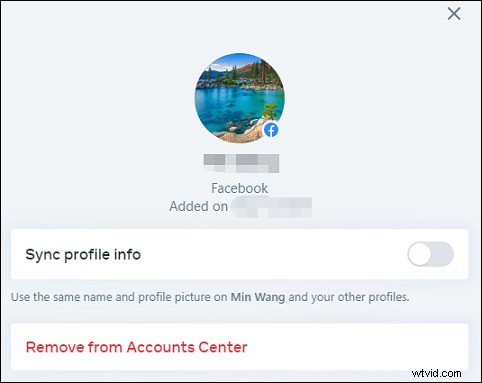
Step 4. Click the Facebook account you want to remove.
Step 5. Tap the Remove from Accounts Center from the pop-up window, and click the Continue to confirm.
How to Remove Facebook from Instagram on Mobile
Step 1. Open the Instagram app on your Android, iPhone, or iPad.
Step 2. Tap your profile icon at the bottom right, and click the Menu icon (three lines on iOS and three dots on Android), and tap the Settings.
Step 3. Next, click the Accounts Center and Account & profiles.
Step 4. Choose and click the Facebook you want to remove, then click the Remove from Accounts Center, then complete the process with on-screen prompts.
Note:
You’d better convert a business Instagram page to a personal one before unlinking Facebook and Instagram.
How to Connect Facebook to Instagram
If you want to share the Facebook post to Instagram again, you should link Facebook and Instagram. Here’s how to connect Facebook to Instagram.
Option 1. Connect Facebook and Instagram from the Instagram mobile app.
1. Run your Instagram app, tap your profile picture at the bottom right.
2. Click the menu icon, and tap the Settings > Account > Linked Accounts.
3. Click Facebook and log in and click Connect. To share Instagram post to Facebook automatically, select Start Sharing to Facebook.
Option 2. Connect Facebook and Instagram from the Facebook website.
1. Go to your Facebook page. On the left side, scroll down to the Settings and click it.
2. From the Page settings, select Instagram, and click on Connect account.
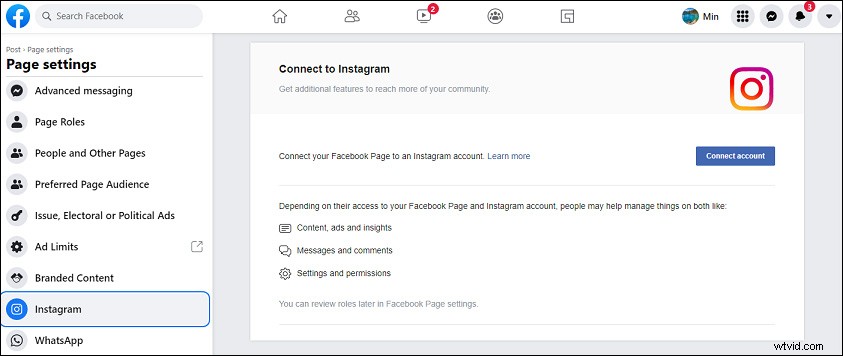
3. A pop-up window appears, click Continue and sign in with your Instagram account.
Conclusion
That’s all about how to unlink Facebook and Instagram. please keep in mind that you can only disconnect Facebook account from Instagram app on your Android and iOS or via Instagram website.