
Facebook has a feature called 3D Photo. It gives a 3D effect to your photo and brings the image to life with depth and movement. How to make a 3D photo on Facebook? What’s the best app to capture 3D photos? This post will answer these questions.
How to Make a 3D Photo on Facebook
Facebook allows users with supported smartphones to make 3D photos and 3D selfies.
Supported iPhones: iPhone 7 or higher
Supported Android devices: recent midrange Android devices
If you want to make a video from your photos, you can use MiniTool MovieMaker, a watermark-free photo video maker.
Option 1. Create a Facebook 3D Photo
Take the following steps to turn your photos to 3D on Facebook.
Step 1. Launch the Facebook App. Tap What’s on your mind at the top of your News Feed to create a post.
Step 2. Choose the Photo/Video options.
Step 3. Select a photo from your Camera Roll and click Done.
Step 4. In the top left of the photo, you will see the Make 3D option. Tap on it and Facebook will create a 3D photo for you.
If you don’t want to add a 3D photo effect, just tap Remove 3D in the top left corner of the photo.
Step 5. Click Post to share your 3D photo to Facebook.
Note:
You may not be able to convert an edited photo into a 3D photo and you can only share one 3D photo at a time.
Option 2. Create a Facebook 3D Photo
Step 1. Open Facebook and tap What’s on your mind.
Step 2. Scroll down to find the 3D Photo option. Tap on 3D Photo and select a photo from your phone. Facebook will take a few seconds to convert the photo into a 3D photo.
Step 3. Once done, click Post in the upper-right corner.
Post a Facebook 3D Photo on Computer
Do you know how to make a 3D photo on Facebook on your computer? Follow the steps below to create a Facebook 3D photo on your PC.
Step 1. Find the photo you want to convert into 3D on Facebook.
Step 2. Right-click the photo to copy it and paste the photo into the same folder. Right-click the copied photo, select rename, delete “-Copy” and type “_depth”.
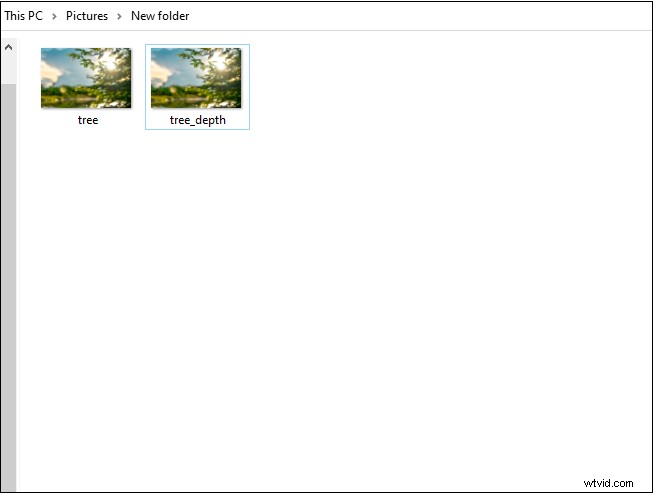
Step 3. Go to the Facebook website and log in to your Facebook account.
Step 4. Click on Photo/video and select the two pictures. Click Open to add the photos.
Step 5. Wait for a few seconds and Facebook will start creating your 3D photo.
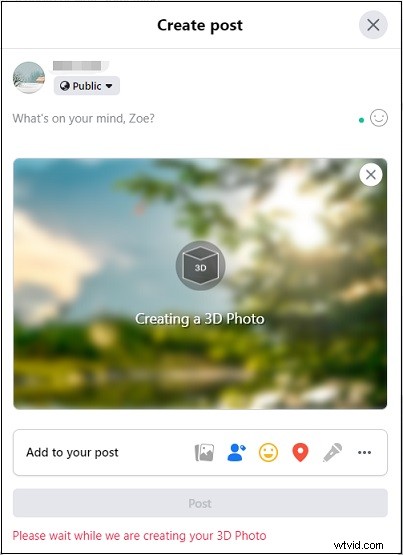
Step 6. When the process is finished, click Post. Then move your mouse to view this photo in 3D.
5 Best Apps to Capture 3D Photos
Here are the 5 best apps that you can use to capture and make 3D photos easily.
- LucidPix
- Loopsie
- Parallax 3D Photo Editor
- PopPic
- Focos
Related article: Top 4 Exceptional 360 Degree Video Camera Apps
Conclusion
You can create a cool 3D photo using Facebook or pick a 3D photo app to create one!